CONSOLE AI | Adding Devices (CP2) | 121
Adding a DIALOG
®
20 Wireless Mic
You can add a DIALOG
®
20 Wireless Mic device to a CP2 project.
Important:
Before you connect a DIALOG 20 Wireless Mic System to a CP2, be sure the DIALOG 20 system
has firmware MUX 2.3, RXM 1.6.5, TXM 1.3.5, TX 1.2.8, and RXS 1.4.1 or greater. Use the
DIALOG 20 Remote software to upgrade the DIALOG 20 firmware. See the WS800 & DIALOG 20
Remote Software User Manual for more information about upgrading the firmware.
To add a DIALOG 20 Wireless Mic device:
1. If you have not already done so, create or open a CP2 project.
2.
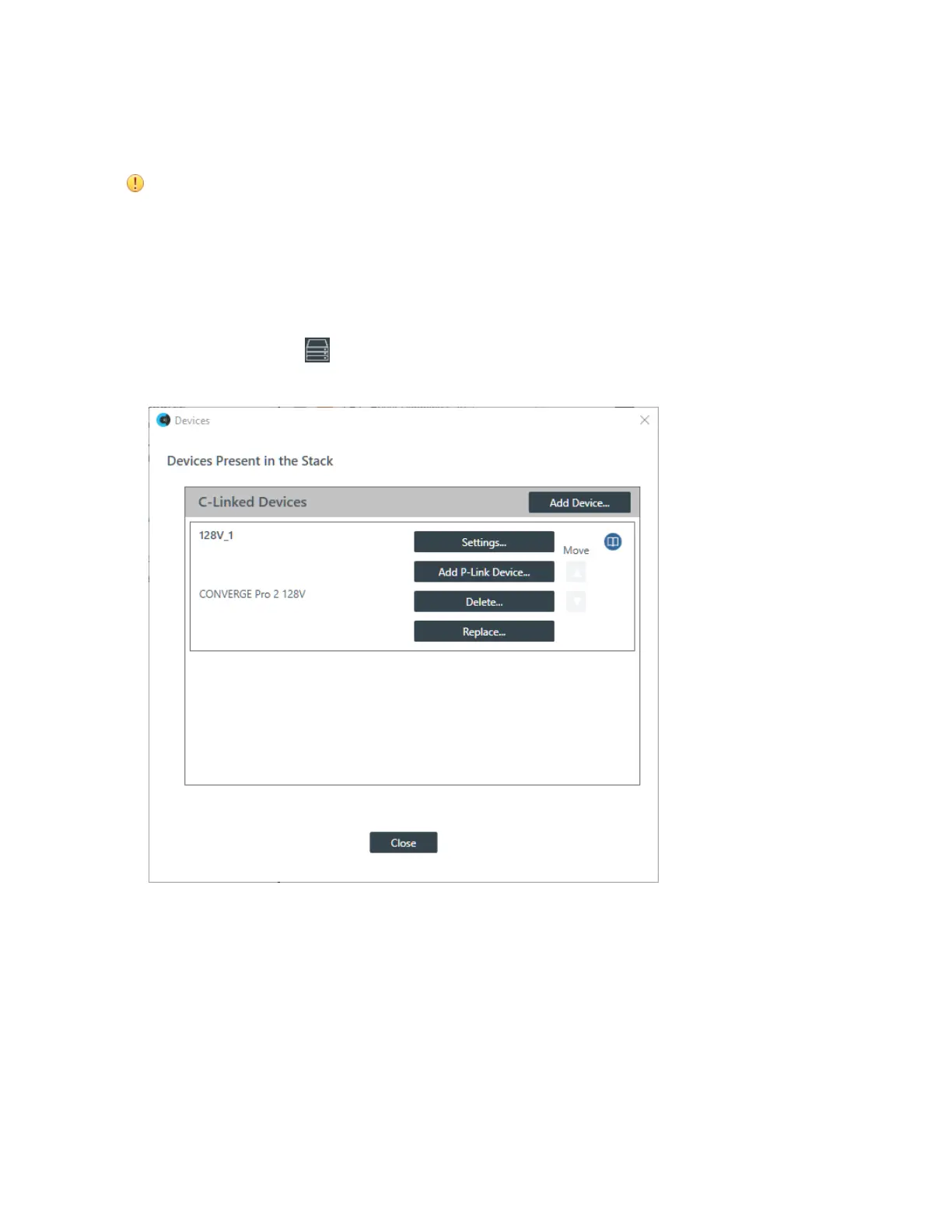
From the toolbar, click .
The Devices dialog box appears:
3. Click Add P-Link Device for the CONVERGE Pro 2 to which the DIALOG 20 is attached.
CONVERGE Pro 2 connects to the DIALOG 20 using a proprietary P-Link connection.
The Add Device dialog box appears:
CONSOLE AI User Manual









 To Next Page