CONSOLE AI | Online Mode (CP2) | 297
Note:
Loading a file to the device could take several minutes.
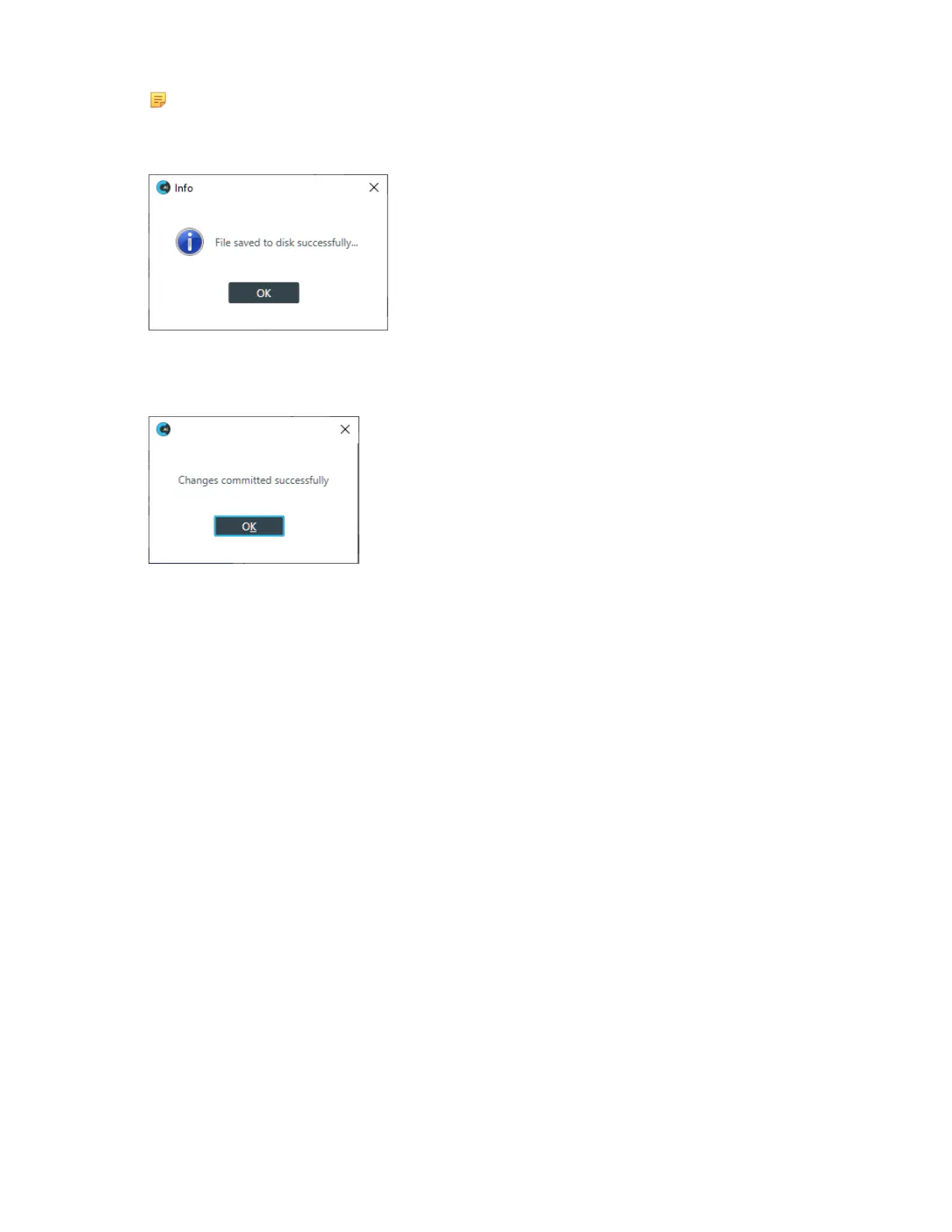
Once the file is saved, the following confirmation message appears:
5. Click OK.
If the file is committed successfully to the hardware, a dialog box appears to notify you of the successful
transfer:
6. Click OK.
Retrieving or Monitoring Log Files (CP2)
You can retrieve the log files from a CP2 device or stack and save them to your computer. You can use the
in-application Log Viewer tool to view the device logs (see Using the Log Viewer for more information). You
can also monitor log files (retrieve them and then monitor them in real time).
To get and save or monitor the log files:
1. If you have not already done so, connect to a stack.
For more information about connecting to a stack, see Connecting to a Device or Stack (CP2).
2. From the Navigation Panel, select Admin.
The Admin screen appears:
CONSOLE AI User Manual









 To Next Page