CONSOLE AI | Managing Channels (CP2) | 243
Feature Description
Filter Filters enable you to shape the audio signals from mic inputs channels
for improved audio quality. Up to four filters can be added to a mic input
channel. Available filter types are All Pass, High Pass, Low Pass, Notch,
and Parametric Equalizer (PEQ).
Delay Delay lets you add a specified amount of delay into specified channels.
Introducing an appropriate amount of delay to the forward-mounted
driver(s) re-establishes the acoustical alignment necessary for proper
sound imaging in a room. The same principle of introducing delay applies
to separate speaker enclosures located various distances from the
listening area.
Compressor A compressor lets you change the gain transfer characteristics of the
signal path and control the dynamics of a signal.
Mute Mute a microphone.
Gain Gain adjusts the volume level for a processing block in increments of
0.5dB.
Feedback Feedback Eliminator lets you configure a processing channel to discover
and eliminate feedback.
Note:
Setting up feedback cancellation requires that you be in online
mode. See Online Mode vs. Offline Mode for more information.
To change the properties for a Processing Block channel:
1. From the Navigation Panel, choose Channel Properties.
The Channel Properties screen appears.
Note:
You can also view and change the channel properties in FlowView. See Connecting Channels
Using FlowView
™
(CP2) for more information.
2. (Optional) If you’re using Advanced Room mode, choose a partition from the Partition drop-down list.
3. (Optional) Choose a preset from the Preset drop-down list.
4. Click Processing Block to open the channel list.
5. Select the channel you want to change.
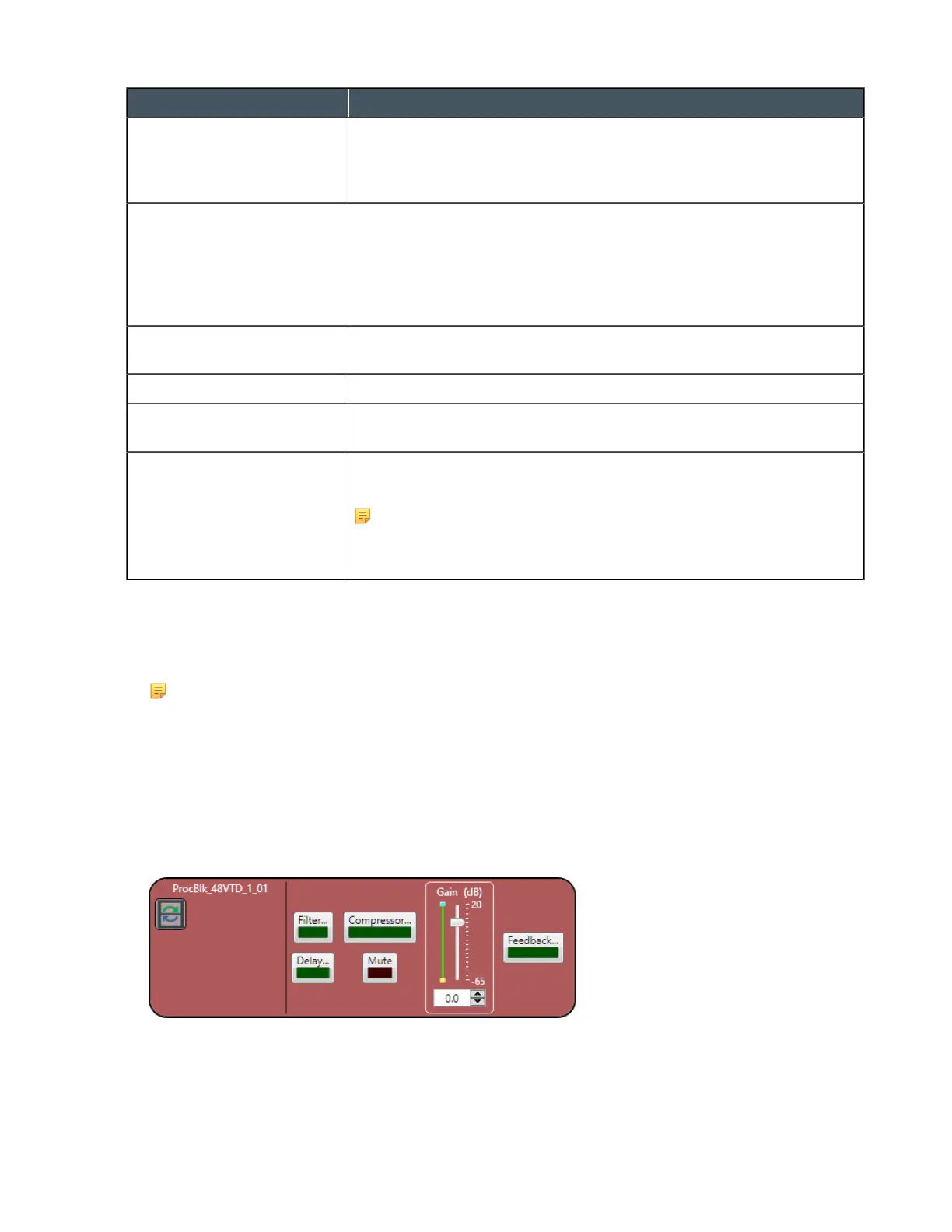
The Processing Block Channel Properties block appears:
Filter
6. To enable and configure a filter, click the Filter button.
The Filters dialog box appears:
CONSOLE AI User Manual









 To Next Page