CONSOLE AI | Configuration - Offline (Huddle) | 64
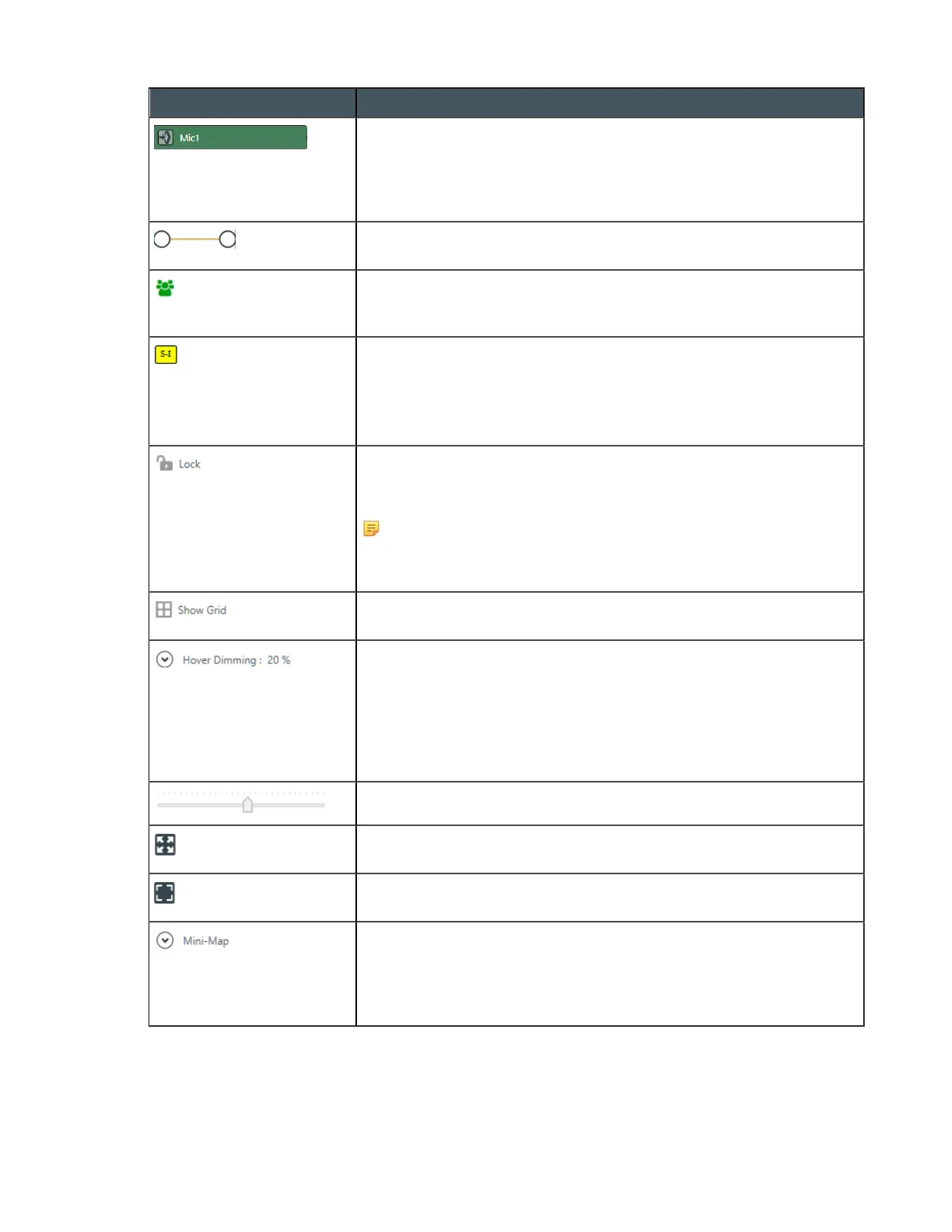
Symbol Meaning
This icon represents a channel. It is labeled with its name. Channels
have connectors (shown as a small circle) that allow you to create
routes between channels. Input channels have a connector on the right
side. Processing block channels have connectors on the left and the
right. Output channels have a connector on the left side.
Solid lines with connectors on each end represent routes between
channels.
This icon indicates whether a mic channel is part of a gating group. If
this symbol is light green, the channel is not part of a gating group. It’s
dark green if the channel is part of a gating group.
This symbol represents a reference. An input channel can have an
output channel as a reference, to cancel out echo.
For more information about how references work, see About
References.
Use this to lock the flowview channel icons, to prevent accidental
changes. When you lock the view, the lock closes. If you want to make
changes to the flowview again, click the lock again.
Note:
Even though the channel icons are locked, you can still add and
delete channel routes when FlowView is locked.
Use to show or turn off gridlines. Hiding grid lines also turns off the
snap-to-grid function.
When you hover your mouse pointer over something in the FlowView,
everything is else in FlowView is dimmed to the amount set in this
setting. 20% means that when you hover over something, everything
except what you’re hovering over is dimmed to 20% of normal. You
can also choose to dim everything except what your pointer is hovering
over as well as anything currently selected by checking theSelected
Objects/Routes check box.
Use this tool to control the zoom of the FlowView area.
Use this tool to zoom the FlowView area so that all channels you have
added to FlowView fill the visible FlowView area.
Use this tool to zoom the FlowView area so that all selected channels fill
the visible FlowView area.
The Mini-Map shows a miniature version of the entire FlowView area
(including all added channels) and the currently visible area of the
FlowView area, given the current zoom settings, shown as a gold box.
You can drag the gold box to change which portion of the FlowView
area is shown.
Move Channel Icons
2. You can move a channel icon anywhere you want within the FlowView space. To move a channel icon,
grab it by the symbol that appears on the left side of the icon.
The channel type changes to the drag symbol.
CONSOLE AI User Manual









 To Next Page