CONSOLE AI | Adding Partitions, Channels, and GPIO Settings (CP2) | 160
The list of available channels depends on which devices (both DSP and P-link devices) you
have added to the project. For more information about adding devices to a project, see Adding a
CONVERGE Pro 2 Device and About P-link Devices and Channels.
5. To add a particular channel to your project, drag it from the Assigned Resource area into the main
FlowView area.
6. To move channels within the FlowView screen, you can click and drag them to arrange them as you
want.
7. You can add multiple channels as a group by selecting more than one channel in the Assigned
Resource area and then dragging them all together into the main FlowView area.
When you drag multiple resources into the FlowView area, they are automatically added to a channel
group, and can be routed together as a group.
8. As you add assets, pay attention to the resource meters at the bottom of the FlowView screen. These
meters keep track of what percentage of the total allowed C-Link channels, Custom References, P-Link
Up channels, and P-Link down channels you have used by adding channels.
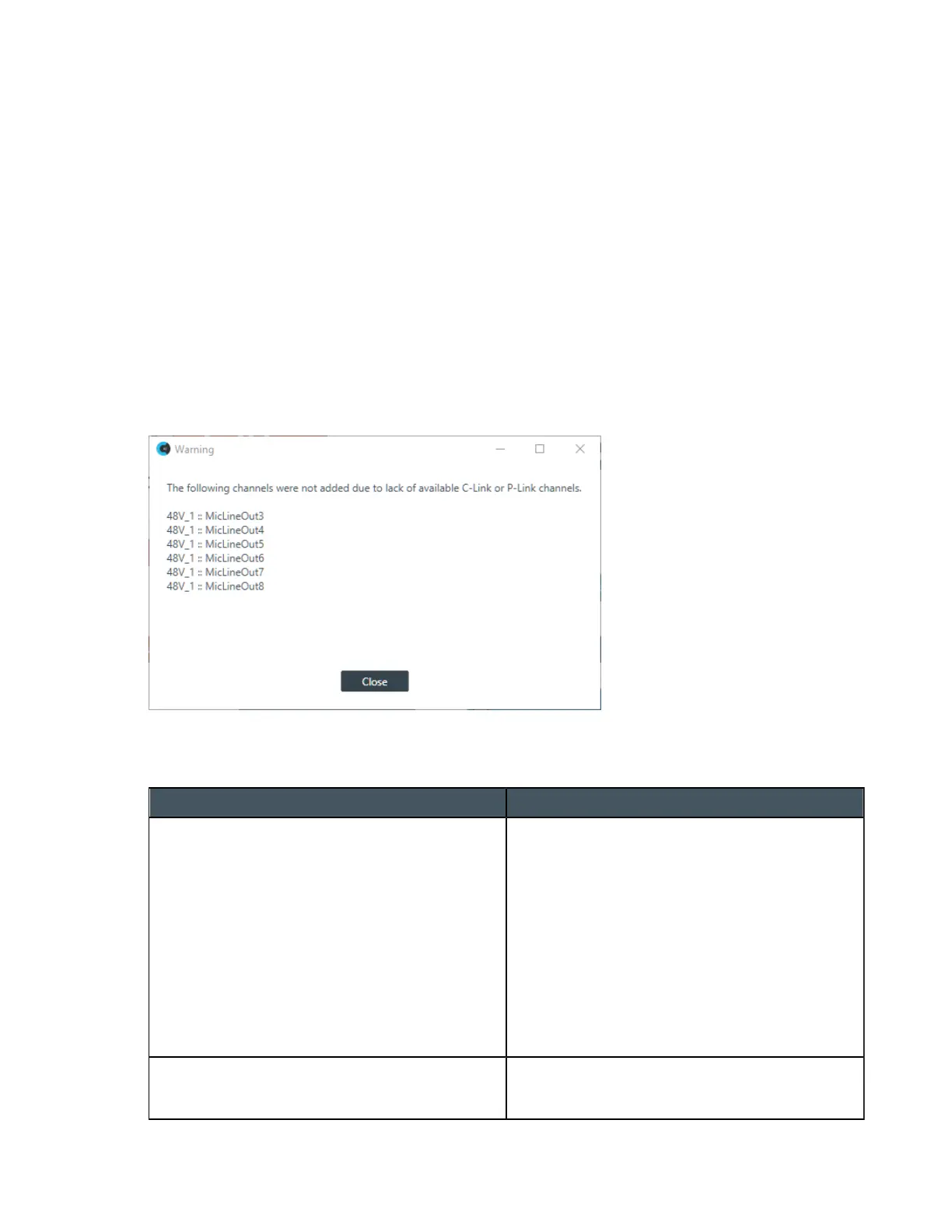
If you exceed the maximum number of channels in any of the four categories and then try to continue to
add channels, you will receive a warning such as the one shown below:
9. There are three types of special resources you can add in addition to resource channels: Mixer Blocks,
Groups, and Boundary Boxes. These appear below the resource channel list. See the table below for
details about how to use these resources.
Resource Type Description
Mixer Block You can route channels into and out of mixer
blocks and then use the Mixer Block to do the
individual channel routing using a mini-matrix
type of routing. The advantage of doing so is to
reduce the number of routes you see in FlowView,
making it easier to visualize the project.
To add a mixer block to a project, simply drag
Mixer Block from below the channel list into the
main FlowView area. For more details about using
mixer blocks, see Connecting Channels Using
FlowView
™
(CP2).
Group Groups are a way to simplify and speed up
creating audio channel routes by grouping
channels together and then making routes to or
CONSOLE AI User Manual









 To Next Page