CONSOLE AI | Managing Channels (CP2) | 259
Feature Description
Delay Delay lets you add a specified amount of delay into specified channels.
Introducing an appropriate amount of delay to the forward-mounted
driver(s) re-establishes the acoustical alignment necessary for proper
sound imaging in a room. The same principle of introducing delay applies
to separate speakerenclosures located various distances from the
listening area.
Mute Mute a microphone.
Gain Gain adjusts the volume level for a processing block in increments of
0.5dB.
Polarity Reverses the polarity of an output channel.
EQ Filter Adjusts specific frequency bands within a +/-12db range.
Limiter Establishes a ceiling level for the channelFader output.
Mic/Line Switch Lets you switch between line level output and mic level output.
To change the properties for a Speaker channel:
1. From the Navigation panel, choose Channel Properties.
The Channel Properties screen appears.
Note:
You can also view and change the channel properties in FlowView. See Connecting Channels
Using FlowView
™
(CP2) for more information.
2. (Optional) If you’re using Advanced Room mode, choose a partition from the Partition drop-down list.
3. (Optional) Choose a preset from the Preset drop-down list.
4. Click Mic/Line Output to open the channel list.
5. Select the channel you want to change.
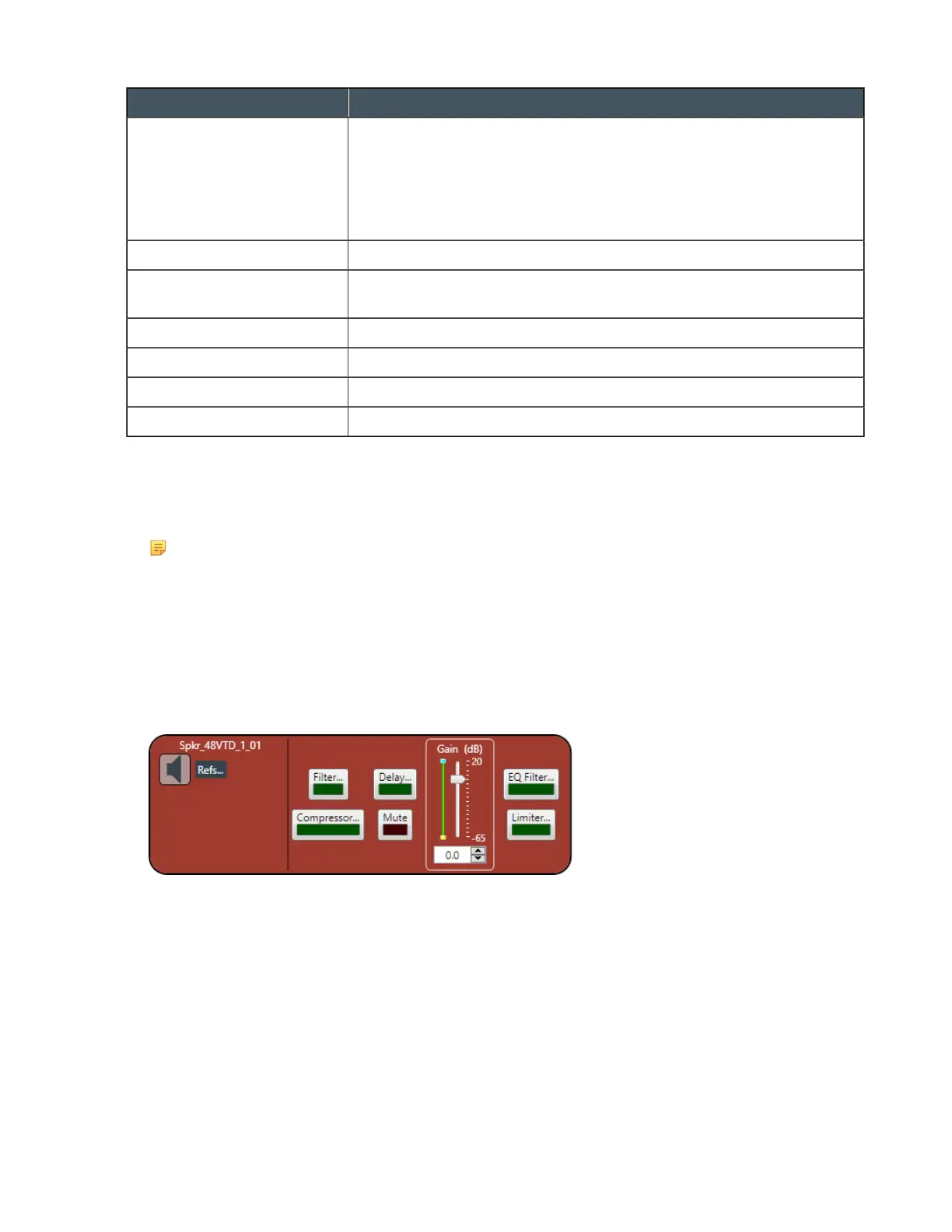
The Mic/Line Output Channel Properties block appears:
References
6. To view any references (standard or custom) associated with this channel, click Refs.
The Output References dialog box appears:
CONSOLE AI User Manual









 To Next Page