CONSOLE AI | Configuration - Offline (Huddle) | 68
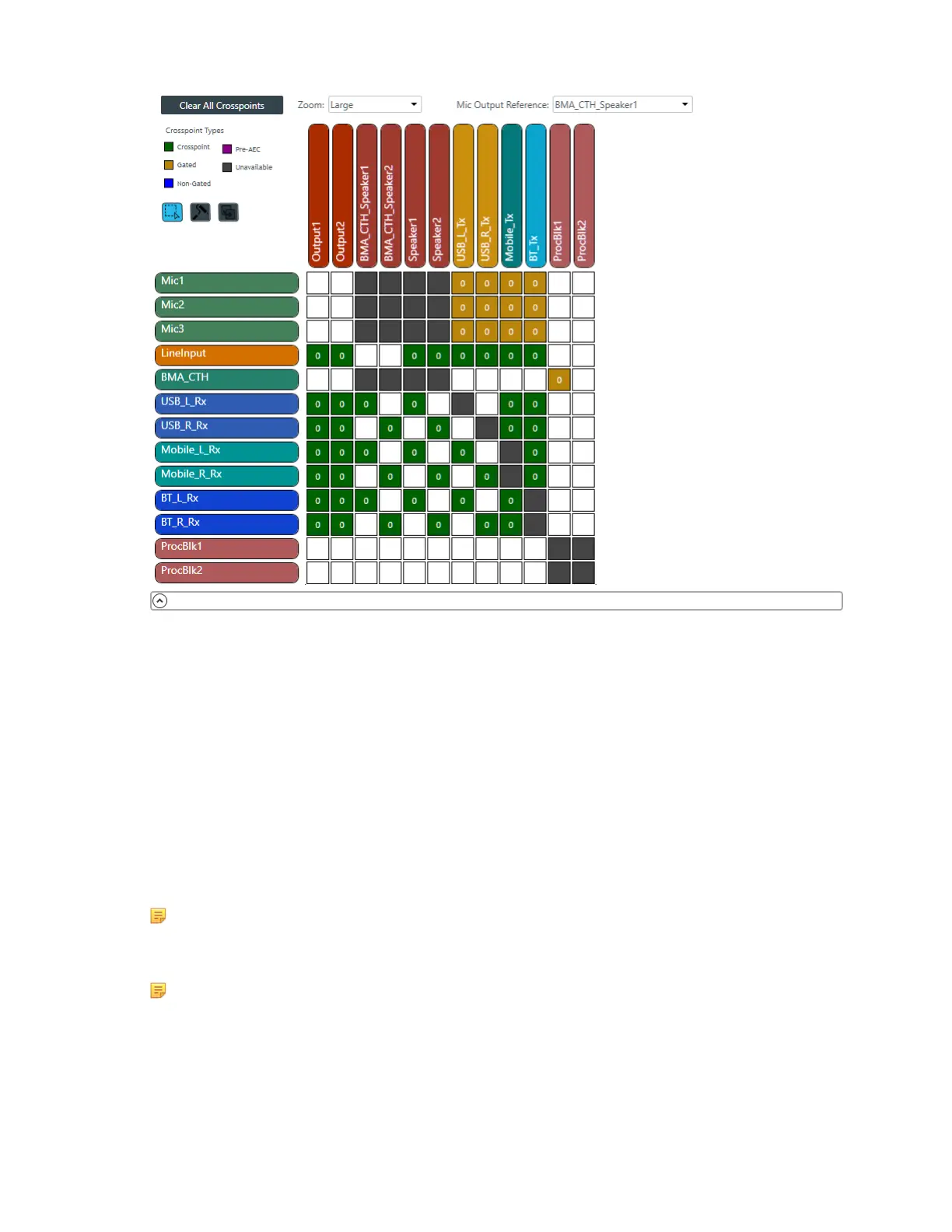
Inputs appear as matrix rows and outputs appear as matrix columns. Processing block channels have
both inputs and outputs, so they appear as both a row, for the input, and as a column, for the output.
Adjust MatrixView Display
2. To change the MatrixView display zoom, choose an option from the Zoom drop-down menu at top of the
MatrixView screen.
3. To move the display location within the MatrixView to the upper left, click Home at the top of the
MatrixView screen.
4. If the matrix is larger than the available screen space, scroll bars appear at the right side and the bottom
of the matrix cells. You can drag those scroll bars to change which part of the matrix displays.
Make Matrix Connections
5. To connect an input channel and an output channel, click a crosspoint in the channel matrix. Clicking
the crosspoint again cycles through the available types.
Note:
Crosspoints that appear black in the matrix cannot be selected, because you would be
connecting the input and output channels of the same asset, which would create a loop.
Note:
The current audio level is shown in crosspoint cells (to the nearest whole value if zoom is set to
small). If you are offline, the value is 0.
Depending on the channel types you are connecting, there are several types of connections you can
make, as described in the table below:
CONSOLE AI User Manual









 To Next Page