7.5.15 Collision Sensitivity Reduction Zone Settings
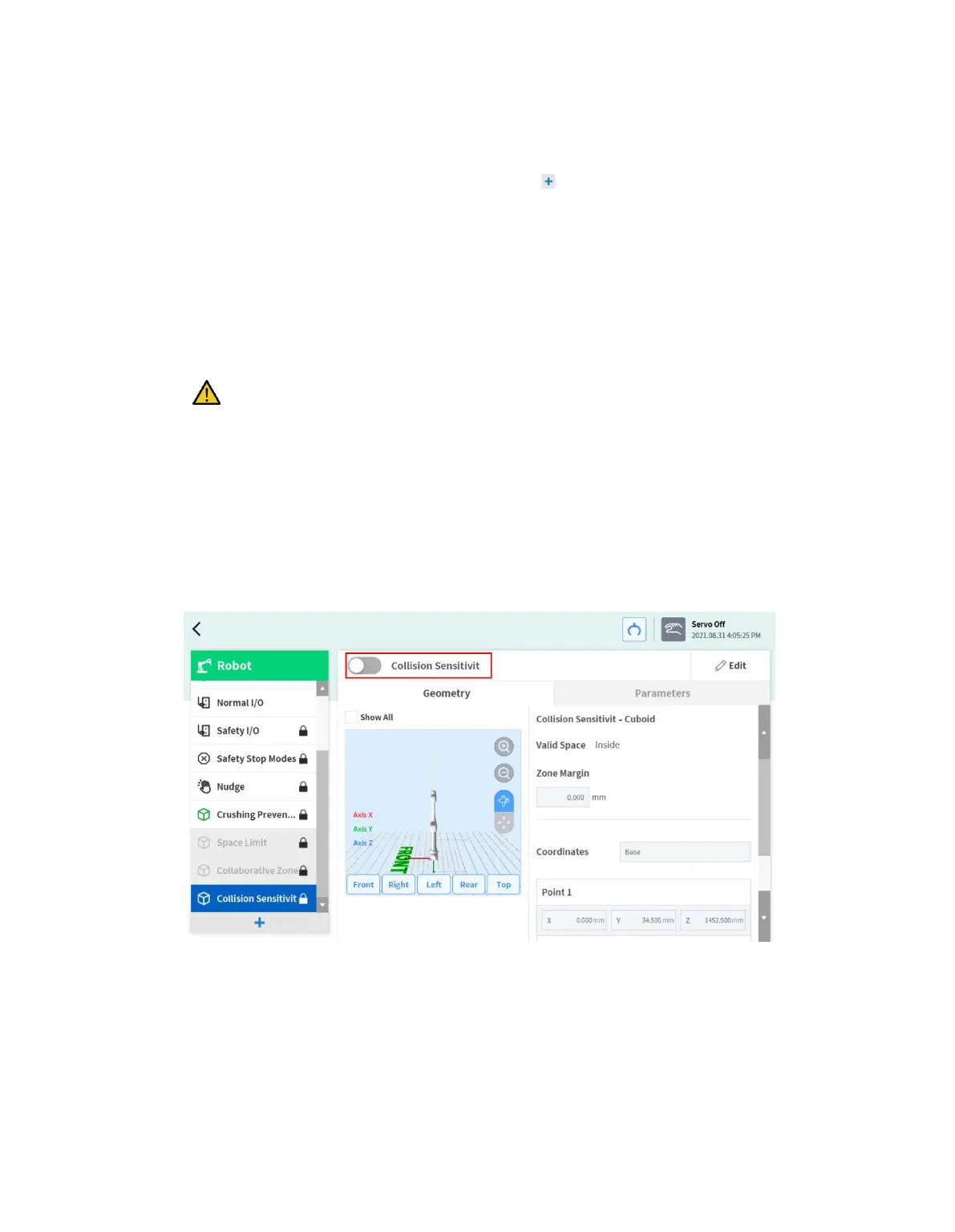
To set the Collision Sensitivity Reduction Zone, tap the Add button on the Robot Workcell and
select Collision Sensitivity Reduction Zone> Cuboid, Cylinder, Multi-plane Box, Sphere or Tilted
Cuboid. The safety password is required during setup and enablement.
1 Enter the Workcell Name in the Workcell Name field on the top of the Workcell Setting screen.
2 Set the pose information according to the Zone shape along with the Valid Space and Zone
Margin in the Geometry tab.
3 Set the override option, TCP/Robot Limits and Dynamic Zone Enable in the Parameters tab
and press Draft.
Warning
Collision Sensitivity Reduction Zone is a High Priority Zone.
High Priority Zones have priority over the other Zones and global Robot Limits setting. And If
multiple High Priority Zones are overlapped, the safety function uses the LEAST restricted
safety limit. For these reasons, the size of High Priority Zone should be specified as small as
possible for safety
4 Verify that all parameters displayed are the same as what are Intended to be set, then check
Confirm draft and press Confirm
5 Press the Activate Toggle button to apply the Collision Sensitivity Reduction Zone.



 To Next Page