Chapter 4
| Interface Configuration
VLAN Trunking
– 159 –
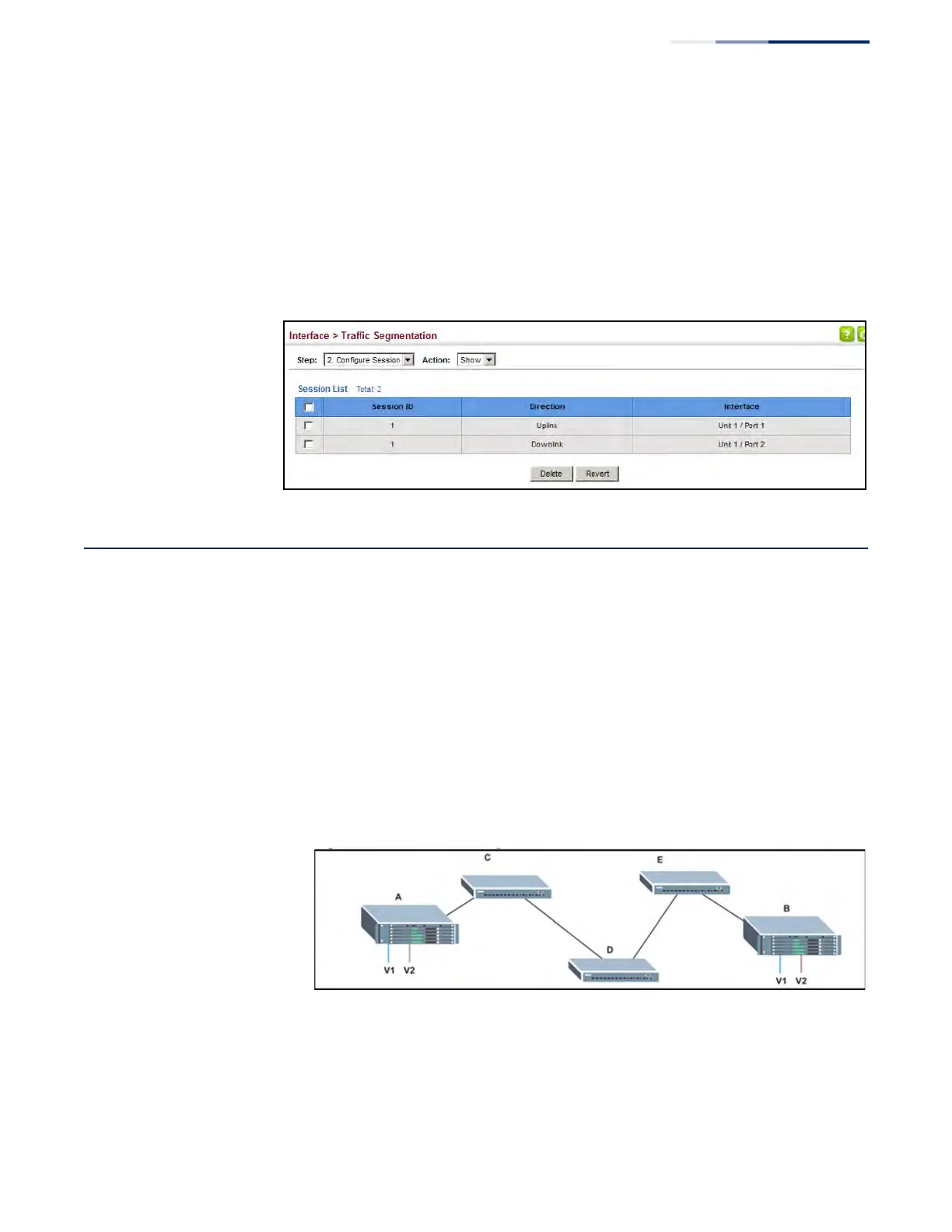
To show the members of the traffic segmentation group:
1. Click Interface, Traffic Segmentation.
2. Select Configure Session from the Step list.
3. Select Show from the Action list.
Figure 66: Showing Traffic Segmentation Members
VLAN Trunking
Use the Interface > VLAN Trunking page to allow unknown VLAN groups to pass
through the specified interface.
Command Usage
◆ Use this feature to configure a tunnel across one or more intermediate switches
which pass traffic for VLAN groups to which they do not belong.
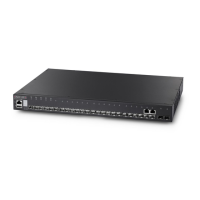
The following figure shows VLANs 1 and 2 configured on switches A and B, with
VLAN trunking being used to pass traffic for these VLAN groups across switches
C, D and E.
Figure 67: Configuring VLAN Trunking
Without VLAN trunking, you would have to configure VLANs 1 and 2 on all
intermediate switches – C, D and E; otherwise these switches would drop any
frames with unknown VLAN group tags. However, by enabling VLAN trunking
on the intermediate switch ports along the path connecting VLANs 1 and 2,
you only need to create these VLAN groups in switches A and B. Switches C, D



 To Next Page