EasyManua.ls Logo

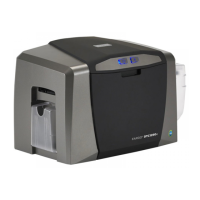
Fargo DTC550 - User Manual

Fargo DTC550
420 pages
Print Icon
To Next Page IconTo Next Page
Loading...
DTC550 Direct to Card
Printer/Encoder User Guide
(Rev. 2.8)
Part Number: L000685

Table of Contents

Other manuals for Fargo DTC550

Questions and Answers

  • D
    Deborah WiseSep 23, 2025
    What does 'UNABLE TO FEED CARD' mean on my Fargo DTC550 Printer?
    • D
      Donna GallagherSep 23, 2025
      If your Fargo Printer displays 'UNABLE TO FEED CARD', it means the printer is unable to feed a card from the card hopper. Check the possible causes, then press RESUME to continue.
  • J
    Jessica LewisSep 23, 2025
    What does 'HOPPER 1 EMPTY' mean on my Fargo DTC550?
    • R
      Ryan TerrellSep 23, 2025
      If your Fargo Printer displays 'HOPPER 1 EMPTY', it means Card Hopper 1 has run out of cards. The printer will continue printing from Hopper 2. Refill Hopper 1 when convenient.
  • J
    John EllisSep 23, 2025
    What does 'HOPPER 2 EMPTY' mean on my Fargo Printer?
    • D
      Dustin CombsSep 23, 2025
      If your Fargo Printer displays 'HOPPER 2 EMPTY', it means Card Hopper 2 has run out of cards. The printer will continue printing from Hopper 1. Refill Hopper 2 when convenient.
  • J
    Jonathon SandersAug 31, 2025
    What to do if my Fargo DTC550 Printer says 'CARD HOPPER EMPTY'?
    • A
      Arthur DunnAug 31, 2025
      If your Fargo Printer displays the message 'CARD HOPPER EMPTY', it means the card hopper is empty. To resolve this, load more cards into the hopper and then press RESUME to continue printing.
  • R
    Rodney CookAug 25, 2025
    What to do if Fargo DTC550 displays 'CARD HOPPER JAM'?
    • N
      ndunlapAug 25, 2025
      If your Fargo Printer displays 'CARD HOPPER JAM', it means the card hopper is unable to move to the proper position. To resolve this, clear any obstructions and close the hopper door. Then, press RESUME to continue.
  • C
    Corey AndersonAug 25, 2025
    How to fix a 'CARD JAM: FLIPPER' error on my Fargo DTC550 Printer?
    • Z
      Zachary NguyenAug 26, 2025
      If your Fargo Printer displays 'CARD JAM: FLIPPER', it means a card is jammed in the card flipping area. Clear the jam according to the steps in the Troubleshooting section of the User Guide.
  • L
    Laura LoveAug 26, 2025
    What to do if my Fargo Printer displays 'CALIB HOPPER SENSOR'?
    • F
      fordlauraAug 26, 2025
      If your Fargo Printer displays 'CALIB HOPPER SENSOR', it means the input hopper cards-out sensor needs to be calibrated. To calibrate it, go to MENU>SETUP PRINTER>SENSOR CALIBRATION>CAL HOPPER SENSOR and press SELECT.
  • J
    Jason MeyersAug 27, 2025
    What to do if my Fargo DTC550 displays 'CALIBRATE RIBBON'?
    • J
      Jessica BestAug 27, 2025
      If your Fargo Printer displays 'CALIBRATE RIBBON', it means the print ribbon is out of calibration. Select CANCEL and then perform the ribbon calibration procedure according to the steps in the Troubleshooting section of the User Guide.
  • R
    Rachael MccarthyAug 27, 2025
    What to do if my Fargo DTC550 displays 'REINSERT RIBBON'?
    • R
      Richard WashingtonAug 27, 2025
      If your Fargo Printer displays the message 'REINSERT RIBBON', it means the ribbon must be reinserted for proper functioning. Reinsert the ribbons or press RESUME.
  • K
    Kathy LynnAug 27, 2025
    How to resolve a 'CARD JAM: MAG' error on my Fargo Printer?
    • M
      Michael HardinAug 27, 2025
      If your Fargo Printer displays 'CARD JAM: MAG', it indicates a card is jammed in the magnetic encoding area. Clear the jam according to the steps in the Troubleshooting section of the User Guide.

Summary

Section 1: Introduction

Safety Messages

Provides essential safety information and warnings for printer installation and operation.

How to Use the Guide

Explains how to effectively navigate and utilize the DTC550 User Guide for quick lookup of procedures and components.

Section 2: Specifications

Technical Specifications

Outlines the technical specifications of the DTC550, including card sizes, thickness, types, and dimensions.

Functional Specifications

Describes the Dye-Sublimation and Resin Thermal Transfer printing technologies used by the DTC550 for image quality.

Printer Components: LCD and Softkey Control Pad

Identifies and describes the printer's LCD display and softkey buttons for user interaction and status monitoring.

Section 3: Setup and Installation Procedures

Printer Setup and Placement

Provides guidelines for choosing a suitable location and setting up the printer, considering environmental factors.

Software Setup and Installation Procedures

Details the step-by-step process for installing the DTC550 printer driver and associated software.

Loading Supplies

Guides users on loading essential supplies like print ribbons and card cleaning cartridges into the printer.

Section 4: General Troubleshooting

Reviewing the LCD display and LED light

Explains how to interpret the printer's LCD messages and LED indicators to understand its current status and potential issues.

Troubleshooting LCD Messages

Provides a comprehensive list of LCD error messages, their causes, and suggested solutions for troubleshooting printer issues.

Card Feeding Errors

Addresses issues where cards are not feeding correctly or multiple cards feed simultaneously, offering resolution steps.

Encoding Errors

Covers problems related to magnetic, prox, and smart card encoding, including error messages and their solutions.

Section 5: Card Lamination Module

Adjusting a Card Lamination Module

Guides users on adjusting the card flattener and card guide rail for proper lamination and card flatness.

Attaching the Card Lamination Module

Details the components and procedures for attaching the DTC550 Card Lamination Module to the printer.

Section 6: Printer Adjustments

Using the Card tab

Explains how to control card-specific printing functions like size, hopper selection, and orientation via the printer driver.

Using the Image Color tab

Guides users on adjusting color properties such as contrast, gamma, and color balance for optimal image output.

Using the Magnetic Encoding tab

Details options for controlling magnetic stripe encoding, including mode, coercivity, and track settings.

Section 7: Ethernet Option Section

Technical Specification - Ethernet Option

Outlines the system requirements and specifications necessary for the Ethernet option, including network and host computer details.

Configuring the Network Settings

Provides procedures for accessing and configuring network settings, including IP address, subnet mask, and DHCP options.

Ethernet Printer Troubleshooting Procedures

Offers steps to troubleshoot common connection and printing problems when using the Ethernet interface.

Section 8: Cleaning

Cleaning Kit Instructions - DTC550 Printer

Lists the contents of the cleaning kit and provides general cleaning procedures for the DTC550 printer.

Cleaning the Printhead (D855055)

Details the procedure for cleaning the printer's printhead to maintain consistent print quality and resolve color transfer issues.

Section 9: Diagnostic Tool Utility

Selecting the Self Tests tab

Guides users on accessing the printer's internal self-tests via the Diagnostic Tool Utility for troubleshooting.

Section 11: LCD On-Line Menu Navigation

Entering the LCD Menu and selecting the Option

Explains how to navigate the printer's LCD menu to access test, setup, and reporting functions.

Adjusting the Print TOF and Print EOF

Details the procedures for adjusting Print TOF and Print EOF to precisely align the printed image with card edges.

Section 12: Fargo Technical Support

Contacting Fargo Technical Support

Provides contact information and procedures for reaching Fargo Technical Support for assistance with troubleshooting or repairs.

Section 14: Glossary of Terms

Glossary of Terms

Defines technical terms and acronyms used throughout the DTC550 User Guide for better understanding.

Fargo DTC550 Specifications

General IconGeneral
Print Resolution300 dpi
Print TechnologyDye Sublimation / Resin Thermal Transfer
Card Capacity100 cards
Card Thickness30 mil to 40 mil
ConnectivityUSB, Ethernet
Card Sizes AcceptedCR80 (3.375 x 2.125 inches)
Operating System CompatibilityWindows 7, 8, 10 (32-bit and 64-bit)

Related product manuals