13. USER CHARTS
13-5
3) At the [Range of notes] (shown only for line) input box, enter the distance from
the Notes position at which to display the Notes.
Note: You cannot select both [Danger] and [Notes] for these symbols; select
either [Danger] or [Notes].
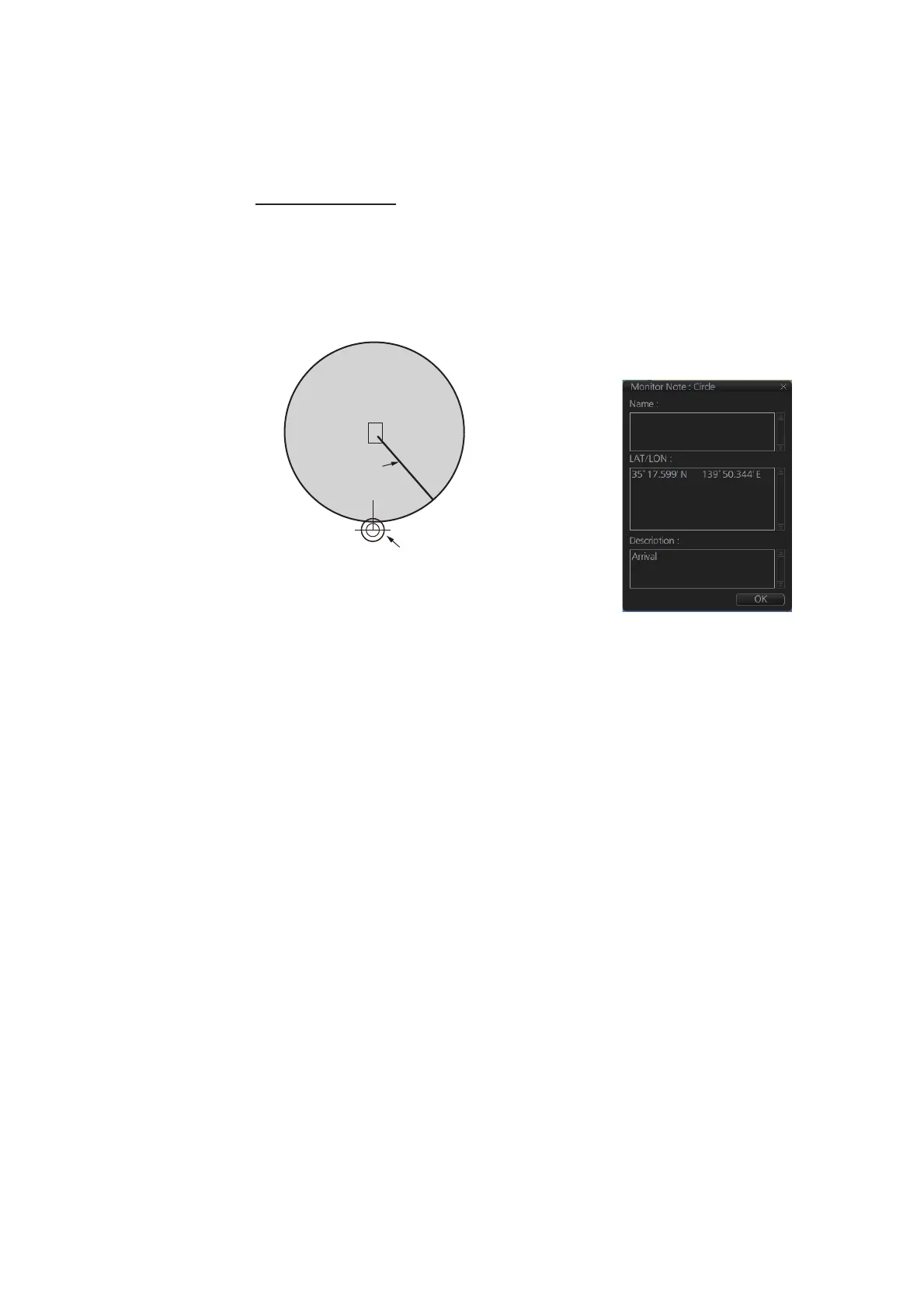
What are Notes?
“Notes” provide, in the Voyage navigation mode, messages for the operator
relative to your vessel’s position. When own ship is x miles from an area or cir-
cle chart object, a message appears in the [Monitor Note] dialog box. The mes-
sage appears for a line (set in [Range of notes]) when own ship is within x
miles of the line or x miles after passing the line.
9. To continue entering the same symbol, click a new location on the screen and do
step 3. To enter a different symbol, do steps 3 and 4.
10. After you have entered all necessary objects, click the [Save] button.
Note: If the [Save] button is not shown, update the user chart to show the button.
11. The [Save user chart] window appears. Enter a name for the user chart and com-
ments then click the [Save] button.
The figure on the next page shows a user chart and the corresponding entries in the
[User Chart] dialog box.
Location of
Notes
The pop-up window at right
appears when own ship
approaches a user chart object
within the range set.
Example shown for “E” setting
(approaching object).
i
Own Position
Notes
range
setting



 To Next Page