392
CUSTOM SETS - Tone Wheel
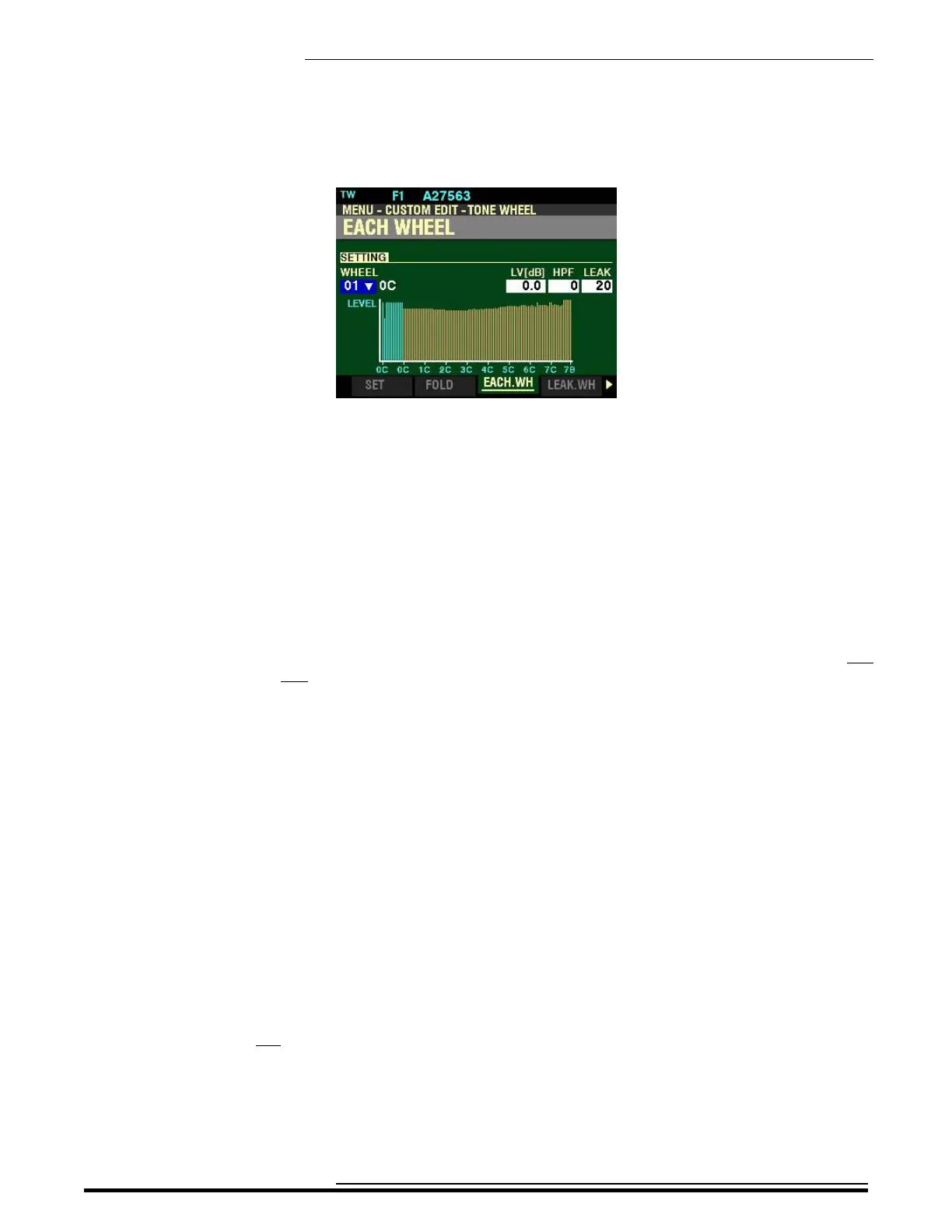
If you followed the instructions on the previous pages, you should now see the EACH WHEEL
FUNCTION Mode Page. The box to the right of “WHEEL” should be highlighted.
Notice that the number on the left below “WHEEL” is highlighted. This number represents the currently
selected Tone Wheel.
WHEEL
This Parameter allows you to select the Tone Wheel you want to edit.
Selecting a Tone Wheel to Edit
Using the VALUE knob:
Turning the VALUE knob will allow you to scroll through the Tone Wheels. You can select from F01
(“0C”) through F96 (“8B”). Turn the VALUE Control until you find the number you want.
Using the Drawbars and Keyboard:
If you want to find a certain Tone Wheel quickly, you can use the Drawbars and the playing keys to select
it.
TRY THIS:
1. With the screen shown at the top of this page displaying, Press and Hold a key on the
Keyboard.
2. While holding down a key, move a Drawbar - for example, the first white (8’) Drawbar.
The number shown in the Information Center Display will be the number of the Tone Wheel
associated with that key and that Drawbar.
Notice the bar graph in the display will change with each Fundamental Wheel you select. This
will show you the level for each Leakage Wheel. The bar designating the selected Wheel will
show red.
Each individual Drawbar will play a different portion of the Tone Wheels. The data chart on
the next page shows how the Tone Wheels are allocated to each Drawbar.
HA<O> SKX PRO Reference Guide



 To Next Page