25
Information Center Display
t MENU Mode - CUSTOM
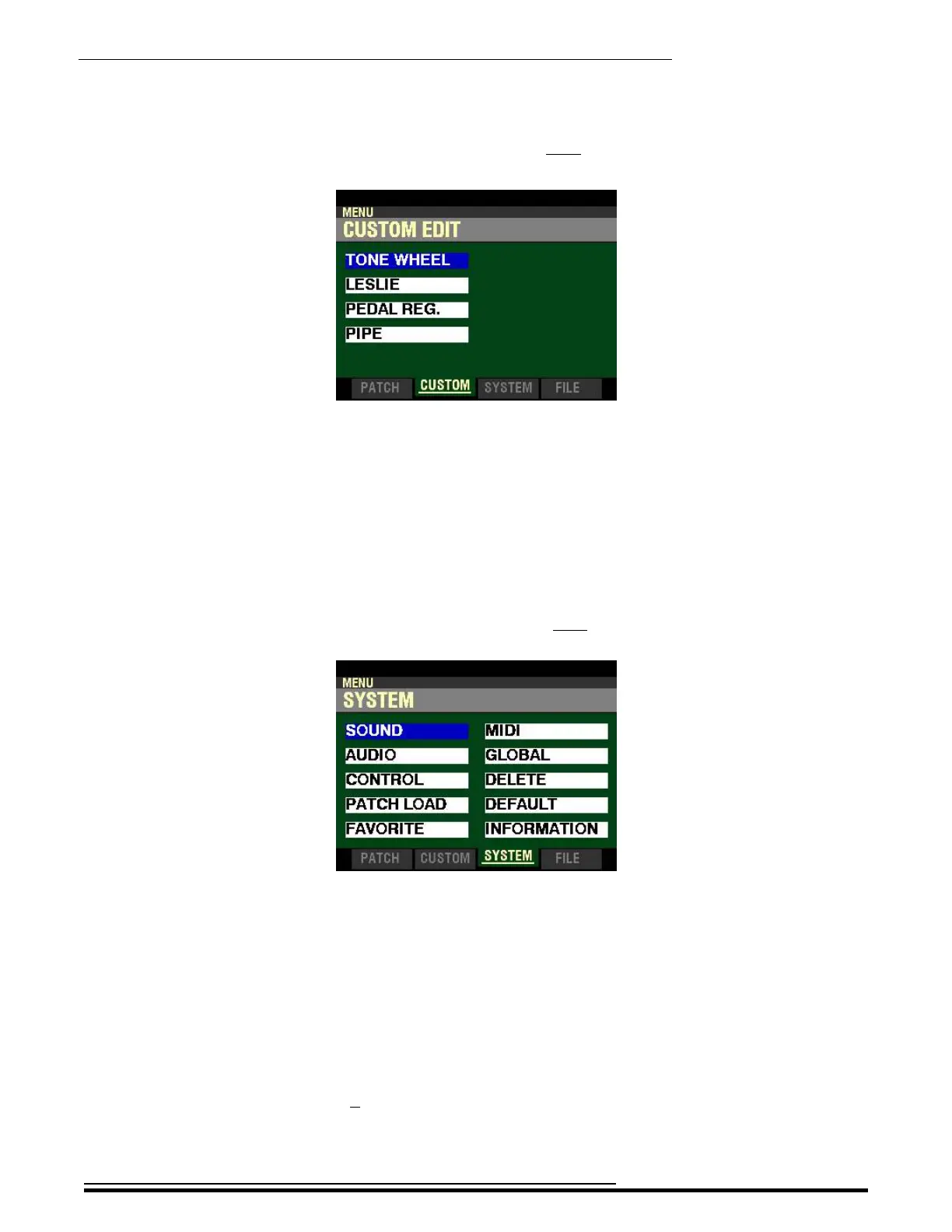
From the PATCH EDIT Screen, press the PAGE “u” button once. The Information Center Display should
now look like this:
Four (4) FUNCTION Modes should now appear in the display window.
Using the DIRECTION UP (“p”) and DOWN (“q”) buttons will allow you to select the FUNCTION Mode
you want to change.
TONE WHEEL - Allows you to customize the sound of the Drawbars.
LESLIE - Allows you to change the characteristics of the built-in digital Leslie.
PEDAL REG. - Allows you to change the registrations for the Pedal Drawbars.
PIPE - Allows you to change the characteristics of the Pipe Voices.
t MENU Mode - SYSTEM
From the CUSTOM EDIT Screen, press the PAGE “u” button once. The Information Center Display should
now look like this:
Ten (10) FUNCTION Modes should now appear in the display window.
Using the DIRECTION UP (“p”), DOWN (“q”), LEFT (“t”) and RIGHT (“u”) buttons will allow you to
select the FUNCTION Mode you want to change.
SOUND - Allows you to adjust Master Tune, Transpose, and Master Equalizer.
AUDIO - Allows you to adjust the audio configuration between Voice Sections and output jacks.
CONTROL - Allows you to adjust the Parameters for the various controllers such as Foot Switch, Expression Pedal,
Display and Keyboard.
PATCH LOAD - Allows you to select which contents are loaded when a Combination or Patch is selected.
FAVORITE - Allows you select and edit Favorites.
MIDI - Allows you to adjust MIDI Channels, and various messages for the MIDI port and the USB MIDI.
GLOBAL - Allows you to adjust the Auto Power Off time and select USB Mass Storage.
DELETE - Allows you to delete U (User) contents.
DEFAULT - Allows you to return all or a portion of the instrument to factory settings.
INFORMATION - Allows you to see which jacks or portions of the instrument are active and to see and update the software.
HA<O> SKX PRO Reference Guide



 To Next Page