ECC800 Data Center Controller
User Manual (for ECC800-Pro)
Copyright © Huawei Technologies Co., Ltd.
Step 2 Add a camera. For details, see the documentation delivered with the equipment or obtain the
documentation by referring to the "Preparing Documentation" section. View the
corresponding section.
The IPC6325 camera is driven by the HWSDK protocol.
1. In the Quick Setup area on the VCN IVS home page, double-click Add Camera.
2. Click + in the lower left corner on the Search criteria page, setting the parameters
according to the following table, and click Next.
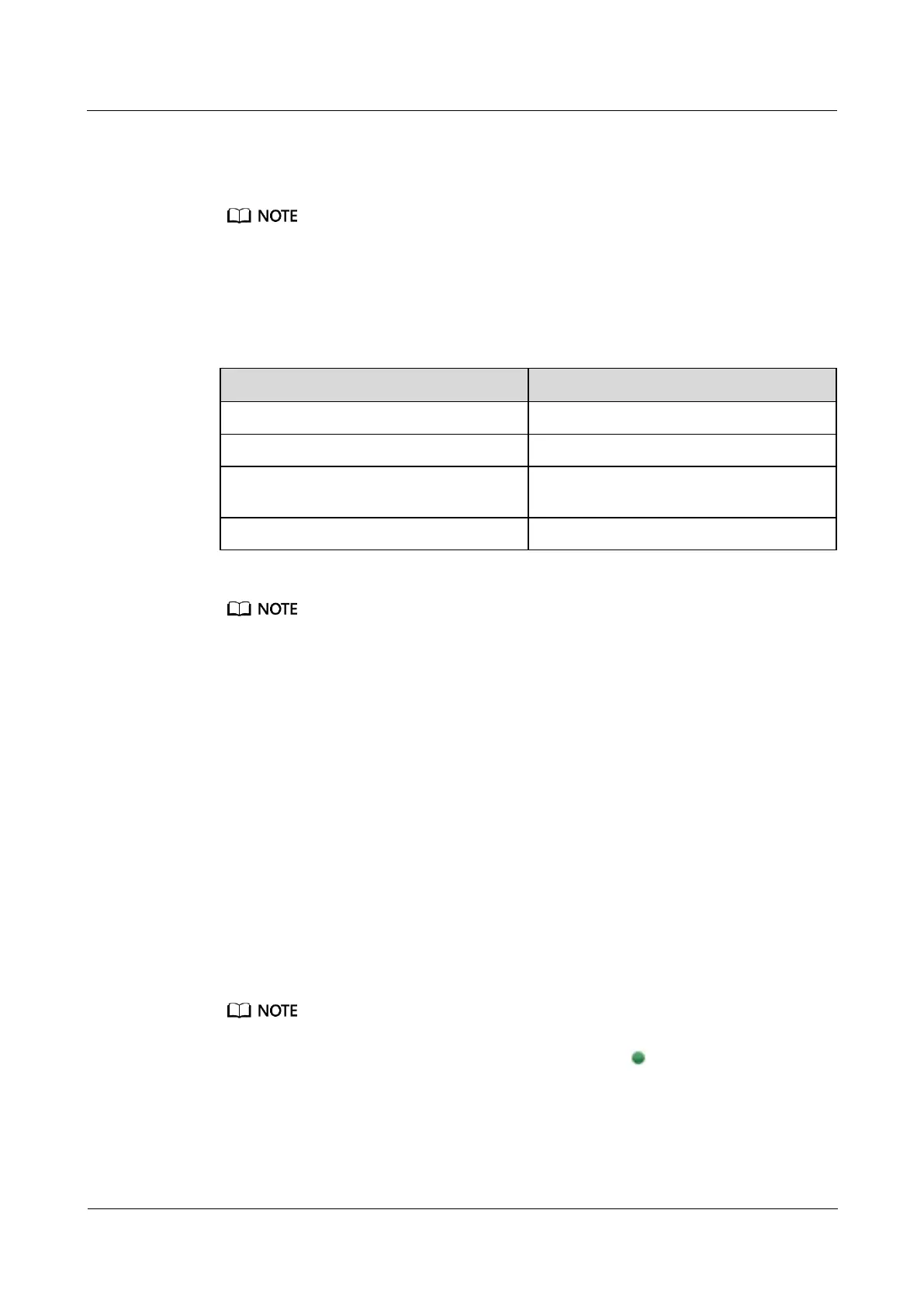
Table 6-27 Setting search criteria
Start IP Address and End IP Address
Select the domain that cameras need to
access
Select the server that cameras need to access
If there are multiple VCNs for multiple smart modules, you are advised to evenly distribute the cameras
to each VCN.
3. Click Search, in each camera record, enter the user name and password in the text boxes
and click Verify. If the camera is verified successfully, select cameras to add and click
Next.
4. Preview live video images, click the camera in the camera list on the left, and adjust
camera parameters to optimize the image effect. Then click Next.
5. (Optional) Group the cameras and click Next after grouping.
6. Click Finish to finish adding a camera.
Step 3 Configuring a Video Recording Plan.
1. In the Quick Setup area on the VCN IVS home page, double-click Server Recording
Plan.
2. Select the camera on the Cameras list and click Next.
3. (Optional) Set recording parameters, and click Next.
4. Set recording plan parameters in the Time settings. Drag the timeline to select the time
segment for implementing video recording.
If you set the recording plan policy is to All, you do not need to set the recording plan time.
5. Click Next to complete the recording plan setting. When is displayed in the status
bar, the recording plan has been set successfully.
6. Click Finish.
Step 4 Create a user.



 To Next Page