Loading a Mold Picture View Graphic 143
User Guide v 2.3 — September 2015 Mold Picture View
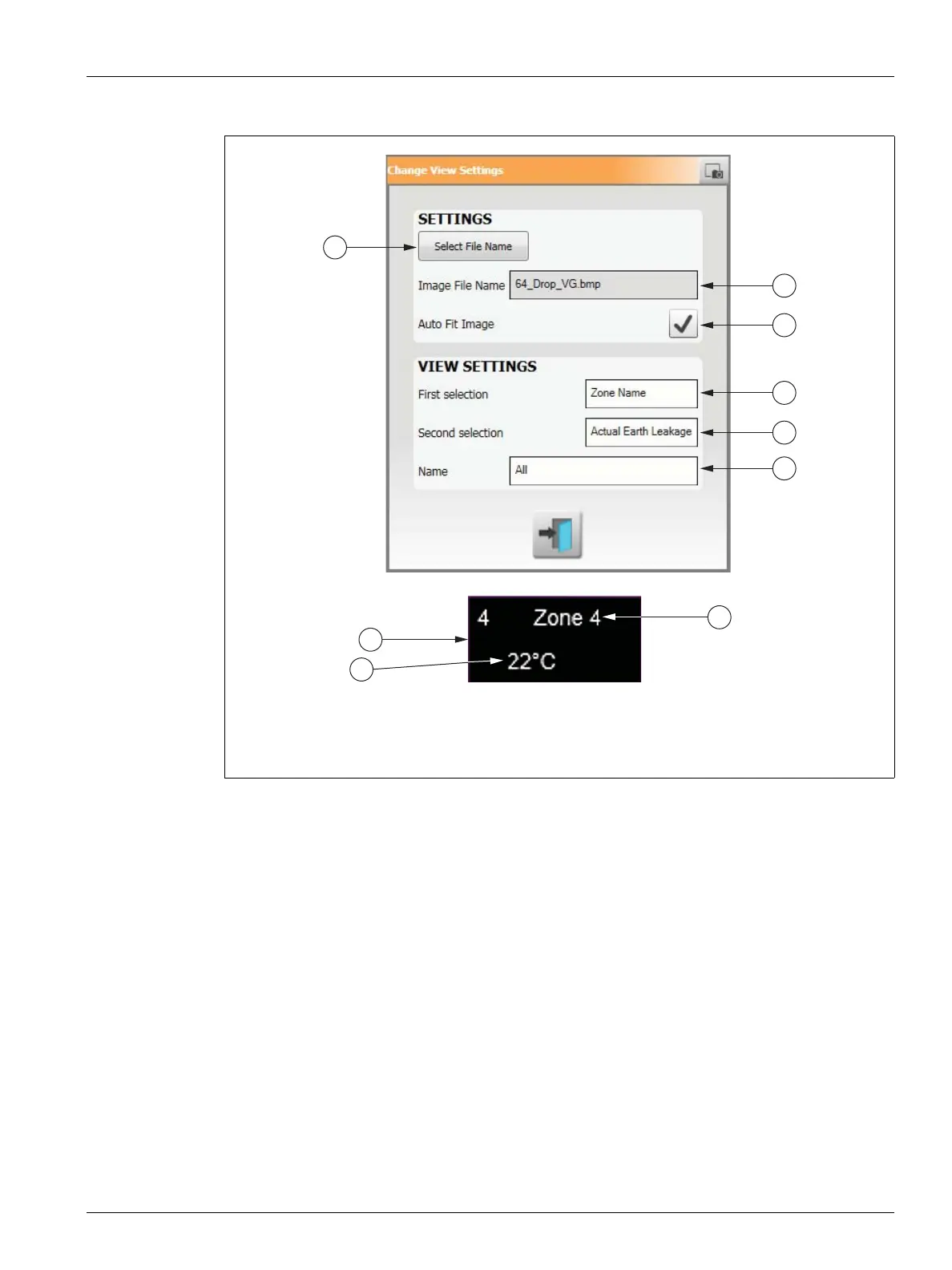
5. Touch the Select File Name button.
6. Touch one of the following file locations buttons:
• Touch the Local button to navigate to a graphic file stored on Altanium.
• Touch the Network button to navigate to a graphic file stored on the network.
• Touch the USB button to navigate to a graphic stored on the USB drive.
7. Navigate to the desired image.
8. Select the desired image.
9. Touch the Accept button.
NOTE:To automatically increase the size of the image to fit on the Mold Picture View
screen, select the Auto Fit Image check box.
10. Touch the Accept button.
Figure 11-3 Change View Settings Dialog Box
1. Select File Name Button 2. Image File Name Field 3. Auto Fit Image Check Box 4. First
Selection Field 5. Second Selection Field 6. Zone Number



 To Next Page