Page | 48
Script Matches Prompt: Checking this option will make the line length of the text in the Story Editor
Window match that of the prompter output displayed in the Prompter Preview. When unchecked
the line length of the text in the Story Editor window will not match that of the Prompter Preview.
Note: When Script Matches Prompt is unchecked the Follow Prompter and Scroll to Prompter
features are disabled
Follow Prompter: When activated, Follow Prompter will automatically position the script in the
Story Editor window to correspond with the part of the script that is currently being prompted and
will follow the prompted output as it scrolls. Uncheck to deactivate Follow Prompter.
Note: When Script Matches Prompt is unchecked the Follow Prompter feature is disabled
Scroll to Prompter: When activated, Scroll to Prompter will automatically position the script in the
Story Editor window to correspond with the part of the script that is currently being prompted.
Note: When Script Matches Prompt is unchecked the Scroll to Prompter feature is disabled
aA: This will force all selected text into uppercase
Lock: When selected this will lock out the ability to make edits in the Story Editor pane. You can still
scroll through the text in the Story Editor pane by dragging the slider up or down but any editing of
the text is inhibited.
When active a padlock icon will appear at the bottom right of the Story Editor window.
Please Note: Additional features and functions may be added. The default options are described here.
If an explanation of the functionality of the non-default features is required, please contact support.
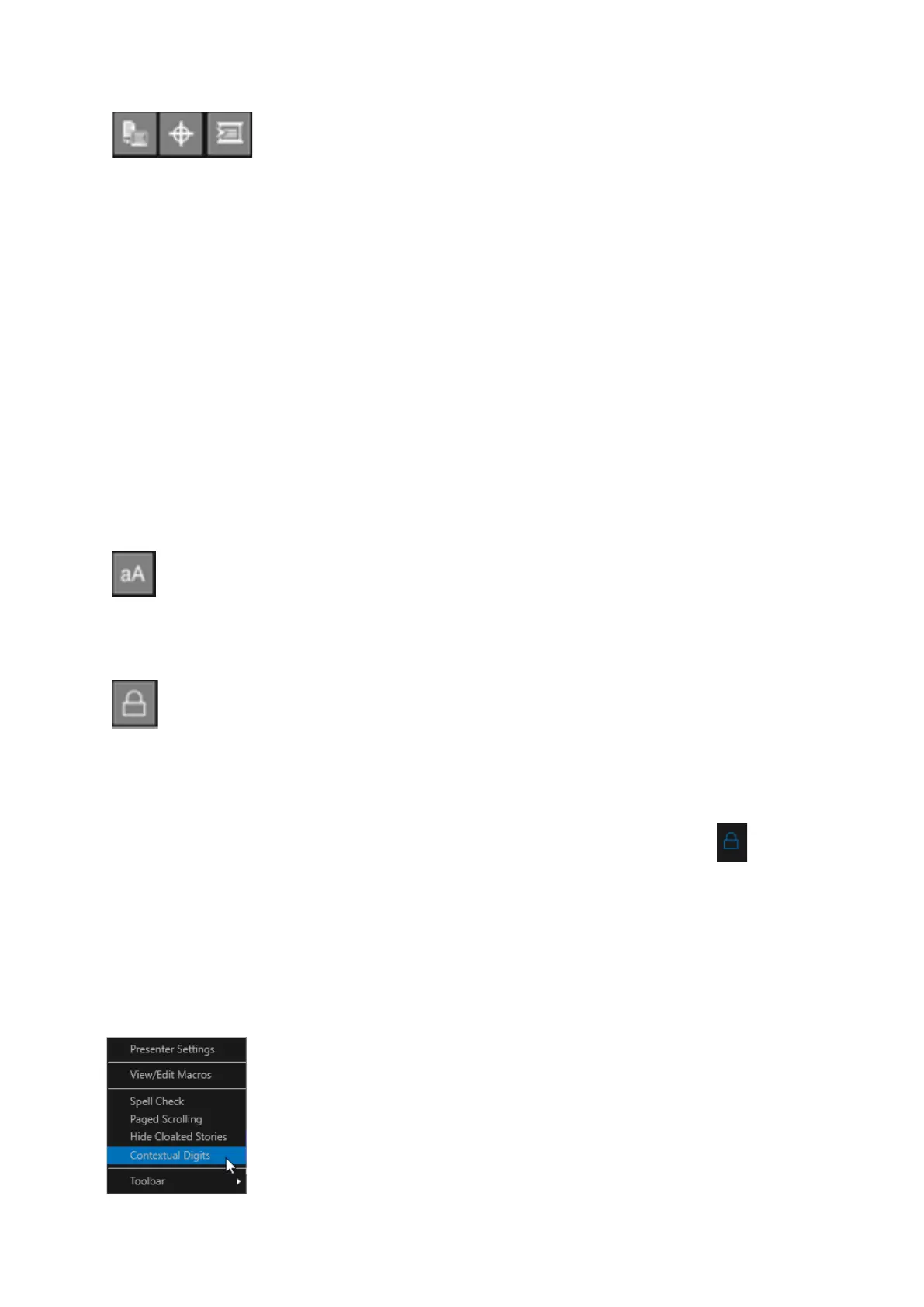
Contextual Digits.
Enabled in the Story Editor under the burger/Contextual Digits.
This feature will enable the user to enter characters and text in a different language
or R-L/L-R format from the existing text. WP-IP will use the surrounding context to
apply the same formatting to that new text on that line.



 To Next Page