■■■■■■■■■■■■■■■■■■■■■■
11 Device manager
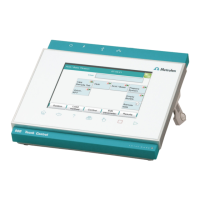
900 Touch Control
■■■■■■■■
101
Loading the sample rack
When you receive the file for a new sample rack from your Metrohm rep-
resentative, you can easily import this file into your existing system. Pro-
ceed as follows:
1
Copying the file to an external storage medium
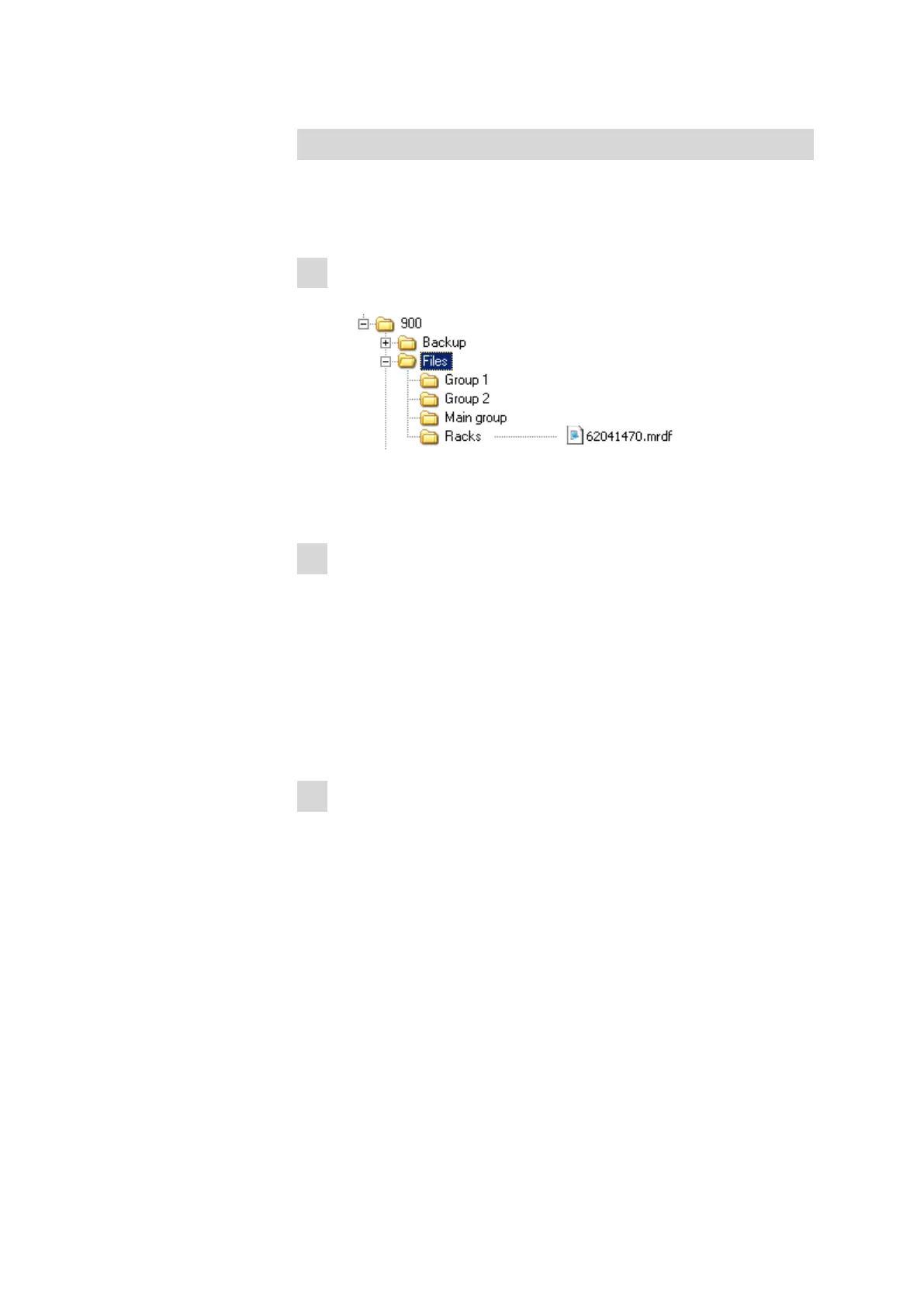
■ Copy the file to a subdirectory of "Files".
If this structure is not maintained, the new rack will not be found
because the software directly accesses subdirectories of "Files".
■ Plug in the external storage medium at the Touch Control.
2
Display the list of saved sample racks
■ In the Edit device / Sample racks dialog, tap on the [Load]
button.
The selection of file groups on the external storage medium is dis-
played. If only one group is available, then the list of the saved
sample rack files will be displayed directly.
■ Select the group with the desired sample rack.
■ Tap on [Show files].
The list with the saved sample rack files is opened.
3
Load the sample rack file
■ Select the desired file.
■ Tap on [Load].
The new sample rack is now loaded and appears in the list of avail-
able racks.





 To Next Page