■■■■■■■■■■■■■■■■■■■■■■
13 GLP manager
900 Touch Control
■■■■■■■■
135
13.4 System validation
Main dialog: System ▶ GLP manager ▶ System validation
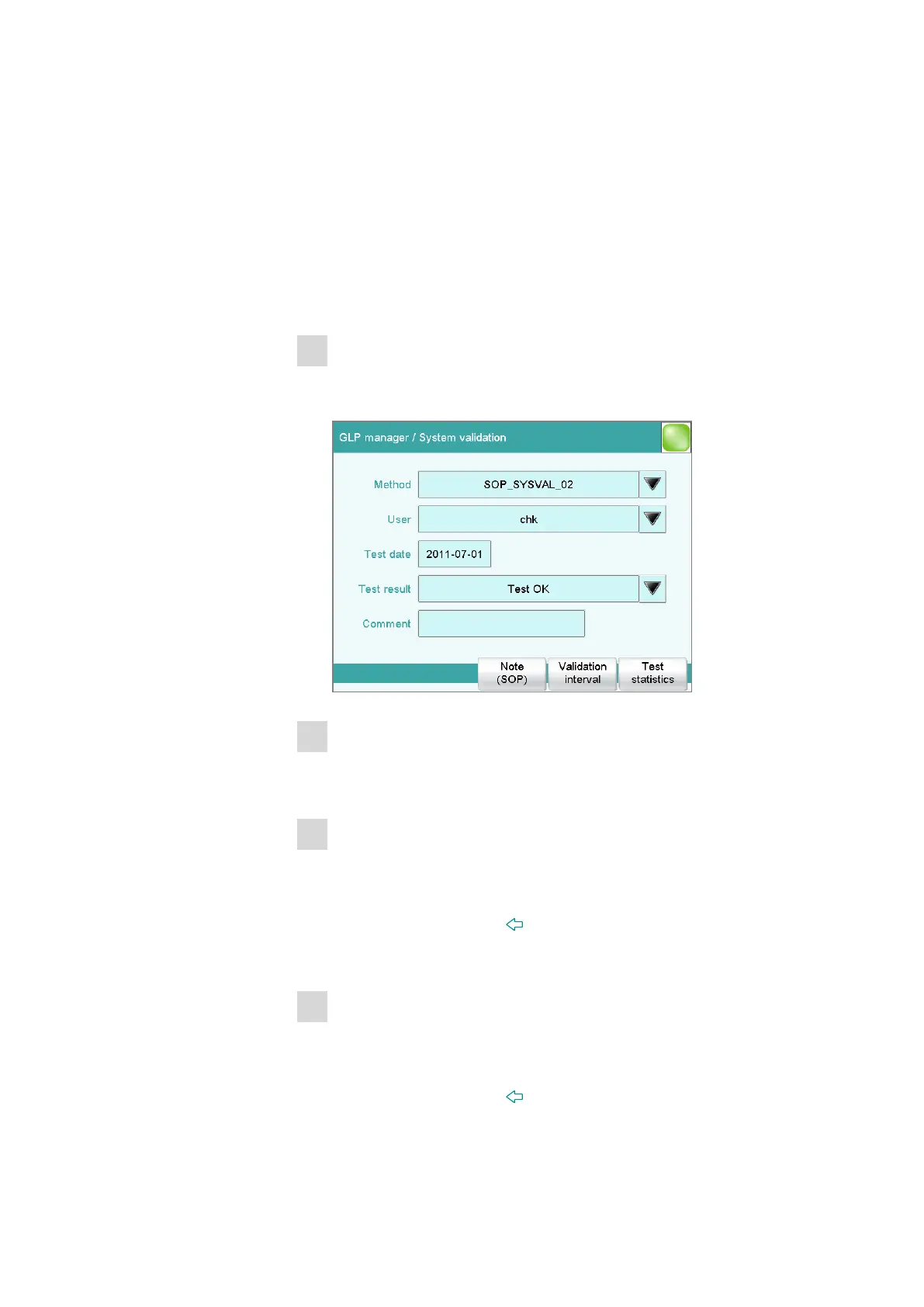
In the dialog GLP manager / System validation and its subdialogs, you
can document the system validation results and define the time interval
after which validation must be carried out again.
Proceed as follows:
1
Open the properties dialog
■ In the System / GLP manager dialog, tap on the [System vali-
dation] button.
2
Edit data
■ Define the method, the result, etc. (see ""GLP manager / System
validation" dialog", page 136).
3
Define the validation interval
■ Tap on [Validation interval].
■ Enter the time interval or the date for the next system validation
(see "Dialog "System validation / Validation interval"", page 137).
■ Tap on the fixed key [ ].
The dialog GLP manager / System validation appears again.
4
Enter statistical data
■ Tap on [Test statistics].
■ Enter the statistical data for the last system validation (see ""Sys-
tem validation / Test statistics" dialog", page 138).
■ Tap on the fixed key [ ].





 To Next Page