Installing and Starting MxViewer
Follow these steps to install MxViewer:
• Download the newest version of MxViewer:
www.mobotix.com/services/software_downloads/
• Download and install the MSI file (Windows Installer file).
You can also download the EXE file for manual installation:
• Download the EXE file to a suitable folder.
• Create a shortcut by right-clicking on MxViewer.exe in this folder.
• Copy the shortcut to the desktop.
Double-click the shortcut or the program file itself to start MxViewer.
Defining Video Sources
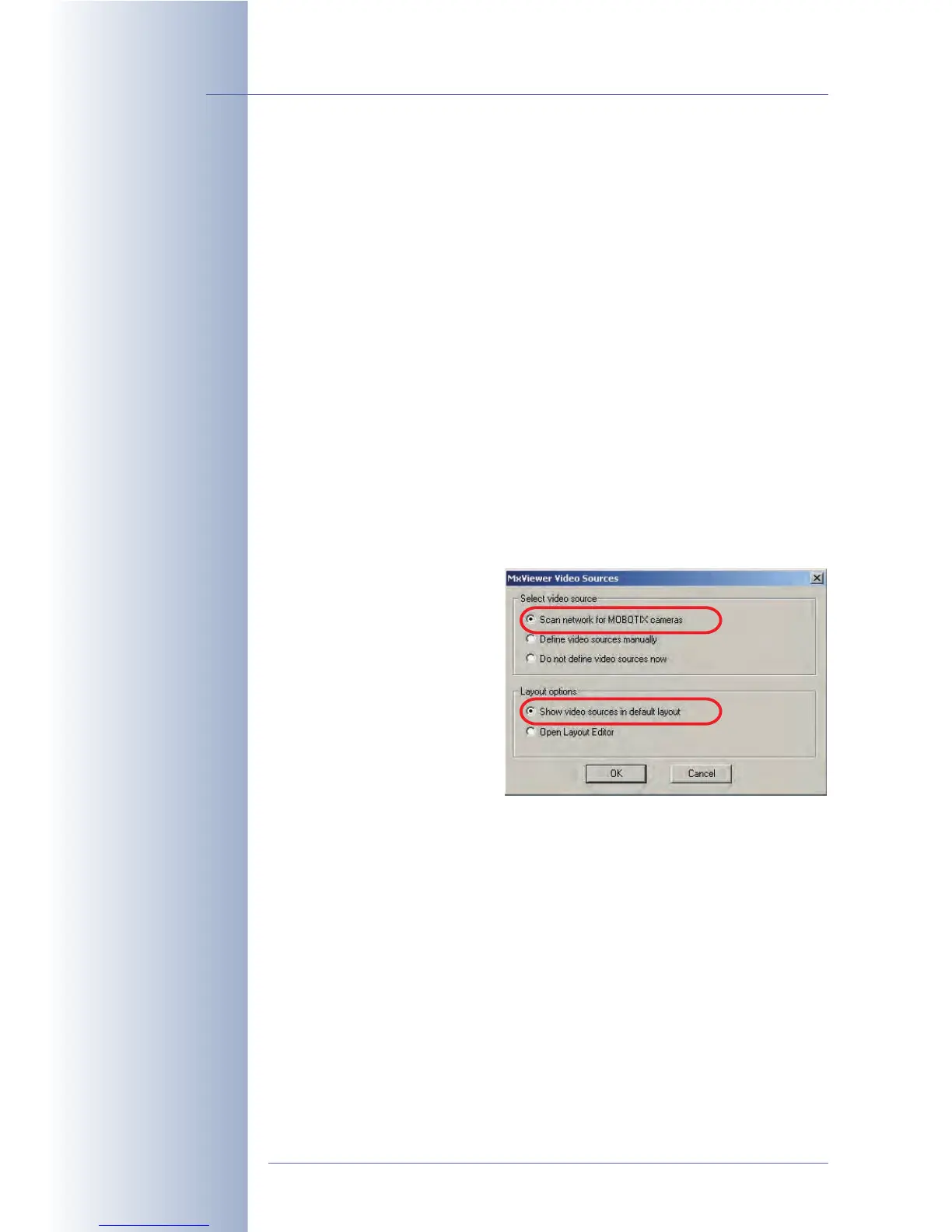
If you start MxViewer for the first time on a computer without having defined any
video sources (MOBOTIX cameras) before, the MxViewer Video Sources dialog will
appear.
Depending on the task at hand, select the appropriate option in the Select video
sources group:
• Scan network for
MOBOTIX cameras
(default): Click on OK to
open the Scan Network
for MOBOTIX Cameras
dialog. The camera will
automatically scan the
subnet for MOBOTIX cam-
eras and will display the
list of camera IP
addresses.
• Define video sources manually: Click on OK to open the Define Video
Sources Manually dialog and manually add the cameras.
In the Layout options group, select Show video sources in default layout. This
will prompt MxViewer to automatically generate a standard layout that comprises
all video sources (i.e. cameras) once they have been defined either automatically
or manually.
© MOBOTIX AG • Security-Vision-Systems • Made in Germany
www.mobotix.com • sales@mobotix.com • 10.10.2006
12/288
Software Camera Manual Part 2
Free download of
MxViewer!
You should always let the
camera search automati-
cally for other MOBOTIX
cameras



 To Next Page