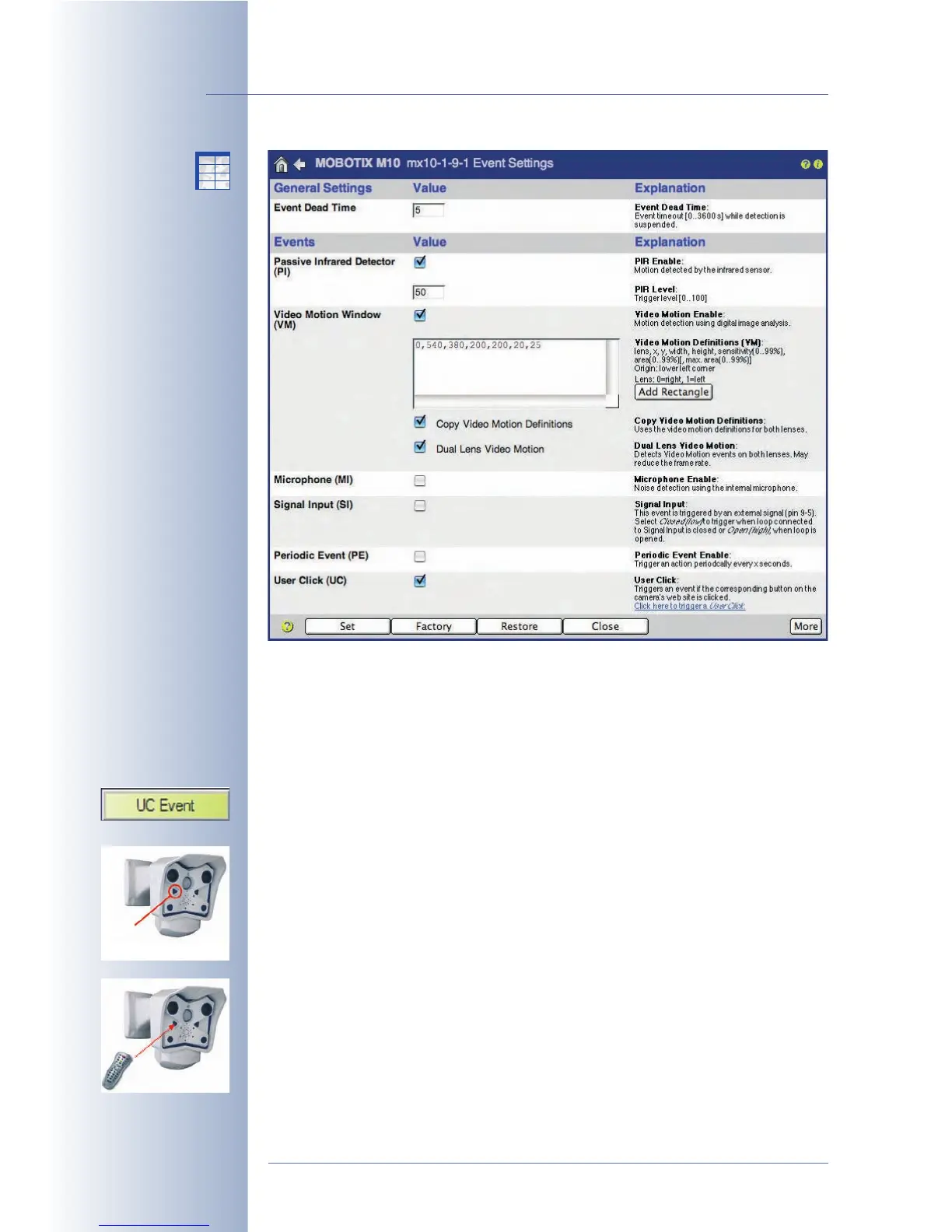
Use variables to display information on the status of a specific event or the current
value of a sensor in the camera's live image (Setup Menu > Text and Display
Settings). For more information on this topic, see section 5.5.4
Placeholders and
Variables in the Comment Field
, the camera help and the reference manual.
User Events:
• User Click (UC): Clicking on the UC Event softbutton on the Live screen will
manually trigger an event. Use this button for testing actions and messages
as well as the video and audio recording features of the camera, for exam-
ple.
• Camera Buttons (BT)
: Pressing one or both of the keys labeled R and L on
the camera's front or back (depends on the model) can manually trigger
events. You set up the camera to trigger an event if only the
Right
button,
only the
Left
button, one of the buttons (
Right OR
Left
) or both buttons (
Right
AND Left
) are being pressed.
• IR Remote Control (IR): The camera can trigger an event when it receives a
signal from an IR remote control. The camera will react to
any code
of the
remote control, i.e. pressing one of the keys on any IP remote control will trig-
ger an event.
© MOBOTIX AG • Security-Vision-Systems • Made in Germany
www.mobotix.com • sales@mobotix.com • 10.10.2006
152/288
Software Camera Manual Part 2
Activate the event to
show the corresponding
parameters
X
X
-
-
-
-
X
X
Kamerafunktionen
Kameramodell



 To Next Page