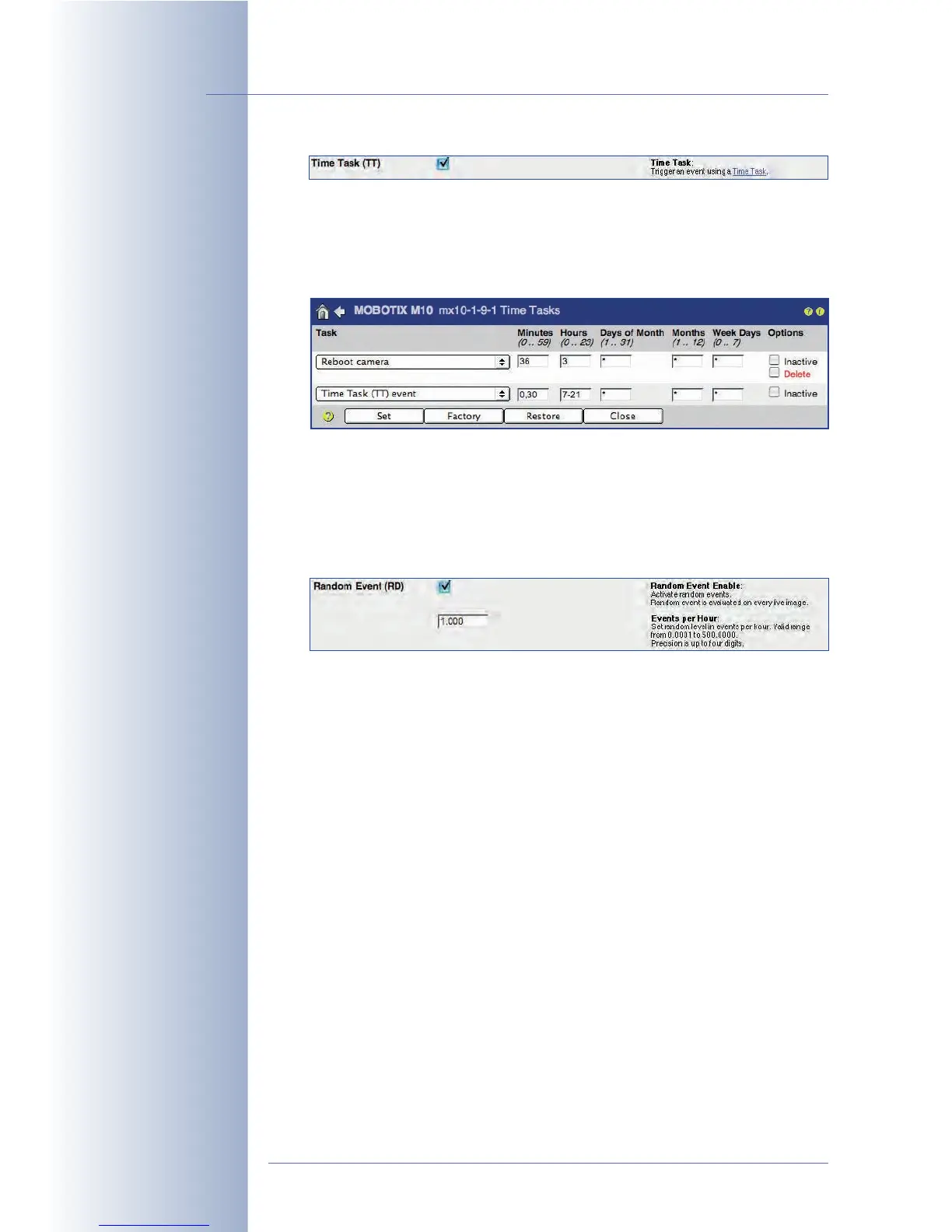
Enter the desired intervals (minutes, hours, days of month, months, and
weekdays) or numeric values to set the time(s) at which the event will be trig-
gered. Note that you can define more than one time task and that the cam-
era runs all of them in parallel. For additional information on this topic, see
section 7.9,
Time Tasks
.
Time task events are often used to update live images from a webcam on a
website using FTP transfer. This would allow updating the image on the web-
site every 30 minutes, but only between 7 am and 9:30 pm, for example.
• Random Event (RD): The random event can automatically create a certain
number of events per hour. The camera will trigger an event at the time that
is determined by its random algorithm.
The random event could be used to randomly switch one or more lamps in a
building on and off, which would very effectively simulate an inhabited build-
ing.
Recording events:
• Recording Begin (RB): This option will trigger an event if the camera starts
recording images (and sound). This event can be used to send alarm mes-
sages if the recording starts, for example.
• Recording End (RE): This option will trigger an event if the camera stops
recording. This event can be used to send alarm messages if the recording
stops, for example.
• Recording Terminate (RT): This option will trigger an event if the Terminate
Recording function freezes image recording to protect the recorded video
data, for example.
• History Recording (RH): This option will trigger an event if the camera
records a history image (e.g. for time-lapse video).
© MOBOTIX AG • Security-Vision-Systems • Made in Germany
www.mobotix.com • sales@mobotix.com • 10.10.2006
158/288
Software Camera Manual Part 2
Admin Menu>
Time Tasks
Random switching of
lights: RD
Recording events:
RB, RE, RT
Time-lapse recording: His-
tory Recording RH
Recording events will only
be triggered if recording
and the corresponding re-
cording mode have been
activated (see Setup
Menu> Recording).



 To Next Page