Mixer : 3D Panning Control Bus Window
10 - 266
Left Hand Pane
# The number of the Channel (Not editable).
Type Clicking in the field pops-up the list of Pre-defined Channel Types, as above, plus
<Custom>. Choosing one of the predefined Types sets the X, Y and Z co-ordinates
accordingly. However, they are editable.
Custom Name Type in this field to add a Custom Name. This is applicable to pre-defined channel
Types and Custom Channels.
X Click and type in the field to set the Left - Right co-ordinate for the speaker.
Y Click and type in the field to set the Front - Rear co-ordinate for the speaker.
Z Click and type in the field to set the Top - Bottom co-ordinate for the speaker.
Gain Click in the field and type a value to trim the Speaker output level.
Routing Click in the field to pop-up a list of all destinations available.
Room Settings
Name Click in the field and type to name the Speaker Arrangement.
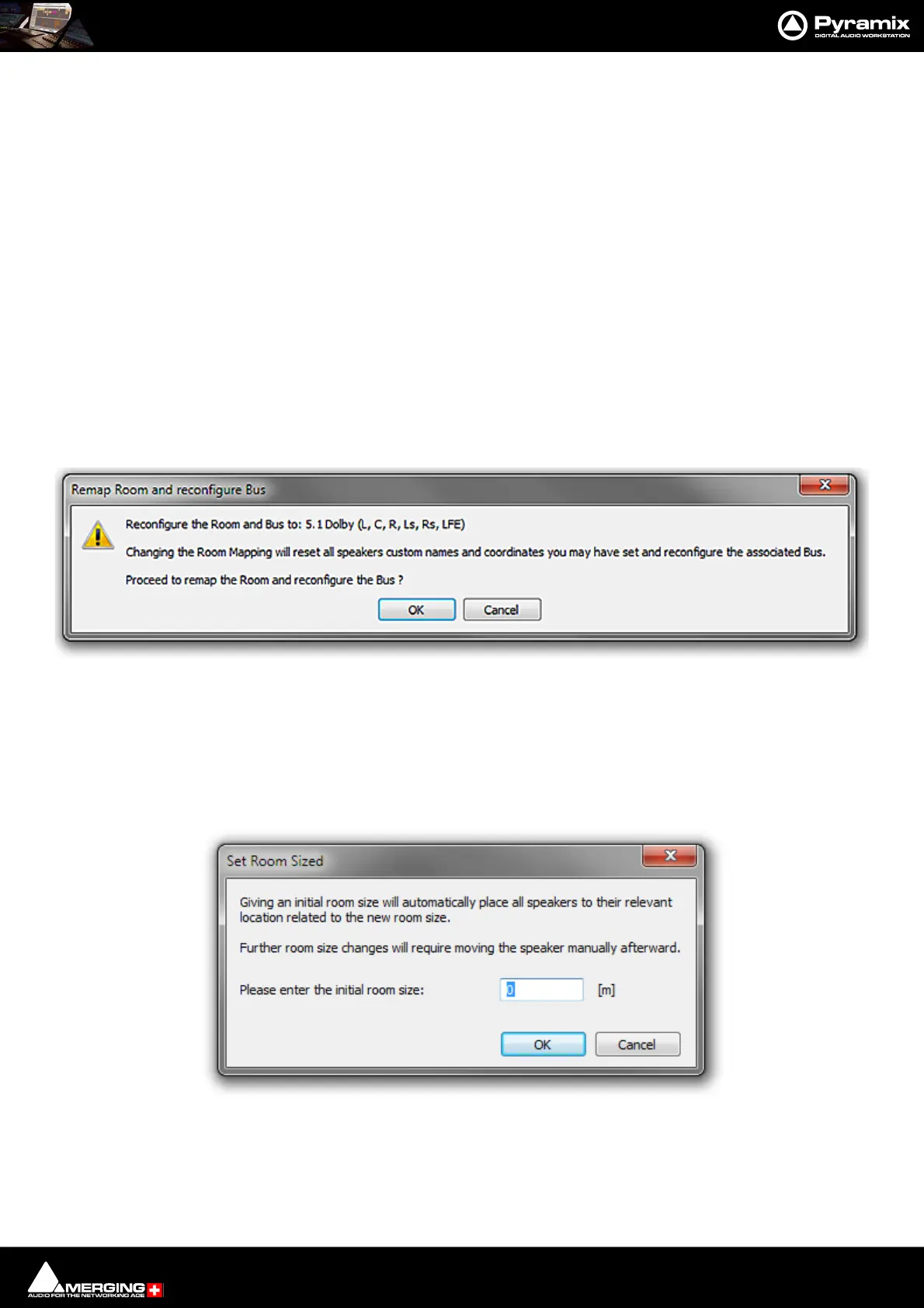
Remap Room/Bus The drop-down lists all the Pre-defined Room Types available. Choosing one in the
list opens the Remap Room and reconfigure Bus dialog:
Note: As the dialog indicates, Changing the Room Mapping will reset all custom speaker
names and coordinates you may have set and reconfigure the associated Bus.
Options are OK to reconfigure or Cancel to retain the current configuration.
Type: The radio buttons toggle between Virtual and Sized. If Sized is selected the Set
Room Size dialog appears:
Click in the Please enter the initial room size: field and enter a value (in Meters)
Click on OK to change mode and set the initial room size or Cancel to retain the current mode.
Editing Tools
Remap Room and reconfigure Bus dialog



 To Next Page