5.
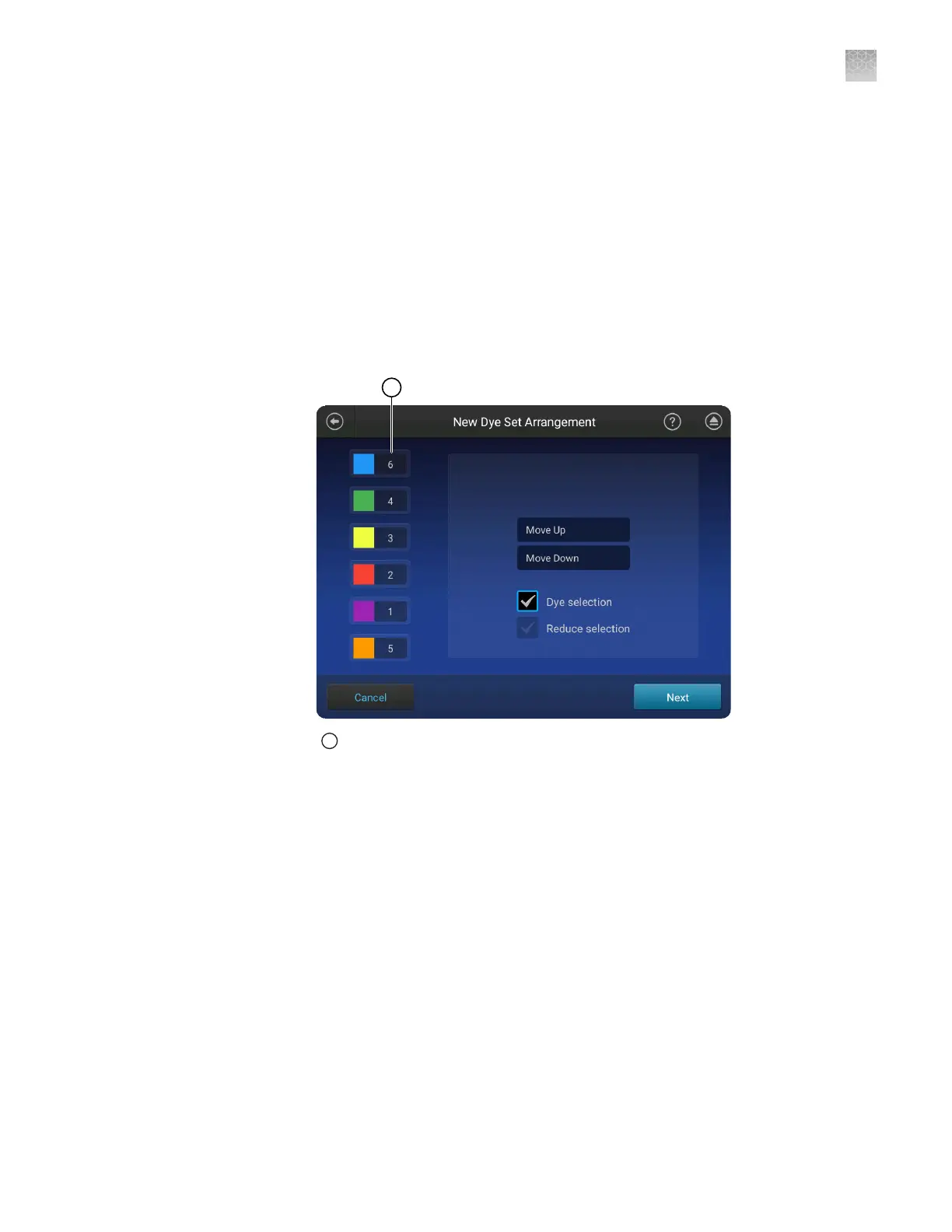
Touch a dye color, then manage the dye set arrangement:
• Touch Dye selection to deselect the dye.
• Touch Move up or Move down to organize the dyes in the order in which
they occur as peaks in the electropherogram of the custom dye set standard.
• Touch Reduce selection to exclude it from the calibration.
Note: If you are calibrating with a system dye set, but will not run all system
dyes in your application:
·
Enable (select) the Dye selection checkbox (to indicate that the system dye is
present in the matrix standard)
·
Disable (deselect) the Reduce selection checkbox (to indicate that the system
dye should not be analyzed, reported, or used for auto calibration)
1
Order of dyes in the custom dye set
6.
Touch Next, enter dye set parameters, then touch Next.
7.
Enter a Dye set name, then touch Save.
Perform a custom dye calibration
Before you begin:
• Prepare the dye set calibration standards and plate as described in the product
information sheet for the dye set.
• Add a custom dye set to the software (see “Add a custom dye set to the software
based on a system dye“ on page 197) .
In the home screen:
Appendix C
Dye calibration and install standard checks
Calibrate dyes
C
SeqStudio
™
Genetic Analyzer Instrument and Software User Guide
199









 To Next Page