5-25
6. Manual Graphing
k Rectangular Coordinate Graph
Inputting the Graph command in the Run-Matrix mode enables drawing of rectangular
coordinate graphs.
1. From the Main Menu, enter the Run-Matrix mode.
2. On the Setup screen, change “Input/Output” setting to “Linear”.
3. Configure V-Window settings.
4. Input the commands for drawing the rectangular coordinate graph.
5. Input the function.
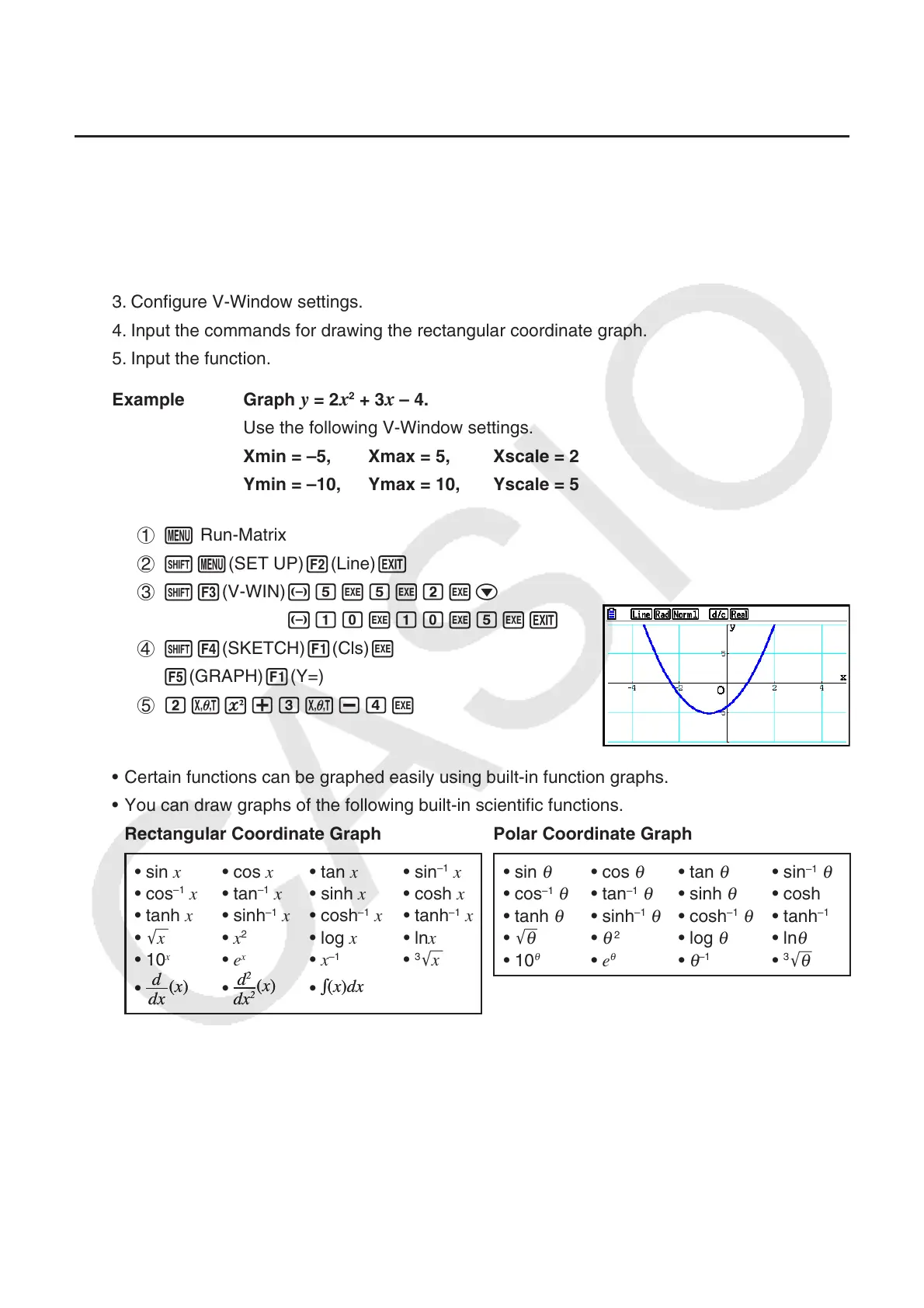
Example Graph
y = 2x
2
+ 3x – 4.
Use the following V-Window settings.
Xmin = –5, Xmax = 5, Xscale = 2
Ymin = –10, Ymax = 10, Yscale = 5
1 m Run-Matrix
2 !m(SET UP)2(Line)J
3 !3(V-WIN) -fwfwcwc
-bawbawfwJ
4 !4(SKETCH)1(Cls)w
5(GRAPH)1(Y=)
5 cvx+dv-ew
• Certain functions can be graphed easily using built-in function graphs.
• You can draw graphs of the following built-in scientific functions.
Rectangular Coordinate Graph Polar Coordinate Graph
• sin x • cos x • tan x • sin
–1
x
• cos
–1
x • tan
–1
x • sinh x • cosh x
• tanh x • sinh
–1
x • cosh
–1
x • tanh
–1
x
• 'x • x
2
• log x • lnx
• 10
x
• e
x
• x
–1
•
3
'x
• • •
• sin
θ
• cos
θ
• tan
θ
• sin
–1
θ
• cos
–1
θ
• tan
–1
θ
• sinh
θ
• cosh
θ
• tanh
θ
• sinh
–1
θ
• cosh
–1
θ
• tanh
–1
θ
• '
θ
•
θ
2
• log
θ
• ln
θ
• 10
θ
• e
θ
•
θ
–1
•
3
'
θ
- Input for x and
θ
variables is not required for a built-in function.
- When inputting a built-in function, other operators or values cannot be input.
dx
(
x
)
d
dx
(
x
)
d
dx
2
(
x
)
d
2
dx
2
(
x
)
d
2
∫(
x
)
dx
∫(
x
)
dx











 To Next Page