15-3
1. Picture Plot Function Menus
k File List Screen Function Menu
• {OPEN} ... Opens a g3p/g3b file or folder.
• {DELETE} ... Deletes a g3p/g3b file.
• {SEARCH} ... Searches for a g3p/g3b file.
• {DETAIL} ... Displays the file DETAIL screen (page 11-6).
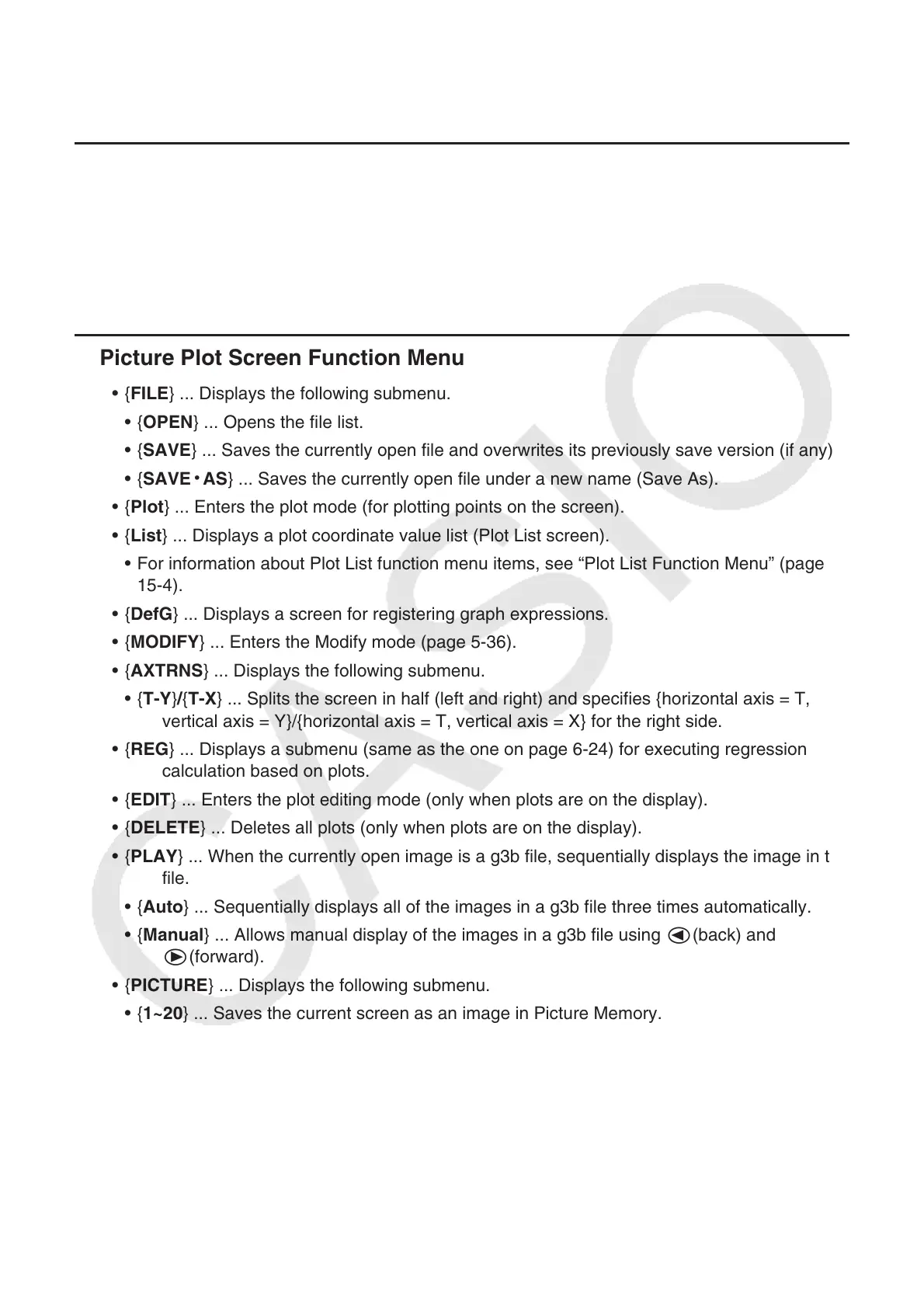
k Picture Plot Screen Function Menu
• {FILE} ... Displays the following submenu.
• {OPEN} ... Opens the file list.
• {SAVE} ... Saves the currently open file and overwrites its previously save version (if any).
• {SAVE
•
AS} ... Saves the currently open file under a new name (Save As).
• {Plot} ... Enters the plot mode (for plotting points on the screen).
• {List} ... Displays a plot coordinate value list (Plot List screen).
• For information about Plot List function menu items, see “Plot List Function Menu” (page
15-4).
• {DefG} ... Displays a screen for registering graph expressions.
• {MODIFY} ... Enters the Modify mode (page 5-36).
• {AXTRNS} ... Displays the following submenu.
• {T-Y}/{T-X} ... Splits the screen in half (left and right) and specifies {horizontal axis = T,
vertical axis = Y}/{horizontal axis = T, vertical axis = X} for the right side.
• {REG} ... Displays a submenu (same as the one on page 6-24) for executing regression
calculation based on plots.
• {EDIT} ... Enters the plot editing mode (only when plots are on the display).
• {DELETE} ... Deletes all plots (only when plots are on the display).
• {PLAY} ... When the currently open image is a g3b file, sequentially displays the image in the
file.
• {Auto} ... Sequentially displays all of the images in a g3b file three times automatically.
• {Manual} ... Allows manual display of the images in a g3b file using d(back) and
e(forward).
• {PICTURE} ... Displays the following submenu.
• {1~20} ... Saves the current screen as an image in Picture Memory.
• {SAVE
•
AS} ... Saves the current screen as an image under a name specified by you.
• {PAN} ... Enters the Pan mode (page 5-10).
• {FadeI/O} ... Adjusts the lightness of an image (page 15-12).



 To Next Page
 Loading...