5-34
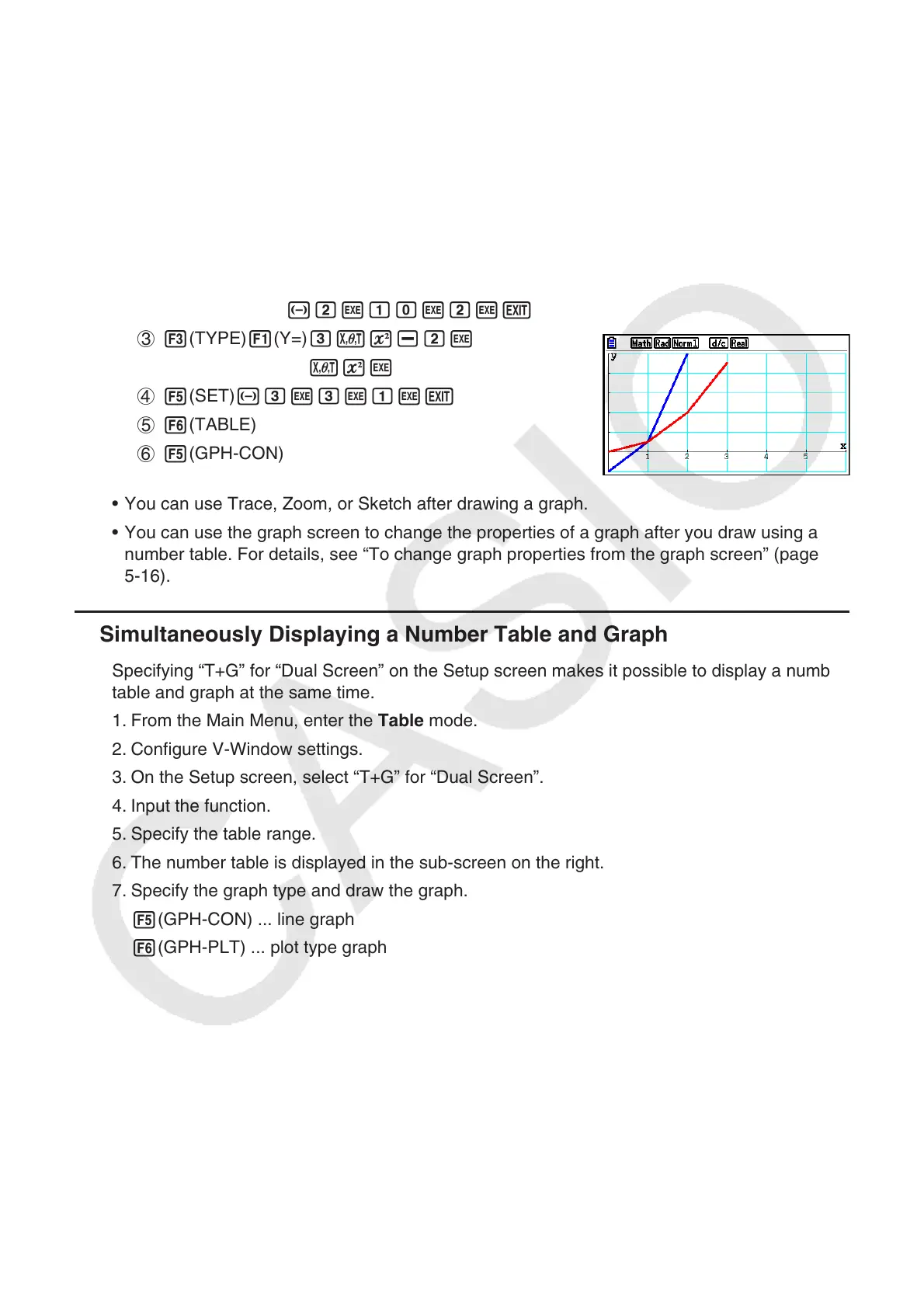
Example Store the two functions below, generate a number table, and then draw
a line graph. Specify a range of –3 to 3, and an increment of 1.
Y1 = 3
x
2
– 2, Y2 = x
2
Use the following V-Window settings.
Xmin = 0, Xmax = 6, Xscale = 1
Ymin = –2, Ymax = 10, Yscale = 2
1 m Table
2 !3(V-WIN) awgwbwc
-cwbawcwJ
3 3(TYPE) 1(Y=) dvx-cw
vxw
4 5(SET) -dwdwbwJ
5 6(TABLE)
6 5(GPH-CON)
• You can use Trace, Zoom, or Sketch after drawing a graph.
• You can use the graph screen to change the properties of a graph after you draw using a
number table. For details, see “To change graph properties from the graph screen” (page
5-16).
k Simultaneously Displaying a Number Table and Graph
Specifying “T+G” for “Dual Screen” on the Setup screen makes it possible to display a number
table and graph at the same time.
1. From the Main Menu, enter the Table mode.
2. Configure V-Window settings.
3. On the Setup screen, select “T+G” for “Dual Screen”.
4. Input the function.
5. Specify the table range.
6. The number table is displayed in the sub-screen on the right.
7. Specify the graph type and draw the graph.
5(GPH-CON) ... line graph
6(GPH-PLT) ... plot type graph



 To Next Page
 Loading...