9-19
3. Using Special Spreadsheet
Mode Commands
The Spreadsheet
mode has a number of special commands like CellSum(, which returns
the sum of a range of cells, and CellIf(, which specifies branching conditions. These special
commands can be used inside of formulas.
k Special Spreadsheet
Mode Command List
“Input Key Operation” operations can be performed during cell input only.
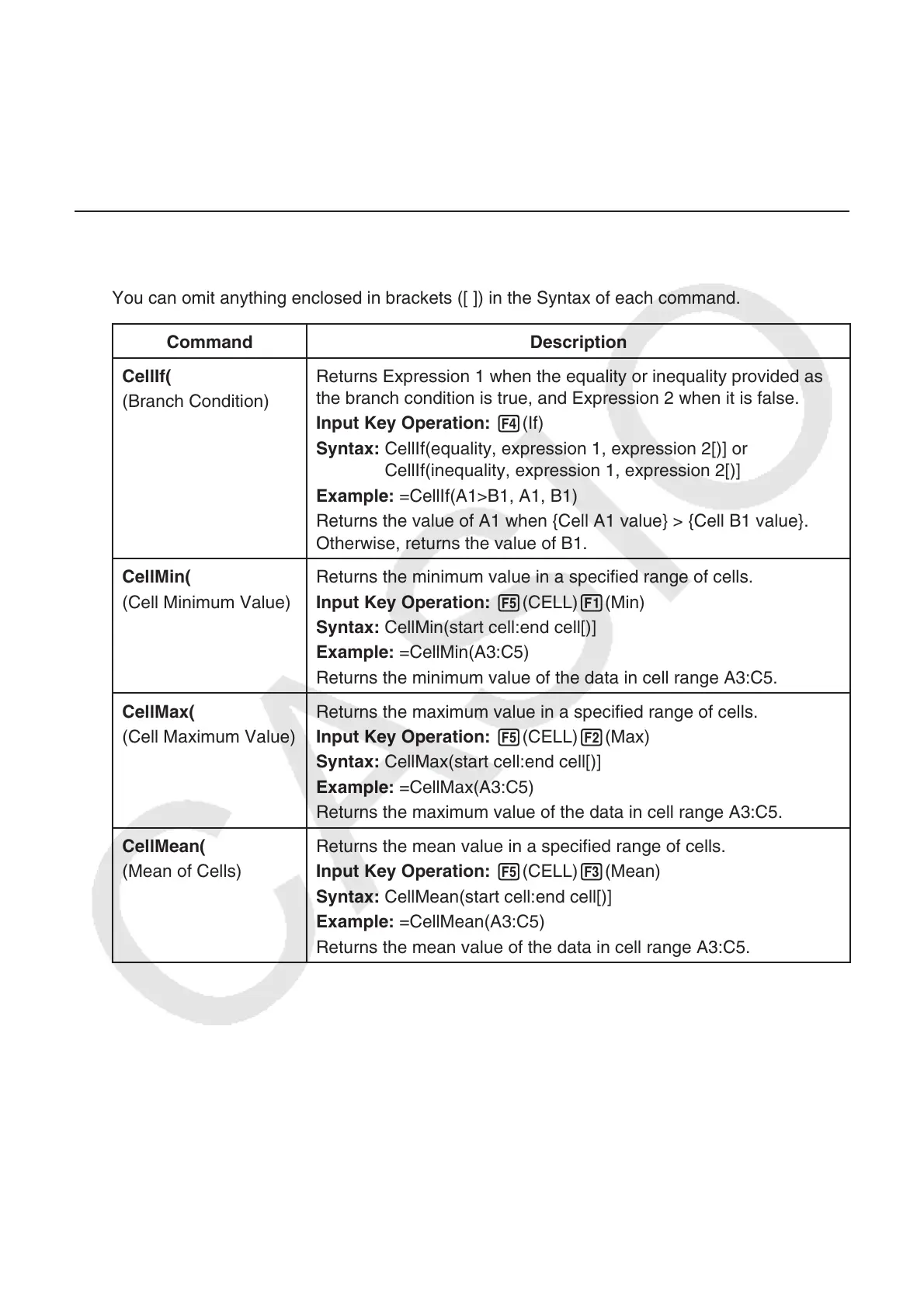
You can omit anything enclosed in brackets ([ ]) in the Syntax of each command.
Command Description
CellIf(
(Branch Condition)
Returns Expression 1 when the equality or inequality provided as
the branch condition is true, and Expression 2 when it is false.
Input Key Operation: 4(If)
Syntax: CellIf(equality, expression 1, expression 2[)] or
CellIf(inequality, expression 1, expression 2[)]
Example: =CellIf(A1>B1, A1, B1)
Returns the value of A1 when {Cell A1 value} > {Cell B1 value}.
Otherwise, returns the value of B1.
CellMin(
(Cell Minimum Value)
Returns the minimum value in a specified range of cells.
Input Key Operation: 5(CELL) 1(Min)
Syntax: CellMin(start cell:end cell[)]
Example: =CellMin(A3:C5)
Returns the minimum value of the data in cell range A3:C5.
CellMax(
(Cell Maximum Value)
Returns the maximum value in a specified range of cells.
Input Key Operation: 5(CELL) 2(Max)
Syntax: CellMax(start cell:end cell[)]
Example: =CellMax(A3:C5)
Returns the maximum value of the data in cell range A3:C5.
CellMean(
(Mean of Cells)
Returns the mean value in a specified range of cells.
Input Key Operation: 5(CELL) 3(Mean)
Syntax: CellMean(start cell:end cell[)]
Example: =CellMean(A3:C5)
Returns the mean value of the data in cell range A3:C5.



 To Next Page
 Loading...