© AGRGS 2016 | Data subject to change without notice
67385867493098462 | en, eu, V5, 07. Oct 2016, page 56
● Function «Leave card» line for «Outside» direction (Return the card in OUT direction),
Door (access point) "1", Clamp (terminal) "O2, normally not active".
Switch to Port readers reassignment (Reader port reassignment) tab add the
string:
● Access point "1", Port reader type (reader port type) Extended for exit (Additional
for OUT direction), Port number "3".
Click OK and Apply.
Mode settings (Rules):
For visitor passes that have to be captured at the exit, on Main tab you have to create the mode
with the following settings:
● Affected Staff select all visitor passes.
● Affected doors (access points) select all access points blocking .
● On Special Rules tab enable Outside direction additional reader as card collector
(Allow passage in OUT direction only by additional card capture reader) option from the
drop-down menu.
Add a day or days according to working schedule and adjust them as necessary.
9.5.5 Connecting ARGO and TVER-7 card capture readers
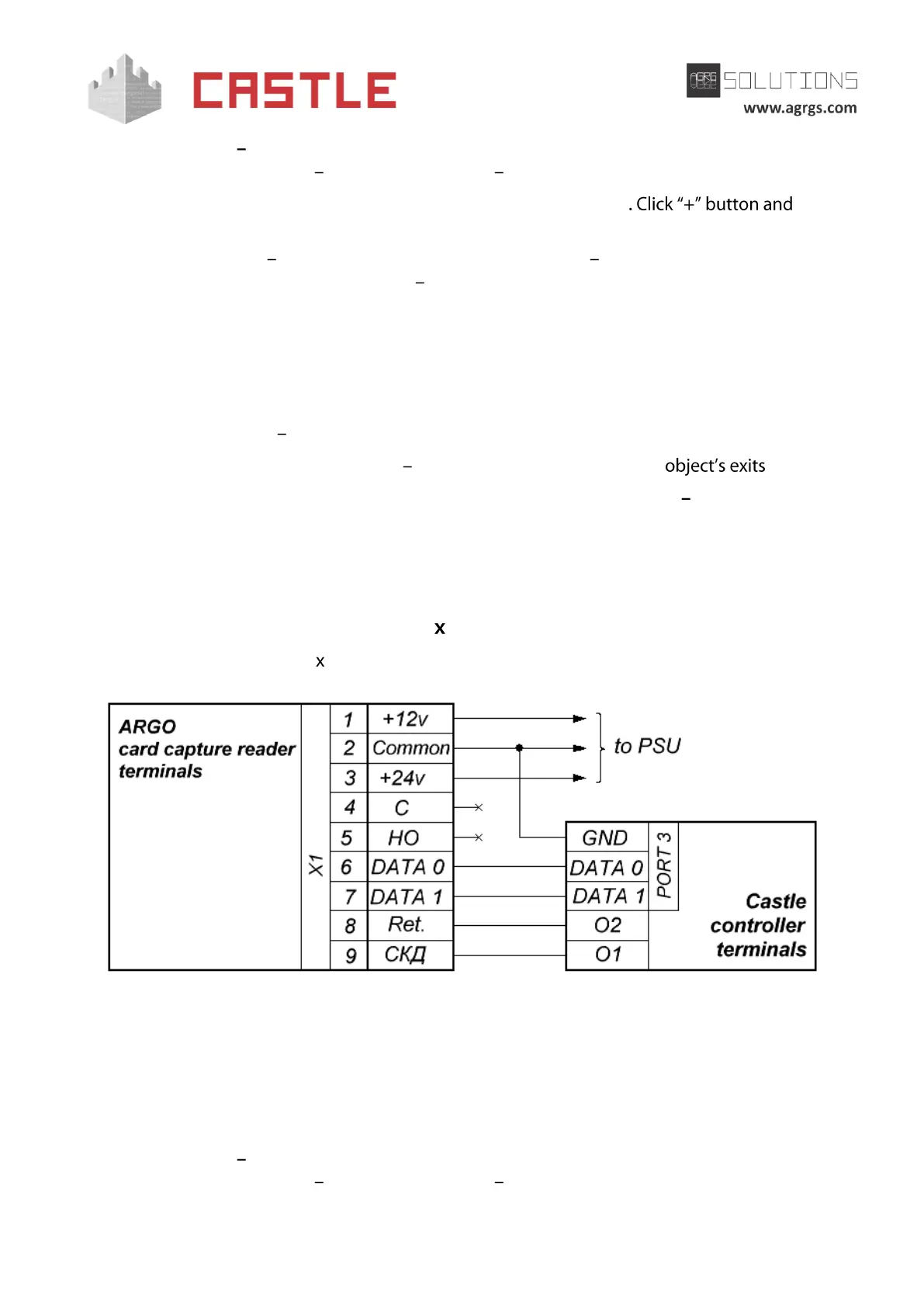
To connect ARGO and TVER-7 CCRs, it is necessary to join controller terminals to CCR terminals.
Pic 35. Example of connecting ARGO, TVER-7x CCRs in OUT direction
Access point settings:
In the Control Program, go to Doors tab and select a controller you want from the list, click
Settings, switch to Clamps reassignment (Terminal reassignment) tab, and add two strings with
the following values:
● Function «Seize card» line for «Outside» direction (Capture the card in OUT direction),
Door (access point) "1", Clamp (terminal) "O1, normally not active".



 To Next Page