CONSOLE AI | Adding Devices (CP2) | 154
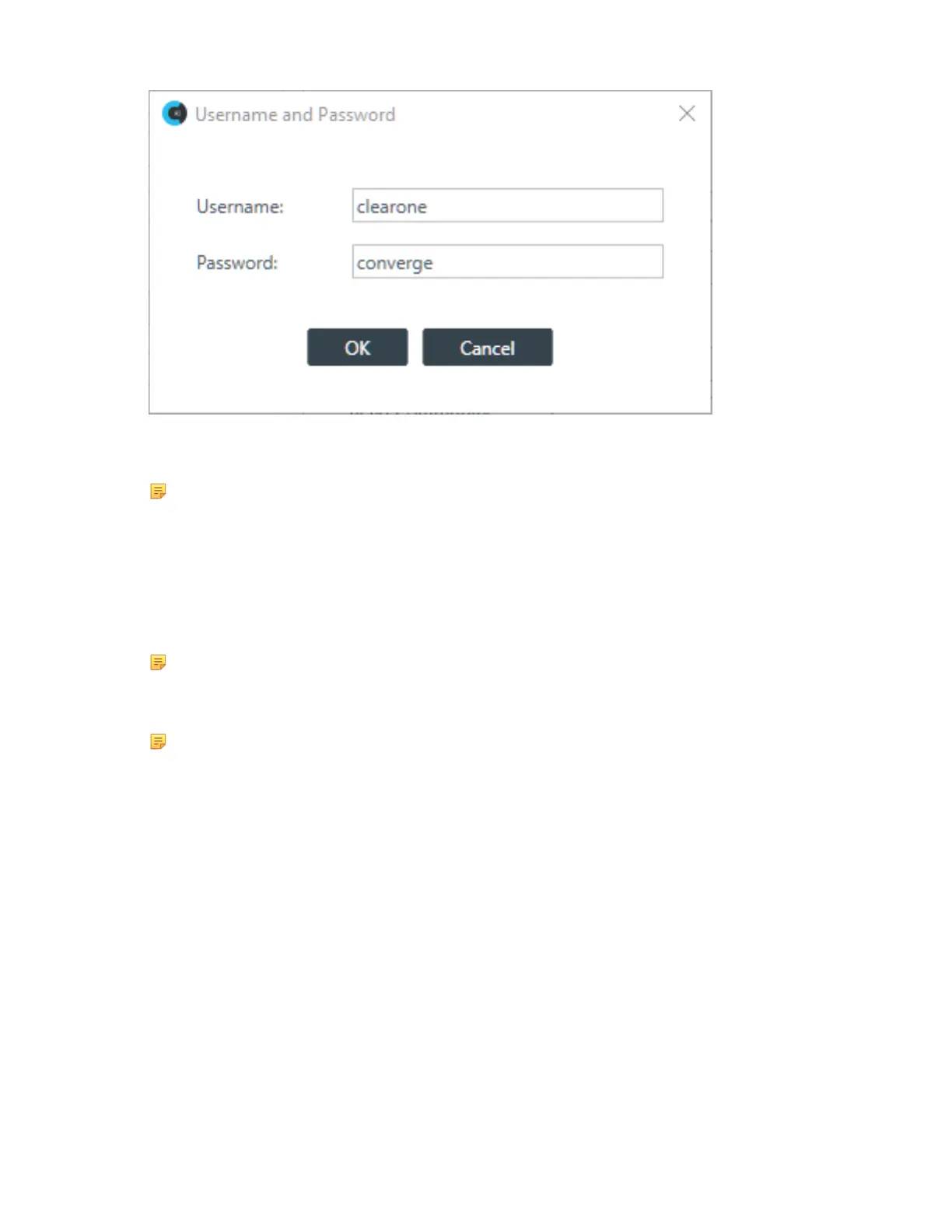
The default username is “clearone” and the default password is “converge”.
4. Type a new username and/or password, then click OK.
Note:
Usernames and passwords can have at least 64 characters, and possibly more depending on
what language you’re using.
NTP Server Configuration
5. To have the device automatically set its time using a Network Time Protocol (NTP) server, select the
Use Network Time check box.
6. Add the address of an NTP server in the Time Server 1 field.
Note:
The server name can have up to 30 characters.
7. (Optional) Add the address of another NTP server in the Time Server 2 field.
Note:
The server name can have up to 30 characters.
Time Settings
8. To have the stack automatically adjust the time for daylight savings, check the Use Daylight Savings
check box.
9. To set the time zone, choose an option from the Time Zone drop-down list.
SMTP Settings
10.To turn on the ability to have stack notifications sent via email, select the Use SMTP check box.
11.Type the name of an email address to which notifications will be sent in the Error Contact Email field.
12.Type the address of an SMTP server in the Email Server field.
SNMP Settings
13.To turn on the Simple Network Management Protocol (SNMP), check the Use SNMP check box.
14.Type the address of the SNMP Manager in the Manager IP Address field.
15.Type the port to use to communicate with the SNMP Manager in the Manager Port field.
16.Type the name of the SNMP Write community string in the Write Community field.
17.Type the name of the SNMP Read community string in the Read Community field.
CONSOLE AI User Manual









 To Next Page