CONSOLE AI | Adding Partitions, Channels, and GPIO Settings (CP2) | 167
2.
In the toolbar, click .
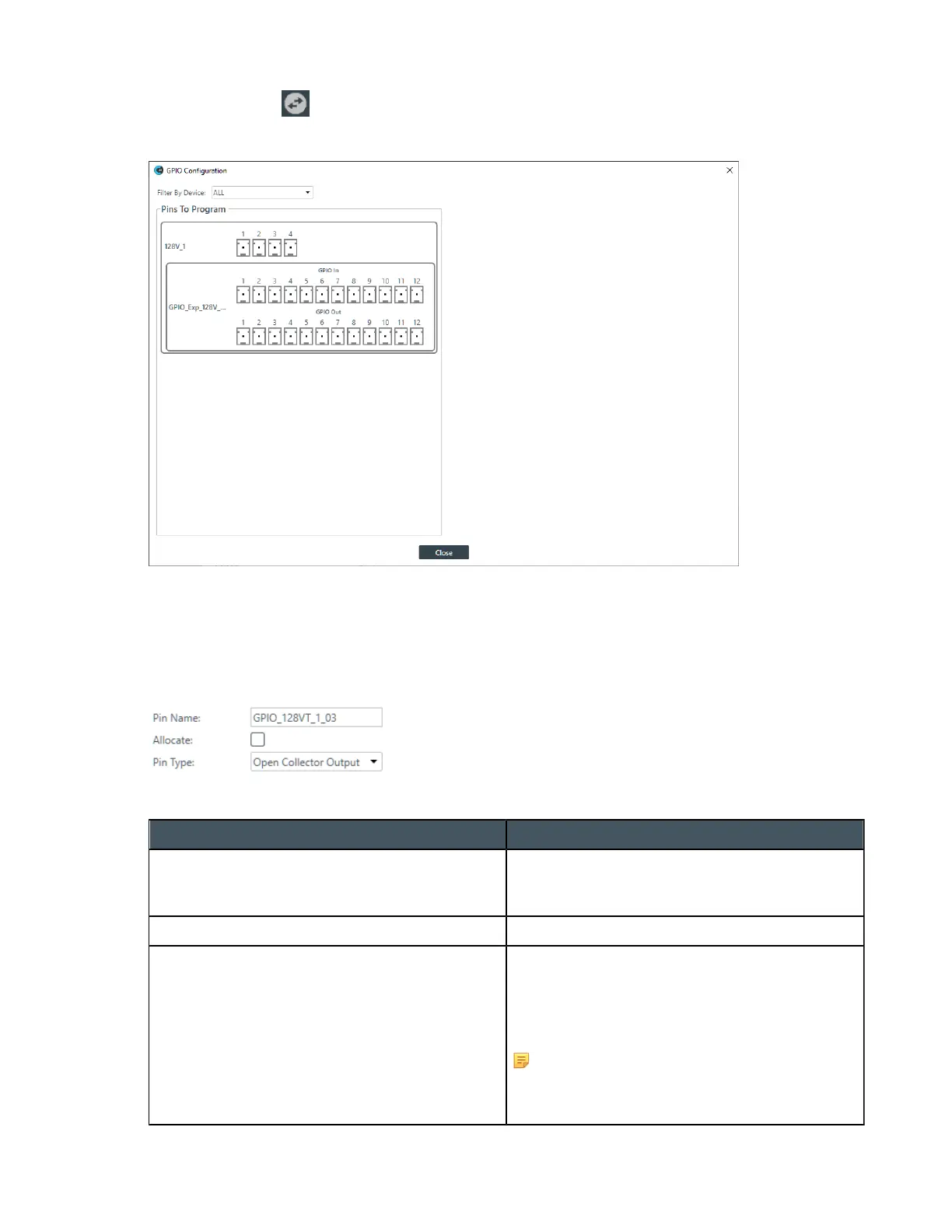
The GPIO Configuration dialog box appears:
GPIO pins are shown for each connected device that has them.
3. To filter which pins are shown, choose an option from the Filter By Device drop-down list.
You can choose to show the pins for only one particular device or see the pins for all devices by
choosing ALL.
4. For any pin, click the icon to see its settings at the right side of the GPIO Configuration dialog box:
5. (Optional) Change the settings for the pin as shown in the table below:
Option Description
Pin Name Type a name for the pin. This name is used only
in this dialog box, to make it easier to identify a
pin’s purpose.
Allocate Whether this pin is allocated in the project.
Pin Type Choose from one of the following pin types:
• Open Collector Output
• Powered Logic Output
• Logic Input
Note:
GPIO pin types for a GPIO Expander are
preset, and cannot be changed.
CONSOLE AI User Manual









 To Next Page