CONSOLE AI | Adding Partitions, Channels, and GPIO Settings (CP2) | 168
6. When you are done making changes to the GPIO pin settings, click Close.
Advanced Room Mode
7.
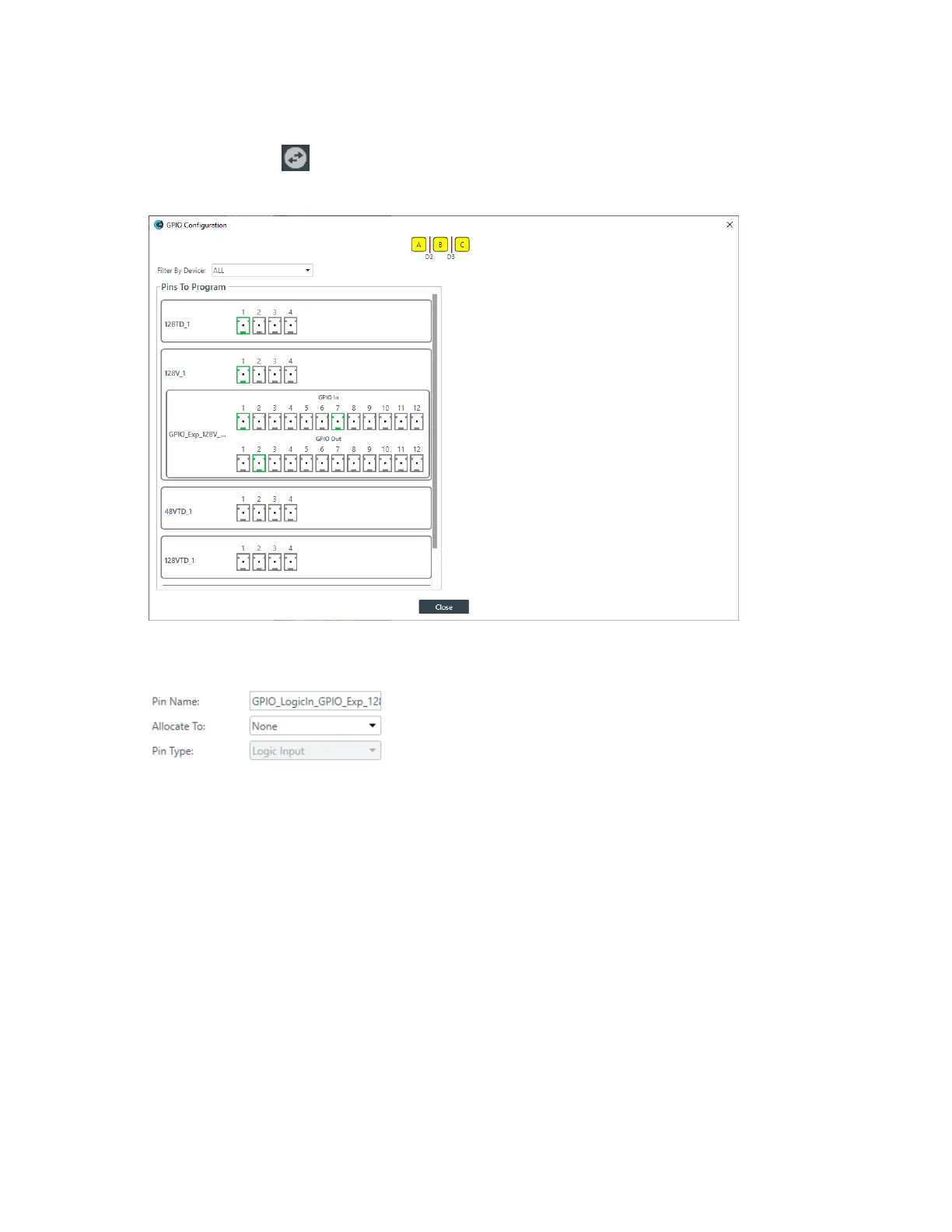
In the toolbar, click .
The GPIO Configuration dialog box appears (including showing partitions and dividers):
GPIO pins are shown for each connected device that has them.
8. For any pin, click the icon to see its settings at the right side of the GPIO Configuration dialog box:
9. Choose an option from the Allocate To drop-down list. You can choose partitions or the dividers
between partitions.
10.For pins that permit you to change the type, choose an option from the Pin Type drop-down list.
11.Depending on what you have chosen for Allocate and Pin Type, some additional options appear to let
you do one of the following:
• Set Open Collector and Powered Logic Output options
• Set Logic Input Trigger Commands
• Set the Divider Pin High to be open or closed
Skip to the appropriate section below to continue.
Open Collector and Powered Logic Output Options
12.For Open Collector and Power Logic Output, the following options appear:
CONSOLE AI User Manual









 To Next Page