CONSOLE AI | Macros and Timers (CP2) | 176
6. Click in the empty command field to begin editing the macro.
Create a Command using Auto Complete
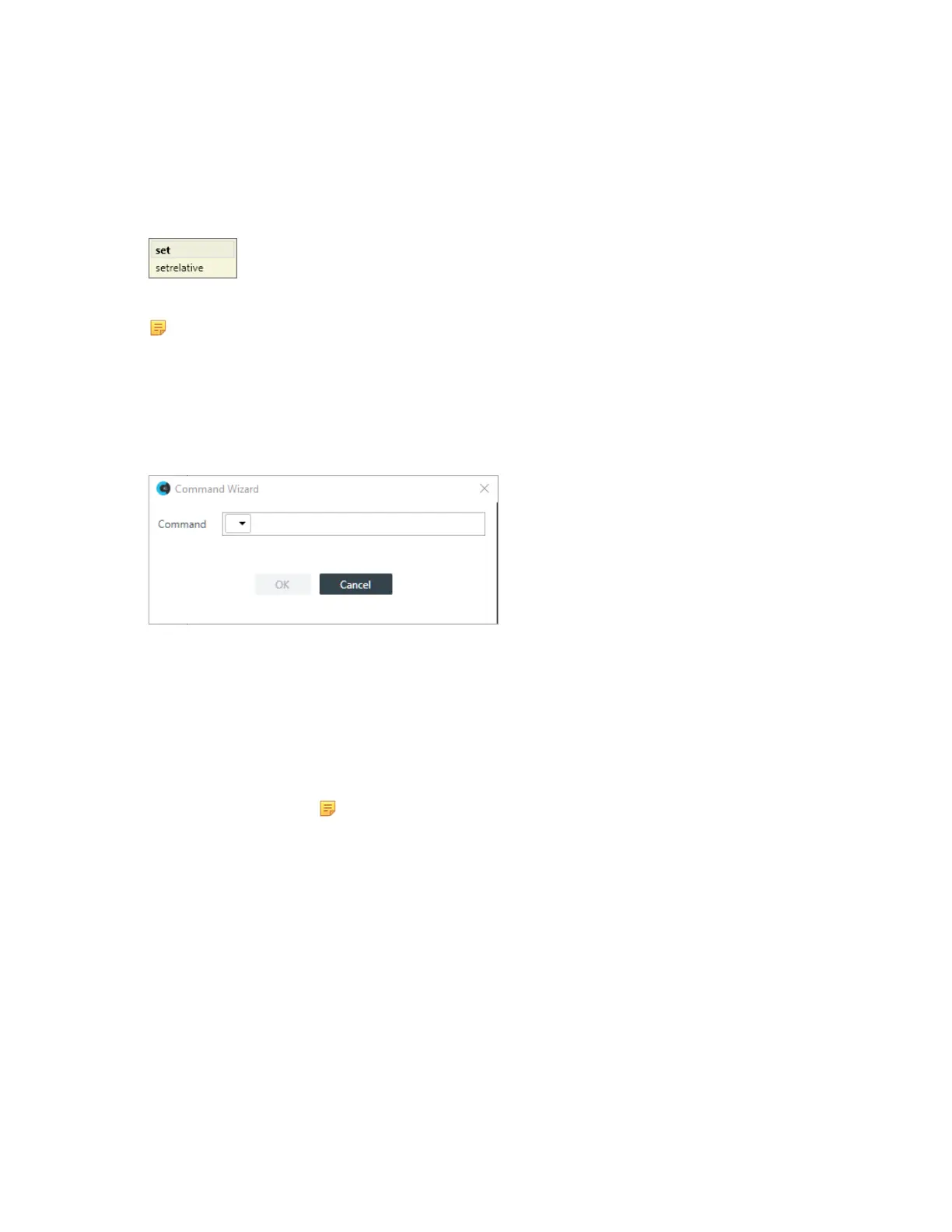
7. You can create commands using the Auto Complete feature. Just begin typing a command, and the
possible commands that match appear in a context menu.
In the example below, an ‘s’ has been typed, so the context menu shows the available commands that
begin with ‘s’
8. Continue to type commands, using Auto Complete as needed to complete the commands.
Note:
Auto Complete works when you are at the end of command string, but does not work if you click
in the middle of existing commands.
Create Commands Using Command Wizard
9. Click Command Wizard to use a tool that helps you create macro commands.
The Command Wizard appears:
10.Choose a command from the drop-down list in the Command field.
The available commands are described in the following table:
Command Description
set Use to create a route between channels, between channels and groups, or
between groups, or else to set channel properties.
run Use to run another macro.
Note:
The Command Wizard lets you create a macro that runs itself, but
doing so creates an endless loop.
wait Use to wait a specified amount of time before executing the next command.
delete Use to delete a route between channels or groups.
setrelative Use to set a gain value that is relative to the current gain value, rather than an
absolute value.
11.A new drop-down menu appears to let you choose the next part of the command.
The available options depend on which command you have chosen and on the resources available in
the project.
12.Continue to choose options from the drop-down menus until no more options appear.
13.Click OK.
The completed command appears in the Command column.
CONSOLE AI User Manual









 To Next Page