CONSOLE AI | Macros and Timers (CP2) | 180
2. To add a new timer, click Add Timer.
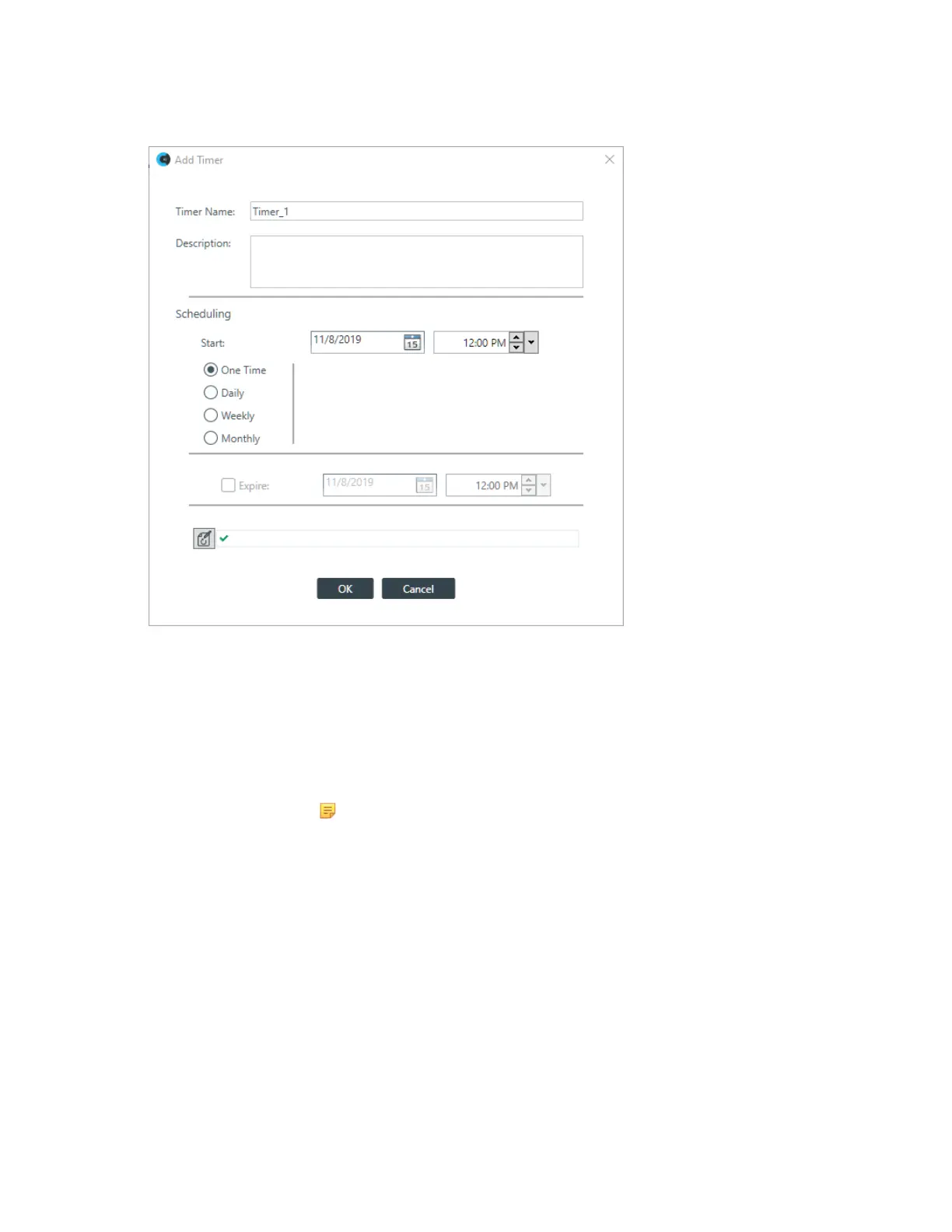
The Add Timer dialog box appears:
3. Type a name in the Timer Name field.
4. (Optional) Type a description in the Description field.
5. Specify when the timer should run in the Scheduling section of the dialog box. The available options
are described in the table below.
Option Description
Start Use the Date and Time controls to specify the date and time that the timer
should run.
Note:
The Date control is available only if you are running the timer one time.
One Time Select to have the timer run only once.
Daily Select to have the timer run every day.
Weekly Select to specify which days of the week to run the timer.
Monthly Use to specify one day each month to run the timer. Available options include
specifying a particular day and week (such as the third Thursday of the month)
or to specify a particular date (every month on the 15th).
Expire For recurring timers, use to specify a date when the timer stops functioning.
6. You can create commands using the Auto Complete feature. Just begin typing a command, and the
possible commands that match appear in a context menu.
In the example below, an ‘r’ has been typed, so the context menu shows the available commands that
begin with ‘r’:
CONSOLE AI User Manual









 To Next Page