CONSOLE AI | Managing Channels (CP2) | 193
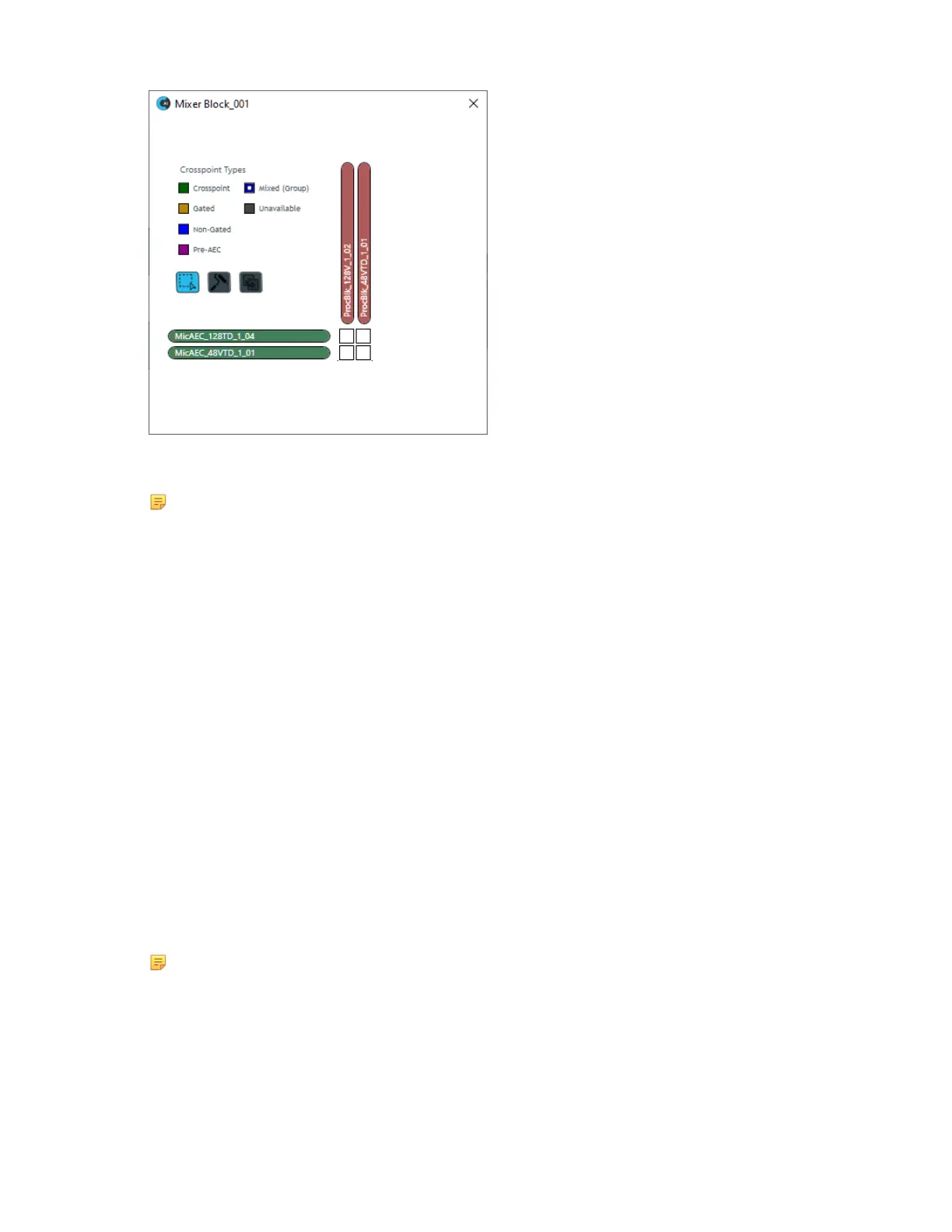
36.You can now make any changes to the channel crosspoints, as desired, in the same way that you can
use MatrixView.
Note:
See Connecting Channels Using MatrixView
™
(CP2) for more information about using
MatrixView.
37.When you’re done making changes to the mixer block channels, click the x in the upper right of the
mixer block mini matrix.
38.You can create as many mixer blocks as you’d like. Mixer blocks can greatly simplify the FlowView area
by keeping some routing within the blocks, rather than having many route lines.
Use a Boundary Box
39.You can use a boundary box to visually organize the channels in FlowView. To add a boundary
box, drag the Boundary Box resource from the lower left of the FlowView area (at the bottom of the
Resources area) to the main FlowView area.
A color picker appears.
40.Use the color picker to choose a color for the shading in the box.
41.Click anywhere outside the color picker to close it.
42.Drag the Opacity slider in the Edit dialog box to choose the shading opacity.
43.Click OK.
44.You can move the boundary box by simply clicking anywhere within it and dragging.
45.To resize the box, drag any of its handles, which are in the corners and the center of each edge.
46.Once you have positioned and sized the box the way you want it, you can drag channel icons on top of
the box.
Note:
Keep in mind that using a Boundary Box is only for visually organizing channels, and does not
change anything functionally.
CONSOLE AI User Manual









 To Next Page