CONSOLE AI | Managing Channels (CP2) | 211
Feature Description
Gate Settings Gate settings control when a microphone is gated on or off, based on
audio environment factors for this microphone and other microphones in
the same gating group.
To change the properties for a Mic/Line Input AEC channel:
1. From the Navigation Panel, choose Channel Properties.
The Channel Properties screen appears.
Note:
You can also view and change the channel properties in FlowView. See Connecting Channels
Using FlowView
™
(CP2) for more information.
2. (Optional) If you’re using Advanced Room mode, choose a partition from the Partition drop-down list.
3. (Optional) Choose a preset from the Preset drop-down list.
4. Click Mic/Line Input AEC to open the channel list.
5. Select the channel you want to change.
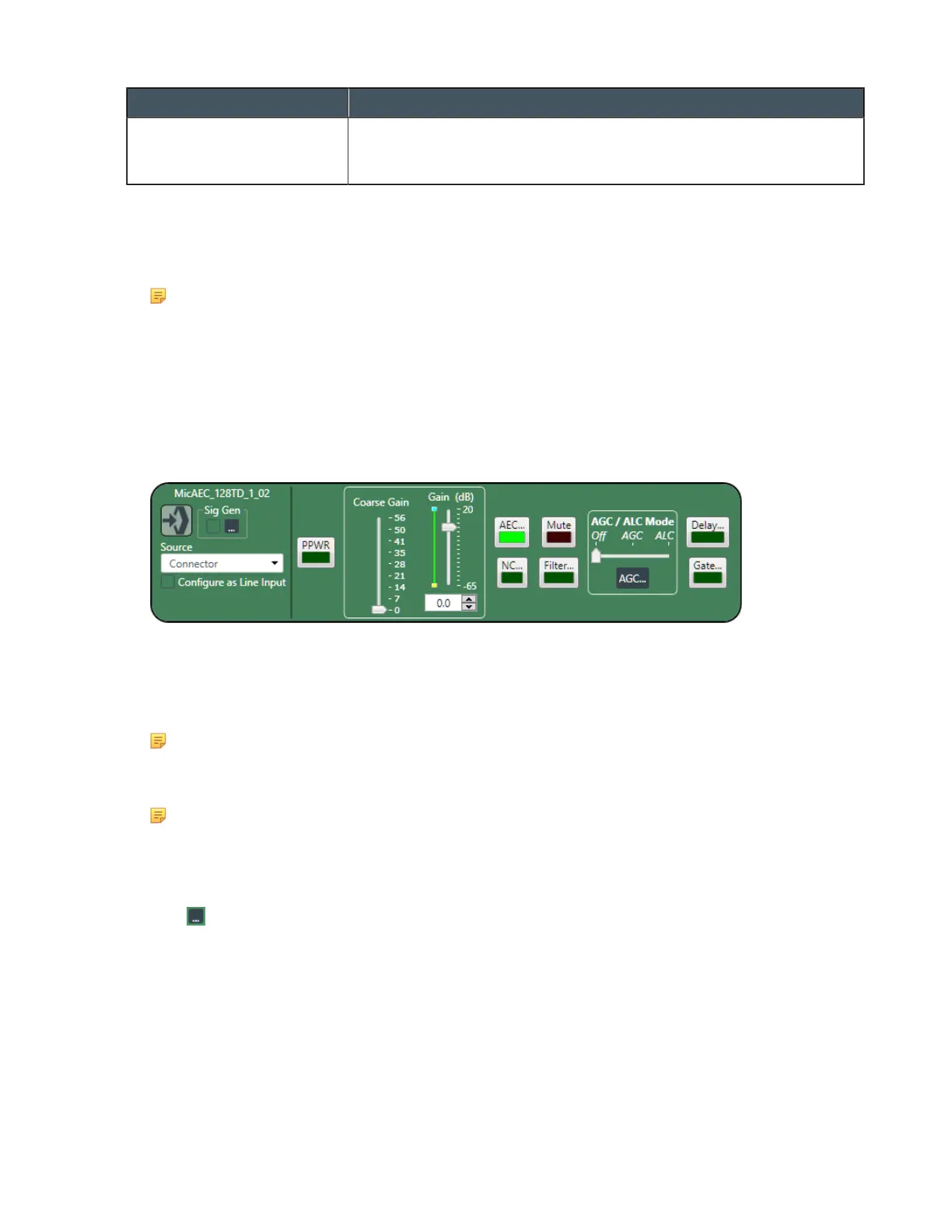
The Mic/Line Input AEC Channel Properties block appears:
Digital Input
6. If you have added any Dante or DIALOG 20 Mic channels from the same device to the current partition
(if you’re using partitions), you can use any of these channels as a digital input by selecting the
corresponding channel from the Source drop-down list.
Note:
Once you have associated a Mic/Line Input channel with a digital channel, you should perform
all routing using the Mic/Line Input channel, rather than the digital channel.
Note:
Using a Dante or DIALOG 20 channel as an input for a Mic/Line Input channel permits the use of
AEC on digital channels, since AEC cannot be applied to raw digital channels directly.
Signal Generator
7.
Click under Sig Gen to use the Signal Generator.
The Signal Generator dialog box appears:
CONSOLE AI User Manual









 To Next Page