Panther System
®
Operator’s Manual
AW-17791-001 Rev. 002 (EN)
88
Overview
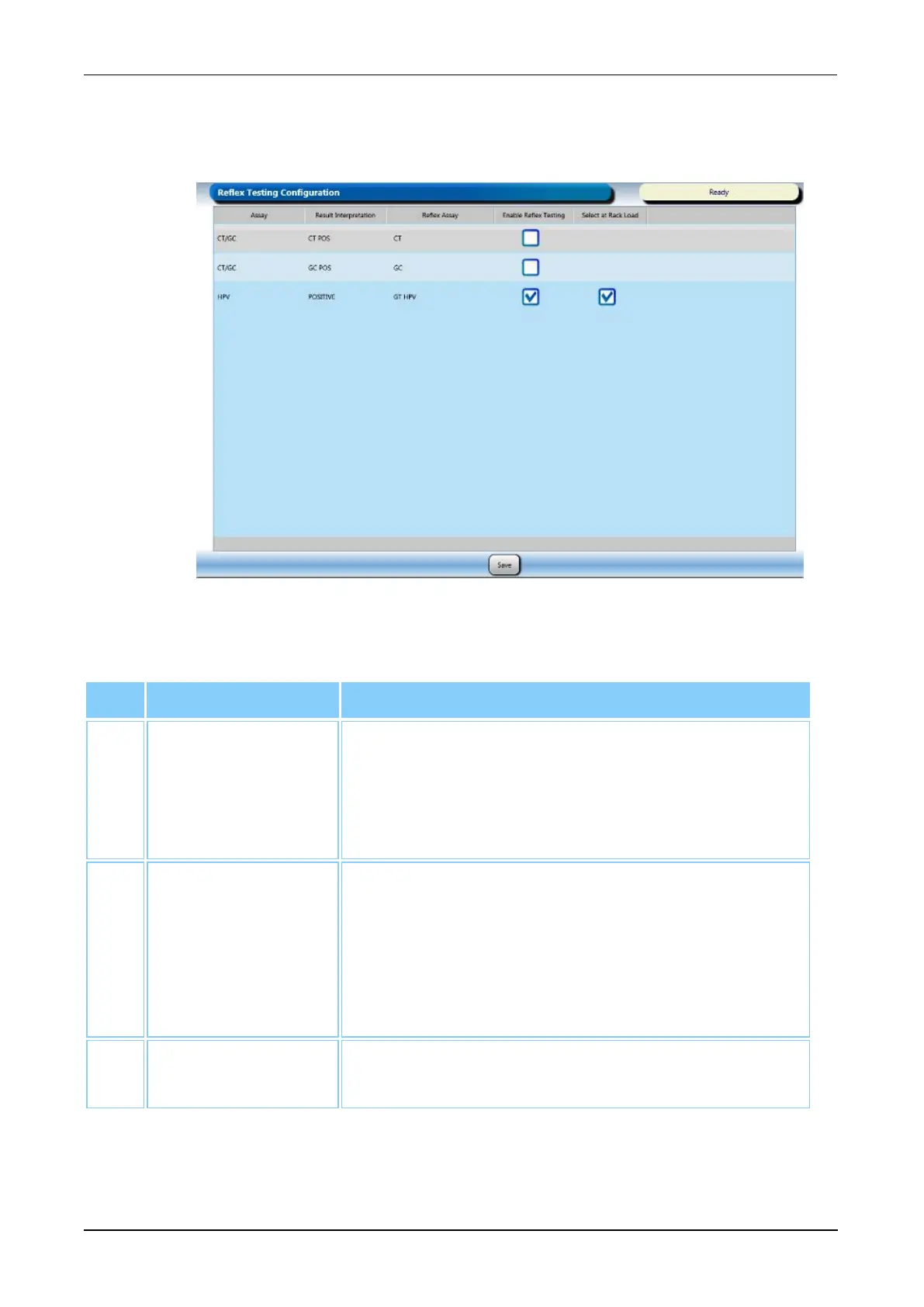
Use the Reflex Testing Configuration screen to configure the reflex testing settings. From
this screen the user can select the result condition that will automatically generate a reflex
test for designated specimens (see Reflex Testing Configuration on page 251).
Figure 45. Reflex Testing Configuration Screen (Example)
Screen Locations Description
1. Enable Reflex
Testing
Check this cell to configure the system to
automatically apply a reflex test order to specimens if
their result matches the result interpretation. See the
description for the Select at Rack Load below for
additional information.
2. Select at Rack
Load
This cell is only available after the Enable Reflex
Testing cell has been checked.
Check this cell to configure the system to guide
operators to select specimens during Sample Rack
loading that are to be assigned reflex test orders
following testing.
3. Save Select this button to save changes made to the reflex
testing configuration settings.
Table 50. Reflex Testing Configuration Screen Button Descriptions



 To Next Page