Panther System
®
Operator’s Manual
AW-17791-001 Rev. 002 (EN)
55
Overview
the bottom of the screen. The system automatically deletes all previously read comments
when the system is shut down and restarted.
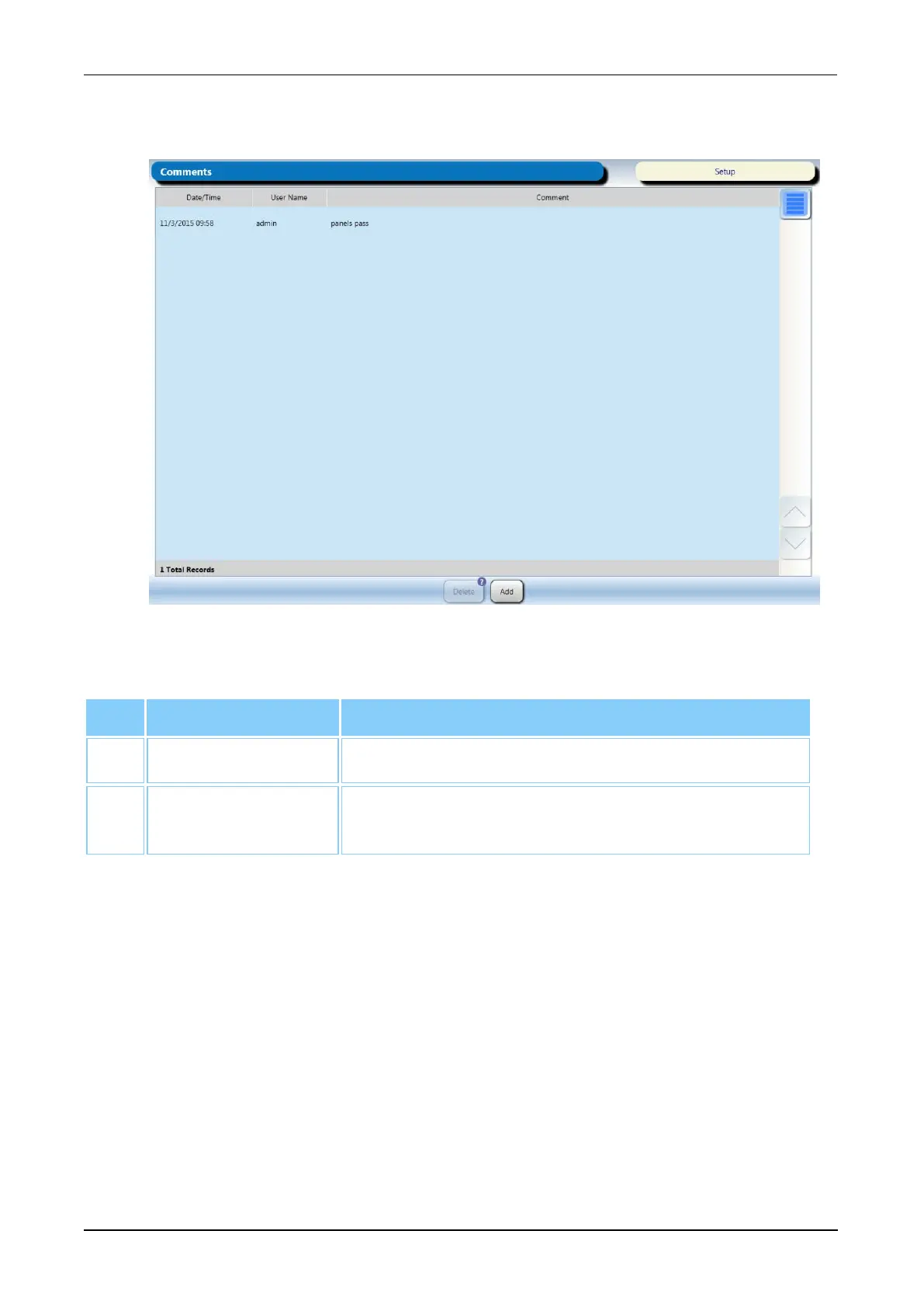
Figure 20. Comments Screen (Example)
Button Description
1. Add Select this button to add comments.
2. Delete Select a comment and then select this button to
delete the chosen comment(s).
Table 29. Comments Screen Descriptions
Pending Screen
To access the Pending screen:
l Select the Pending button on the Menu Bar (see Menu Bar on page 45).
Monitor the Pending screen for tasks that are needed to begin processing associated
samples. Pending tasks are generated for any incomplete task or condition necessary for
the system to initiate or continue sample processing.
The Pending button flashes yellow and System LEDs flash green when new pending
notifications are generated. The red number on the Pending icon represents the number
of notifications present on the screen.



 To Next Page