Panther System
®
Operator’s Manual
AW-17791-001 Rev. 002 (EN)
67
Overview
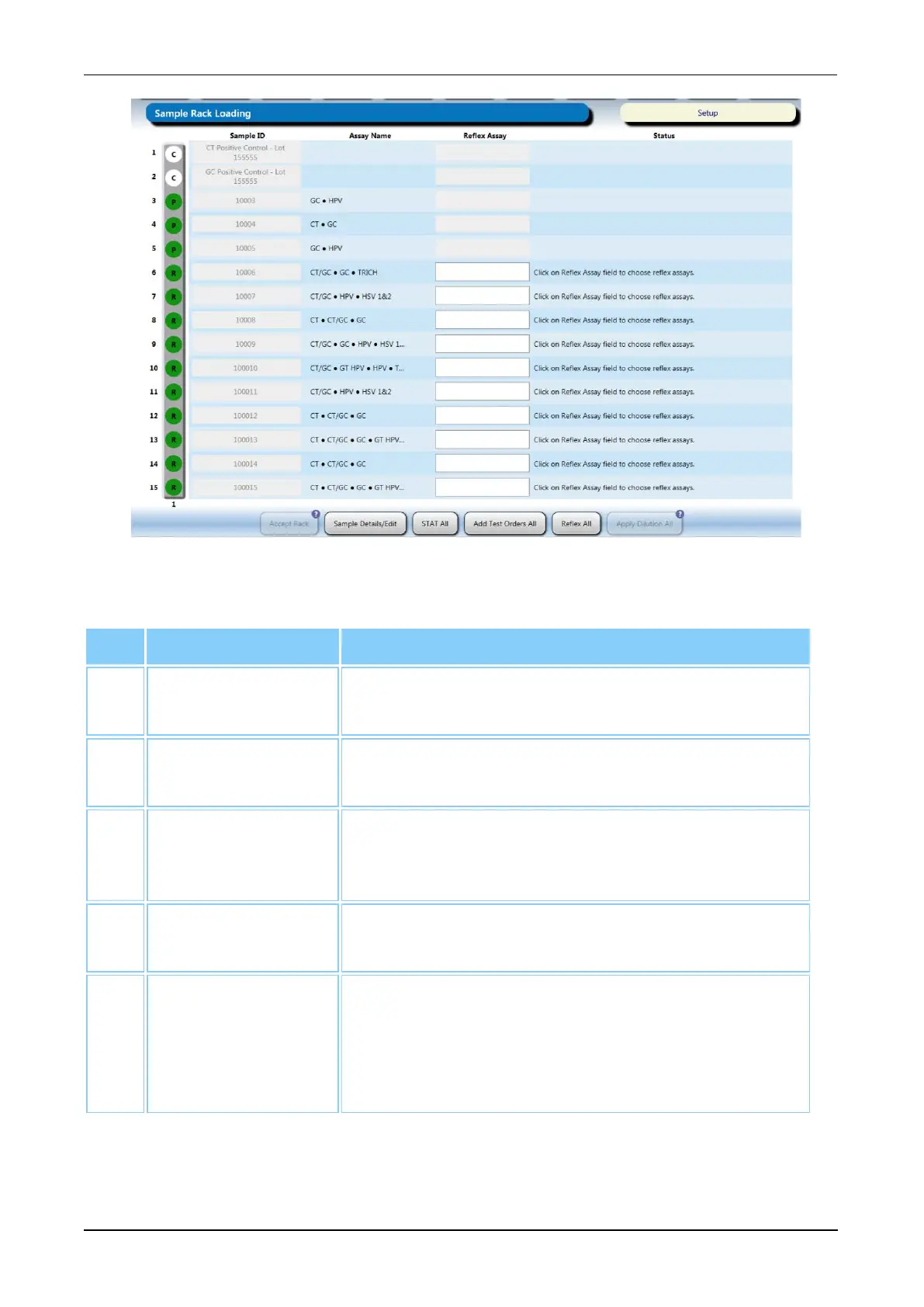
Figure 29. Sample Rack Loading Screen (Example)
Screen Location Description
1. Accept Rack Select this button to accept the rack and return to the
Sample Rack Bay screen.
2. Sample
Details/Edit
Select this button to access the Sample Details
screen (see Sample Details Screen on page 68).
3. STAT All Select this button to set priority to all the specimens
in the rack (see Scheduling STAT Test Orders on
page 126).
4. Add Test Orders
All
Select this button to add test orders to all specimens
in the rack (see Adding a Test Order on page 123).
5. Allow All Repeats Select this button to allow any specimen that has
already been processed to be tested as designated
(see Enable Detection and Flagging of Repeat
Barcodes/Reject All Repeat Test Orders on page
225).
Table 37. Sample Rack Loading Screen Descriptions



 To Next Page