Panther System
®
Operator’s Manual
AW-17791-001 Rev. 002 (EN)
117
System Operation
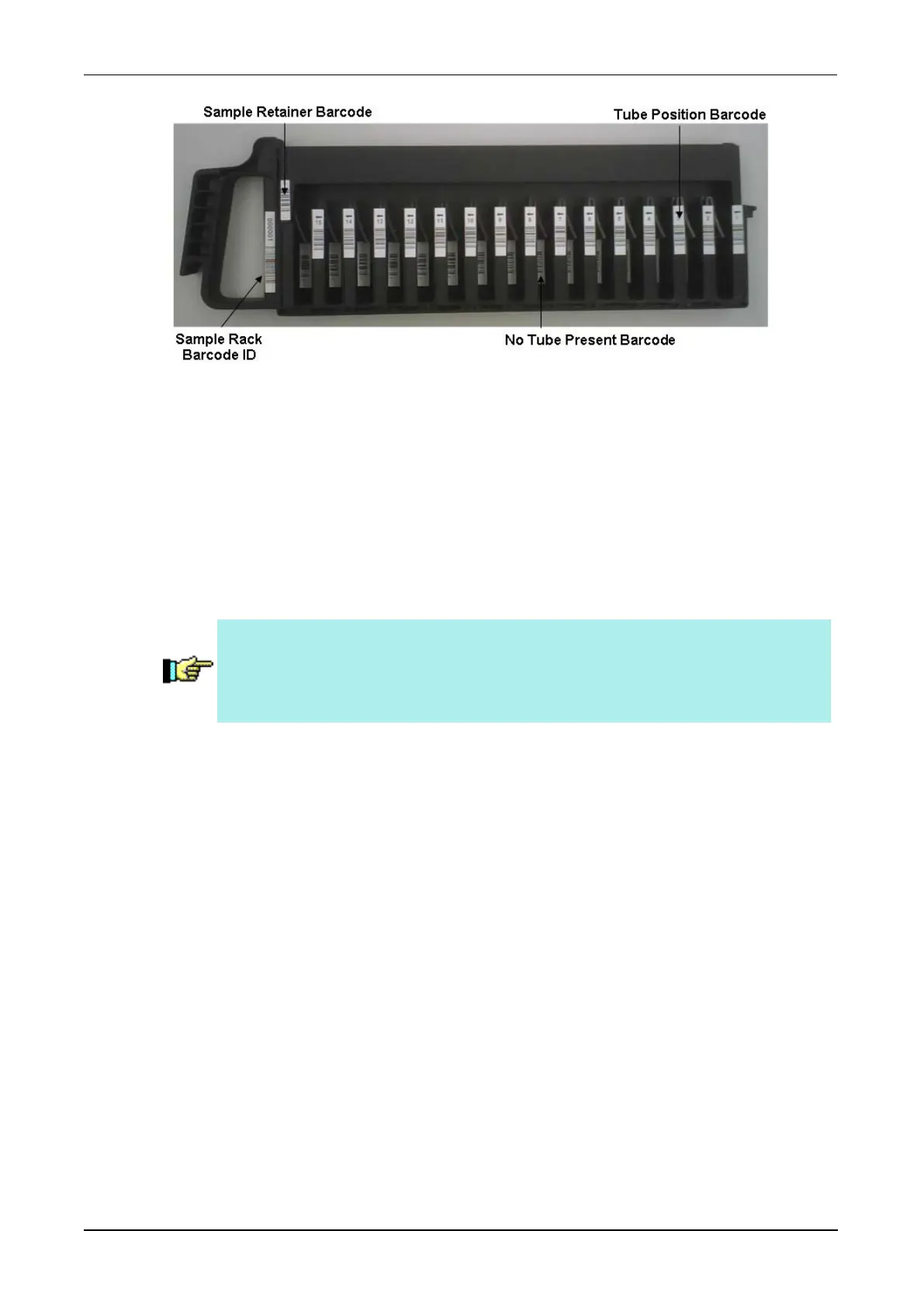
Figure 60. Panther Sample Rack—With Retainer
2. Without touching the tops of the tubes, gently slide the control, calibrator, or
specimen tubes into the slots in the Sample Rack.
3. Make sure that all tube barcodes are visible through the slots and are firmly
seated in the rack.
4. When finished loading tubes in the Sample Racks, carefully place clean Sample
Retainers on the Sample Racks that require it. Refer to the appropriate assay
package insert for additional sample tube loading information. The Sample
Retainers need to be properly seated to enable loading onto the system.
Note—Systems that do not run assays which utilize pierceable caps do
not require the use of a Sample Retainer unless the system is
configured to Require Retainers for Sample Racks (see Require
Retainers for Sample Racks on page 225).
5. Repeat Steps 1–4 for all Sample Racks.
Sample Defaults
During batch loading, specimens are automatically assigned test orders upon loading via
Sample Default settings. All specimens loaded are assigned test orders according to the
Sample Default settings.
Configure the testing criteria through the Sample Defaults panel on the Sample Rack Bay
screen. Set sample testing default information prior to loading samples. Sample Defaults
can be edited when the system is in the Setup, Priming Instrument, Ready, and Assay
Processing states.
Adding an Assay to the Sample Defaults
To add an assay test to the Sample Defaults:
1. From the Sample Defaults panel of the Sample Rack Bay screen, select Set.



 To Next Page