Panther System
®
Operator’s Manual
AW-17791-001 Rev. 002 (EN)
43
Overview
Login Screen
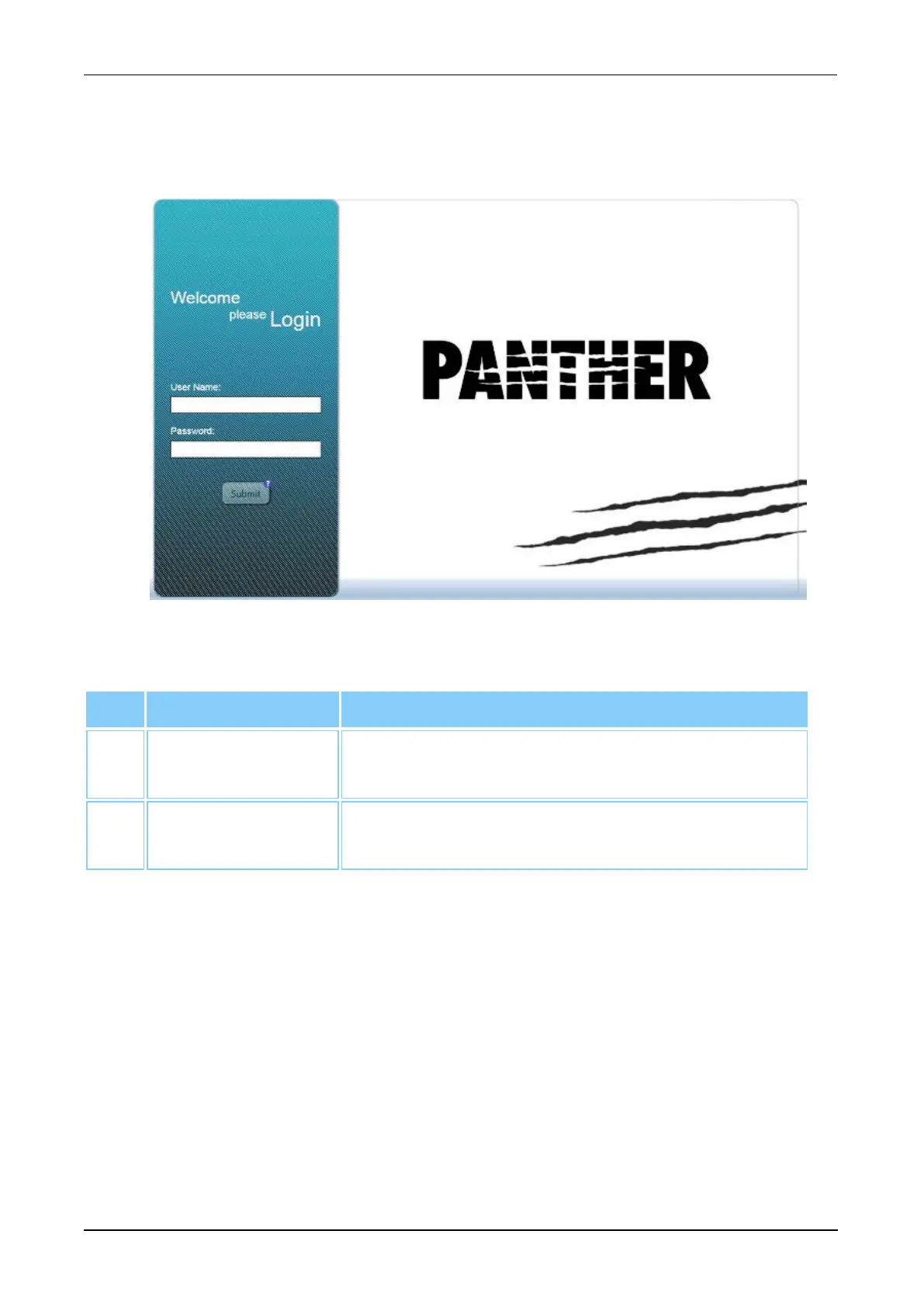
Use the Login screen to log into the system software. The Login screen opens after the
system powers on or after logging off the software.
Figure 13. Login Screen (Example)
Interactive Item Description
1. User Name Select this field to enter the operator user name
during login.
2. Password Select this field to enter the operator password
during login.
Table 19. Login Screen Interactive Item Descriptions
Navigating the Software
Interactive buttons, status bars, and icons are displayed on every screen to provide
access to all system functions and information required to operate the system. The
buttons, status bars, and icons can be found grouped either in the Menu Bar or Status
Panel or as an interactive item on every screen.



 To Next Page