Panther System
®
Operator’s Manual
AW-17791-001 Rev. 002 (EN)
108
System Operation
The new Master Lot and its component barcodes are registered in the
database. The New/Activate Master Lot window closes and the operator is
returned to the Panther Assay Reagent Bay screen.
Inactivate a Master Lot
To inactivate a Master Lot:
1. Select the Load Assay Reagents icon on the Tasks screen.
The Panther Assay Reagent Bay screen opens.
2. At the bottom of the Panther Assay Reagent Bay screen, select Inactivate
Lot.
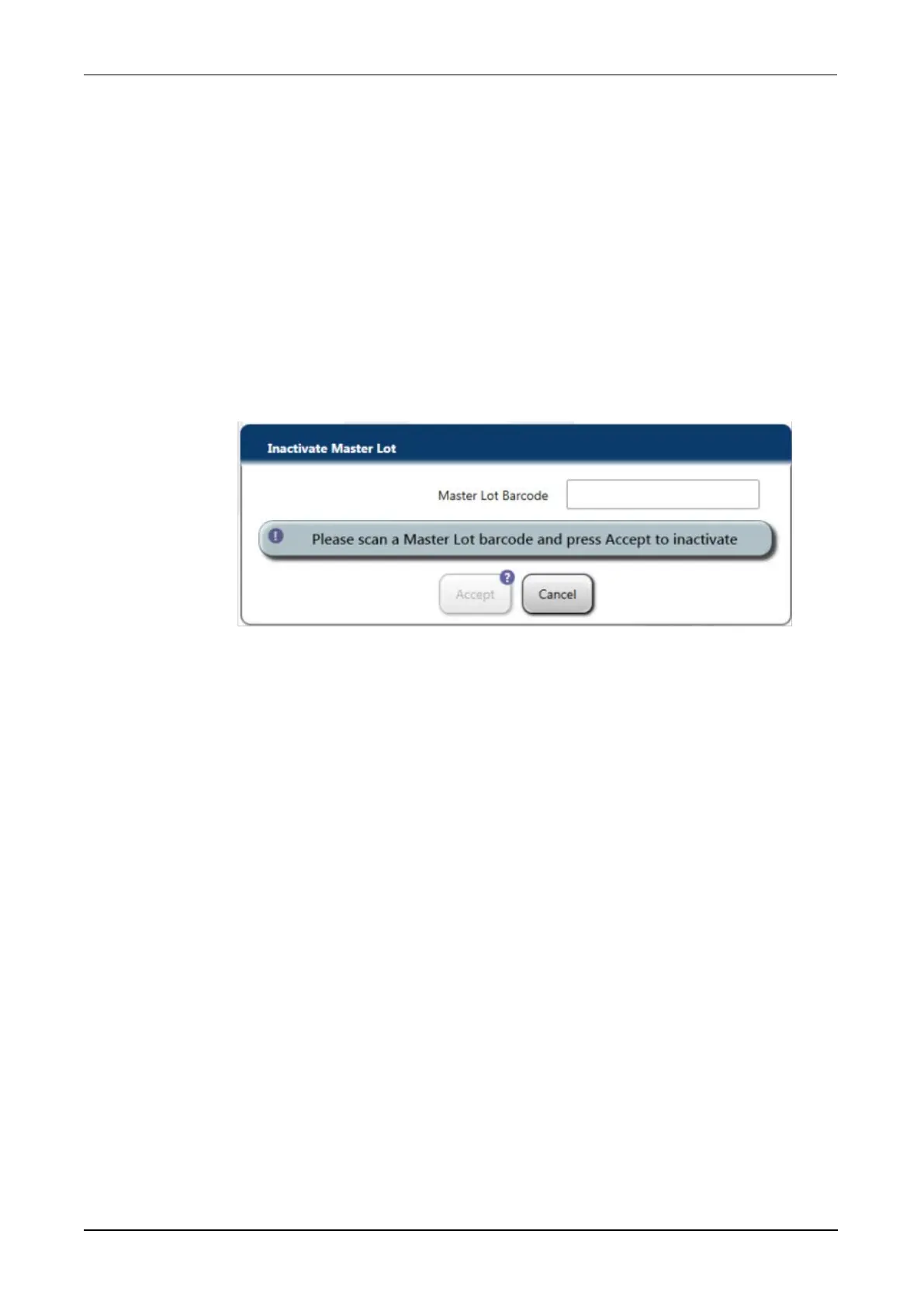
An Inactivate Master Lot window opens.
Figure 54. Inactivate Master Lot Window (Example)
3. Scan the Master Lot barcode on the Master Lot Barcode Sheet to enter it into
the Master Lot Barcode field.
The Lot Number of the Master Lot to be inactivated populates the Master
Lot Barcode field.
4. Select Accept.
If the barcode is valid and exists in the database, it is inactivated. The
Inactivate Master Lot window closes and the operator is returned to the
Panther Assay Reagent Bay screen.
Reactivate a Master Lot
To reactivate a Master Lot:
1. Select the Load Assay Reagents icon on the Tasks screen.
The Panther Assay Reagent Bay screen opens.
2. At the bottom of the Panther Assay Reagent Bay screen, select
New/Activate Lot.
A New/Activate Master Lot screen opens.



 To Next Page