Panther System
®
Operator’s Manual
AW-17791-001 Rev. 002 (EN)
47
Overview
Status Bar Meaning of Information on Status Bar
State Indicator Indicates the current state of the system. Provides
information on the availability of the system for any activity.
Selection Button Provides selection menu to select the desired rows on the
current screen.
Selection Button
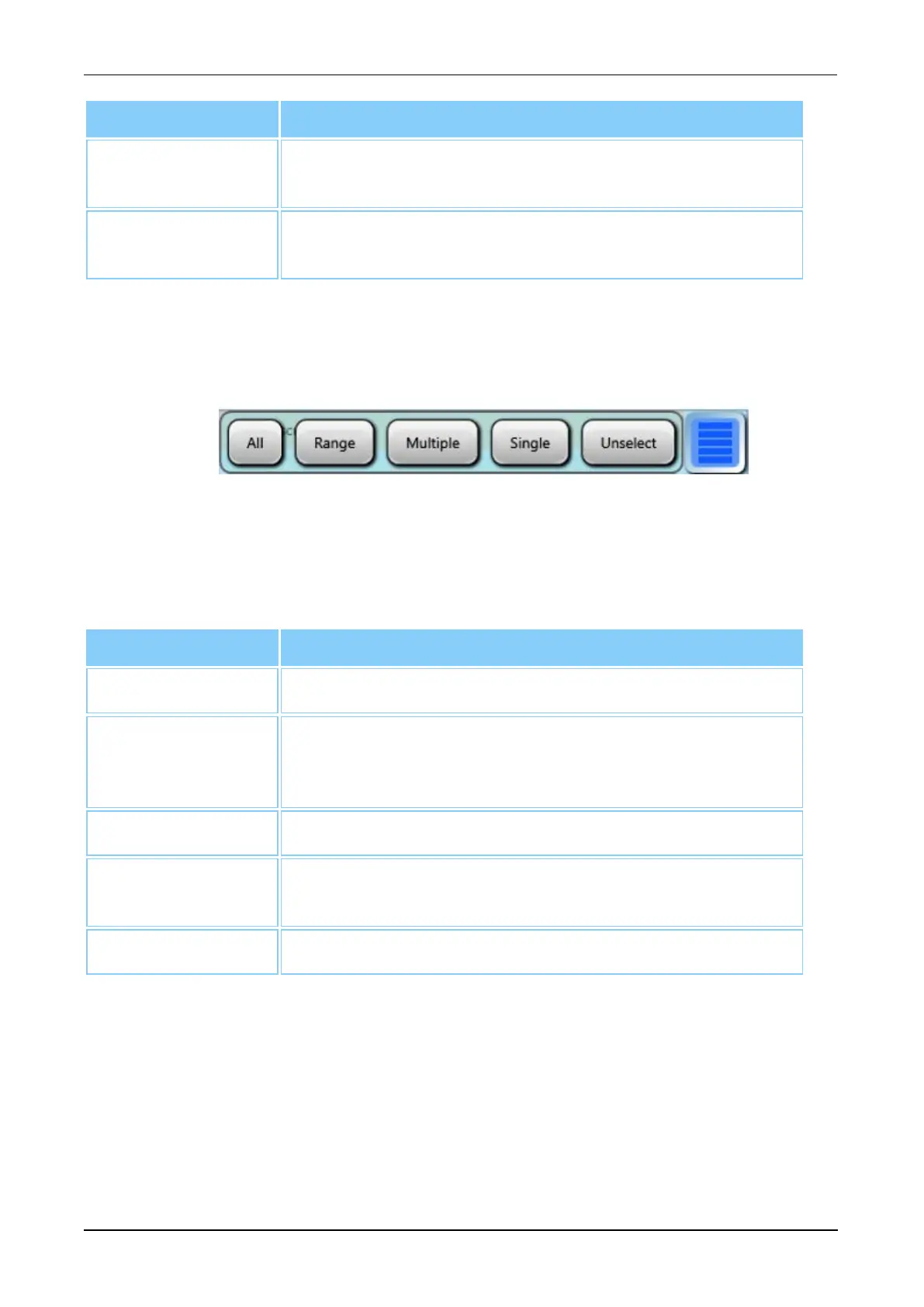
The Selection button is located on screens with tables, at the top-right of the vertical
scroll bar. Select the Selection button to access the Row Selection menu.
Figure 16. Row Selection Menu (Example)
Select a button on the Row Selection menu to choose the method for selecting rows on
the current screen.
Buttons Functionality
All Select this button to select all rows in the table.
Range Select this button to select a range of rows in the table. After
choosing this button, select the bottom and top rows of the
range desired, in any order, on the table.
Multiple Select this button to select rows in the table cumulatively.
Single Select this button to select a single row at a time in the
table. This is the default option upon startup.
Unselect Select this button to unselect the rows in a table.
Table 23. Row Selection Menu Buttons
Status Panel
The Status Panel is located at the bottom of every screen. The Status Panel is located at
the bottom of every screen. The panel is composed of Status Bars, Status Icons, and
additional items to provide information on inventory of consumables, system activity
updates, username ID, and date/time.



 To Next Page