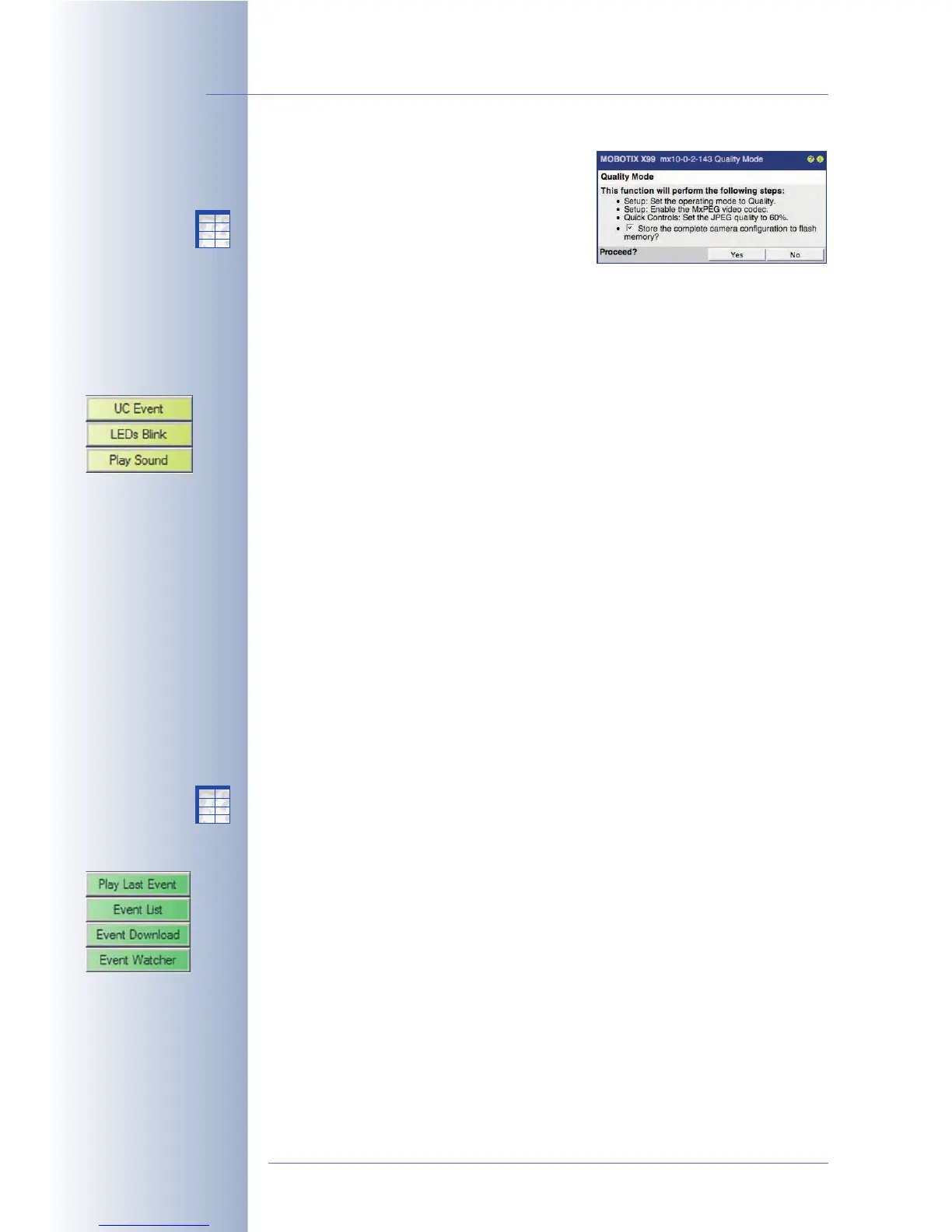
• Quality Mode: This button opens the
Quality Mode dialog. Clicking on the
Yes button will set the parameters that
are required to obtain the best possible
image quality while showing the video
in the browser window using a medium
to fast frame rate. You should select this setting if image quality is more
important than a high frame rate.
Action Softbuttons
• UC Event: This predefined softbutton uses the User Click (UC) event to trig-
ger the storage of an image or video clip. The stored images can then be
played back in the Playback screen. Make sure that the User Click (UC)
event is activated in Setup Menu > Event Settings; the camera displays the
UC event symbol in the bottom left corner of the live image.
This softbutton is perfectly suited to test the camera recording or for manually
storing an event image or video clip. If recording has been configured prop-
erly, the camera will increment the event counter in the bottom left corner of
the live image.
• LEDs Blink: This button will let the camera LEDs blink several times at one-
second intervals.
This feature can help identifying the camera of a large installation currently
shown in the browser, e.g. if it is to be repositioned.
Note that LEDs need to be activated (Admin Menu > LED Setup).
• Play Sound: This button will play back the default voice message on the
speaker of the MOBOTIX camera ("
This is your MOBOTIX camera calling
")
Using this button can also help identifying the camera of a large installation
currently shown in the browser, e.g. if it is to be repositioned.
Make sure that the speaker is activated in the Admin Menu > Loudspeaker
and Microphone dialog.
Event Softbuttons
• Play Last Event: This button activates the Playback screen and automatically
plays back the last event video clip the camera recorded.
© MOBOTIX AG • Security-Vision-Systems • Made in Germany
www.mobotix.com • sales@mobotix.com • 10.10.2006
18/288
Software Camera Manual Part 2
Quality Mode:
Optimizes the display in
the browser to obtain the
best image quality
Action Softbuttons:
Event Softbuttons:
X
X
-
-
-
-
X
X
Kamerafunktionen
Kameramodell
X
X
-
-
-
-
X
X
Kamerafunktionen
Kameramodell



 To Next Page