• Fast Audio and Video Streaming (MxPEG Mode): In MxPEG mode, the
camera creates a stream using MOBOTIX video compression.
Storing the Configuration
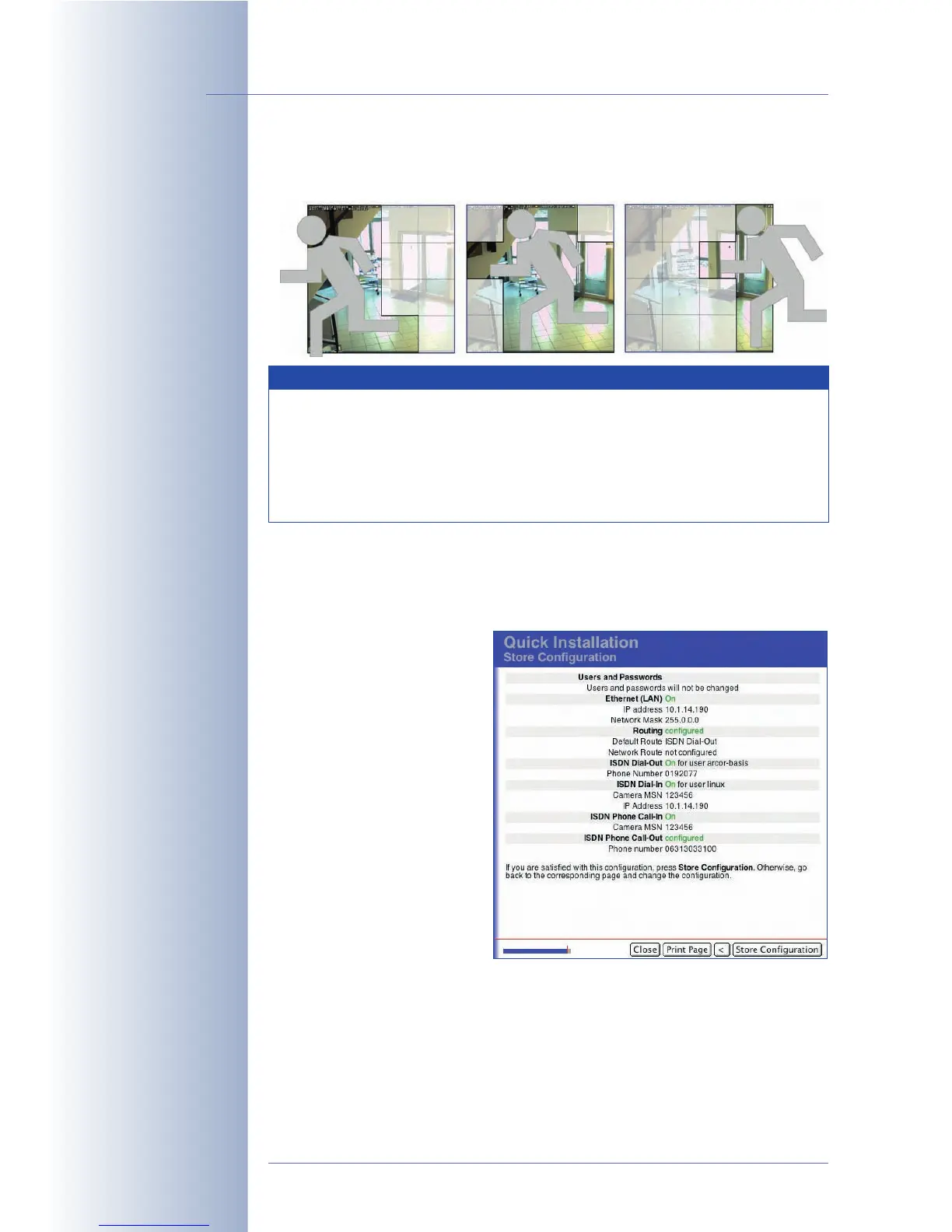
This page contains an overview of the most important settings.
Hint
::
::
Print this page for documentation purposes
prior
to storing the configuration.
Check the data and save the
configuration by clicking on
Store Configuration.
If you would like to keep the old
settings, you can cancel the
entire process without saving
the configuration by clicking on
Close. Click on the left pointed
bracket ("<") if you would like to
return to one of the previous
pages of the Quick Installation
wizard to change settings.
Once you have saved the con-
figuration, reboot the camera
for the new settings to take
effect.
Please note that the new network settings will be in effect after rebooting. If you
have changed the camera's IP address, you can access the camera using this new
IP address after rebooting. The original factory default IP address (see sticker on the
camera case) will no longer be valid.
Once you have changed the administrator password, you can only login to the
Admin menu using the new password.
© MOBOTIX AG • Security-Vision-Systems • Made in Germany
www.mobotix.com • sales@mobotix.com • 10.10.2006
78/288
Software Camera Manual Part 2
The MxPEG concept
Overview of the
configuration parameters
Note
The setting made here is only valid for the display of the live images
in the web browser. It has very little influence on the format of images
that are stored on e.g. an FTP server or an external file server (MxPEG
may cause image "tiles"). Open Admin Menu > FTP Profiles, Admin
Menu > E-Mail Profiles or Setup Menu > Recording (for recording
events) to set the format of the stored images/video clips.



 To Next Page