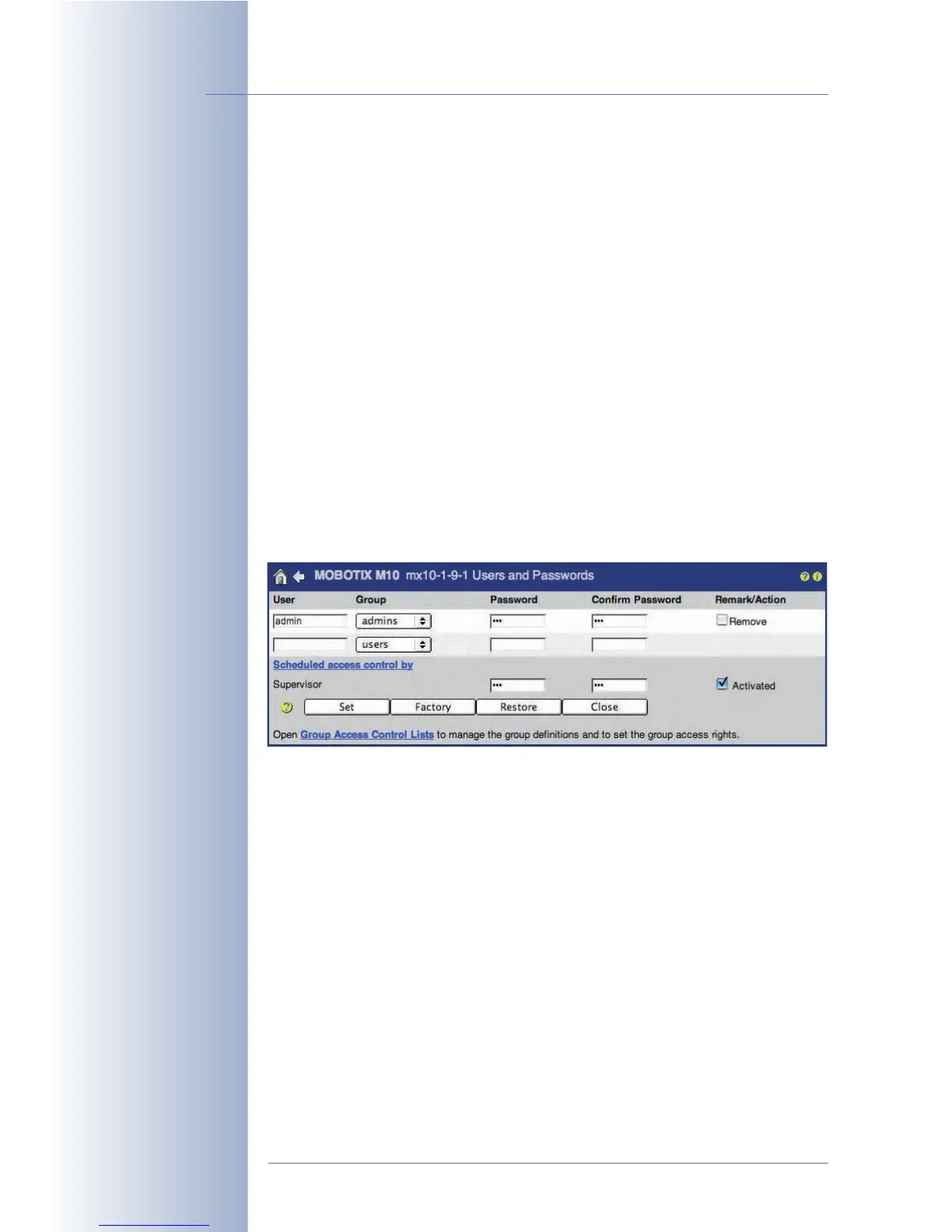
Scheduled Control of Access Rights (Supervisor)
For special situations, the predefined Supervisor user can restrict group access
rights to certain times or even completely. This approach allows defining time slots
for specific user groups, which are then allowed to access the corresponding func-
tions and screens of the camera. It is also possible to restrict the access rights of
users with administrator privileges, e.g. to make the microphone features or play-
ing back recorded video streams available only at specific times or for a certain
duration. As a general rule, an administrator manages user access rights and
users, while the Supervisor controls the access schedule.
As an example of this feature, we could think of the surveillance cameras of a
production site. The IT department (
admins
) and the worker's council (
Supervisor
) of
the company have agreed that camera administration would only be allowed if at
least one member of each party would be present. To make changes to the con-
figuration, individual cameras would be accessible for a certain time every week,
e.g. Friday between 2 pm and 3 pm, or upon request. Changes to the configuration
would be possible only within this timeframe; members of the worker's council
have to be present to prevent any abuse of this rule.
To start with, a user with administrator privileges has to activate the Supervisor fea-
ture. Open Admin Menu > Users and Passwords and perform the following steps:
• Enter a valid password for the Supervisor in the Scheduled access control
by Supervisor section and again in the Confirm Password field (length has
to be between 5 to 8 characters).
• Activate the Activated checkbox.
• Click on the Set button (the page refreshes), then on the Close button and
store the configuration permanently.
The Supervisor has now been activated.
• Open the Admin Menu > Users and Passwords dialog again and click on
the Scheduled access control by link.
• Enter the user name (Supervisor) and the password.
© MOBOTIX AG • Security-Vision-Systems • Made in Germany
www.mobotix.com • sales@mobotix.com • 10.10.2006
88/288
Software Camera Manual Part 2
Activate scheduled access
control:
Activate Supervisor
Protecting employee
privacy
Activating the Supervisor
User name: Supervisor



 To Next Page