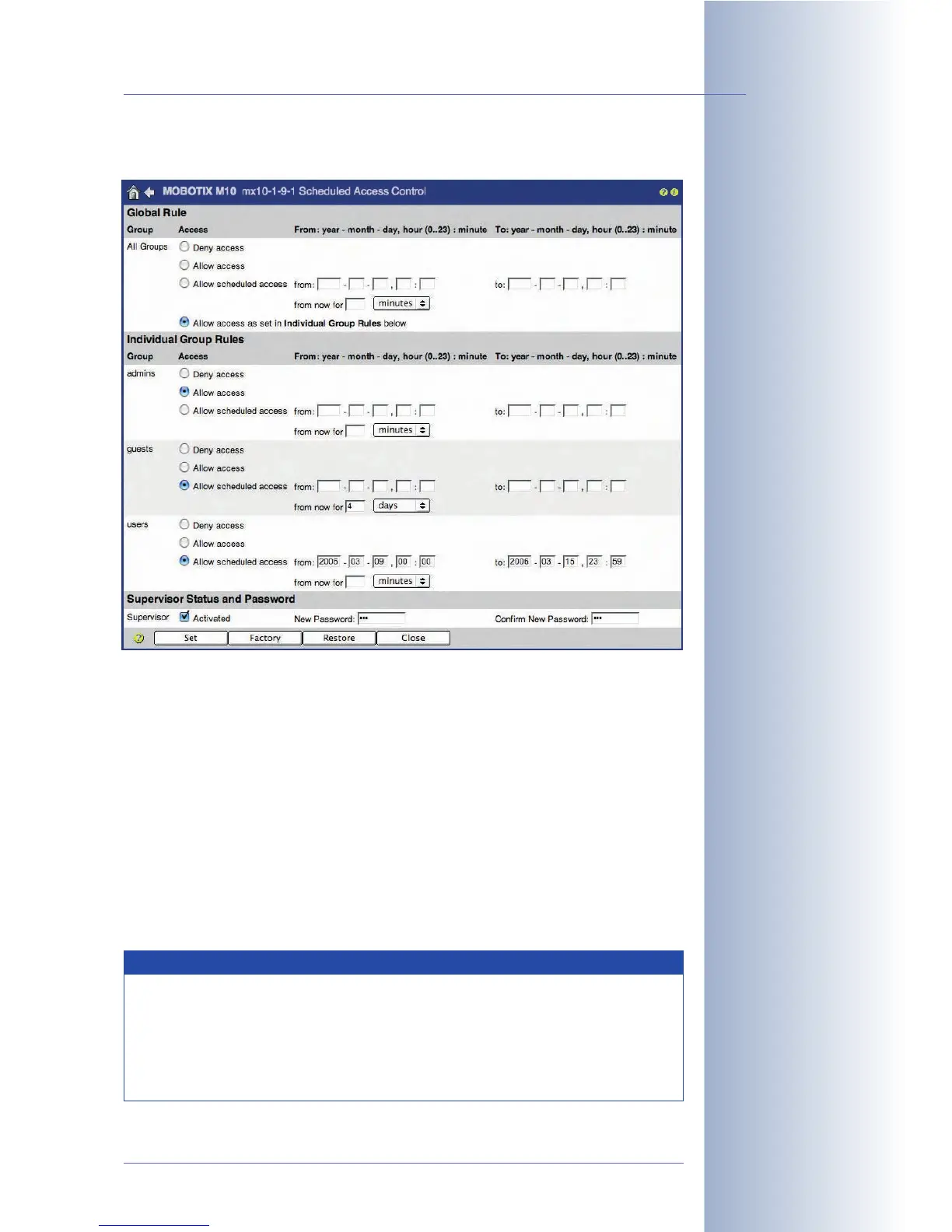
The Scheduled Access Control dialog opens:
Note that the Supervisor can only be deactivated by the Supervisor him/herself.
Likewise, changing the password is only possible for the Supervisor. This always
requires entering the old Supervisor password. To deactivate the Supervisor fea-
ture, open the Scheduled Access Control dialog, Supervisor Status and Pass-
word section:
• Deactivate the Activated checkbox.
• Click on the Set button.
The Supervisor has now been deactivated.
Deactivating the Supervisor will void the password; the Scheduled Access Control
dialog is not accessible any more. Only a user with administrator privileges can
activate the Supervisor feature again later on in the Admin Menu > Users and
Passwords dialog.
© MOBOTIX AG • Security-Vision-Systems • Made in Germany
www.mobotix.com • sales@mobotix.com • 10.10.2006
89/288
Software Camera Manual Part 2
Scheduled access control
by the
Supervisor
Access can be controlled
for individual groups
Deactivating the
Supervisor
The Supervisor user name
is preset and cannot be
changed
Note
The Scheduled Access Control dialog is not accessible by other users,
not even for users with administration privileges. This page is only
accessible if the Supervisor has been activated:
• http://<IP address>/admin/supervisor
• User name: Supervisor



 To Next Page