Do a default print job
Introduction
When you want to print a job and you do not make any settings the default presets are used. You
only use the Smart Access to start your job.
You can see the presets that are used in the job settings section of your job.
Before you begin
Make sure you submit a job via one of the job submitter applications:
• Océ Publisher Express -
Use Océ Publisher Express to send a print job
on page 172
• Océ Publisher Select -
Use Océ Publisher Select to send a print job
on page 175
•
Océ Wide format Printer Driver for Microsoft
®
Windows
®
-
Use the Océ Wide format Printer
Driver for Microsoft® Windows® to send a print job
on page 177
• Océ Postscript Driver -
Use the Océ PostScript® 3 Driver to send a print job
on page 179
• Océ Publisher Mobile -
Use Océ Publisher Mobile to send a print job
on page 180
• Océ Mobile WebTools -
Print from your mobile device
on page 182
Or submit a job via
• LPR -
Use LPR to send a print job
on page 184
• FTP -
Use FTP to send a print job
on page 183
• The cloud (WebDAV) -
Use the cloud to send a print job
on page 185
• PlanWell Collaborate, or USB.
NOTE
This following procedure applies, when you have not made settings to enable direct print. With
direct print, the job will be printed immediately. For more information, see
Direct print
on
page 189.
Procedure
1.
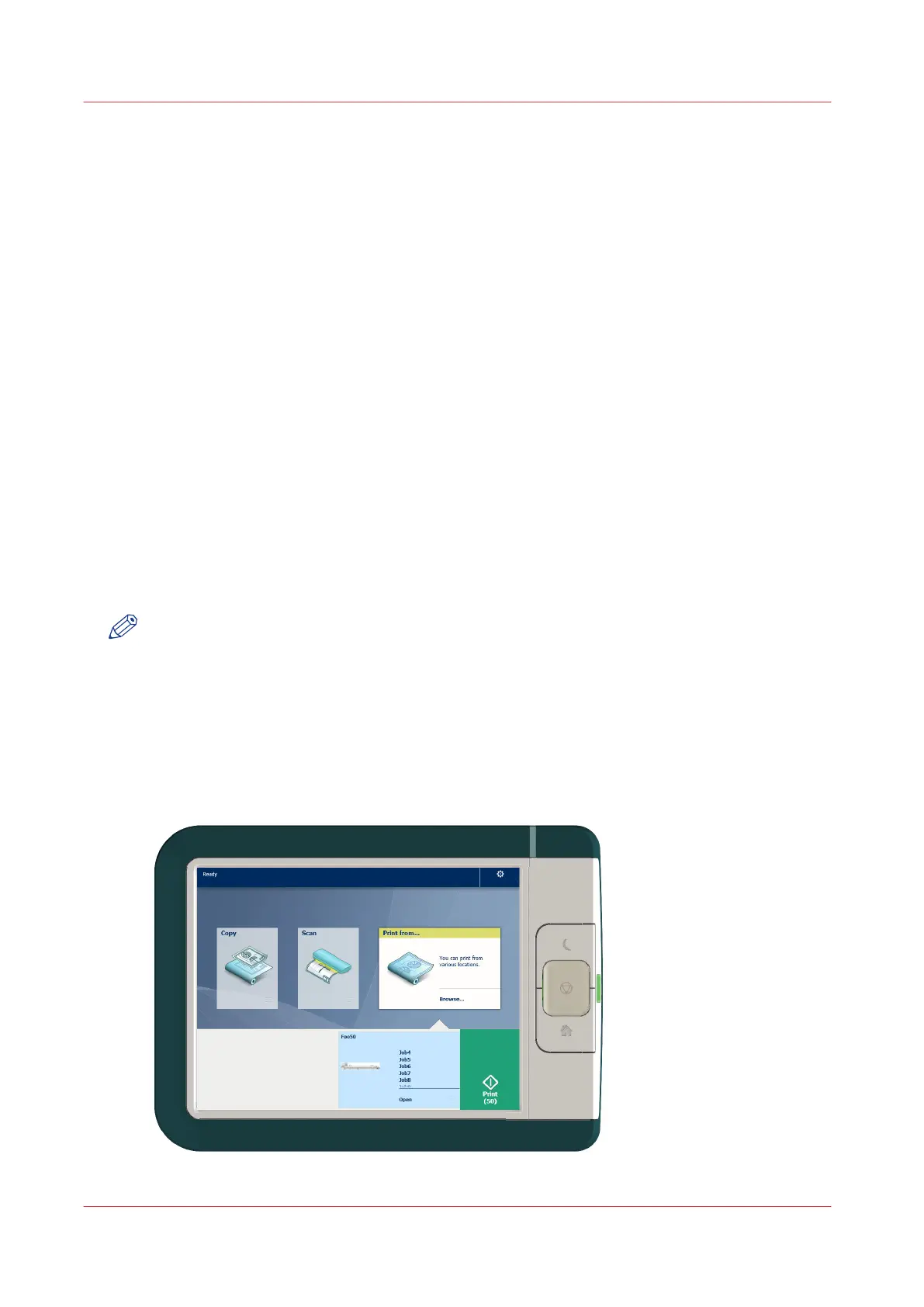
After you have submitted a job to the printer, tap the [Print tile] on the user panel to open the list
of locations.
2.
Select the location of your job. Default, the public Smart Inbox.
Do a default print job
58
Chapter 2 - Get to Know the Printing System



 To Next Page