4
Life Science Applications
Nucleic Acid
Thermo Scientific Evolution 200 Series User Guide 147
4. When samples information appears, modify it if desired.
More:
If Sample averaging on the Samples tab in Settings was set to Duplicate, “D” at the end of
a sample name indicates the second measurement to be made of the sample. If Sample
averaging was set to Triplicate, “D” and “T” at the end of sample names indicate the
second and third measurements to be made, respectively.
To enter previously saved samples information, use Load Samples. To save the samples
information, use Save Samples.
5. If only one sample will be measured, insert it.
6. Click Continue.
7. Follow any instructions that appear, such as to install a specified sample.
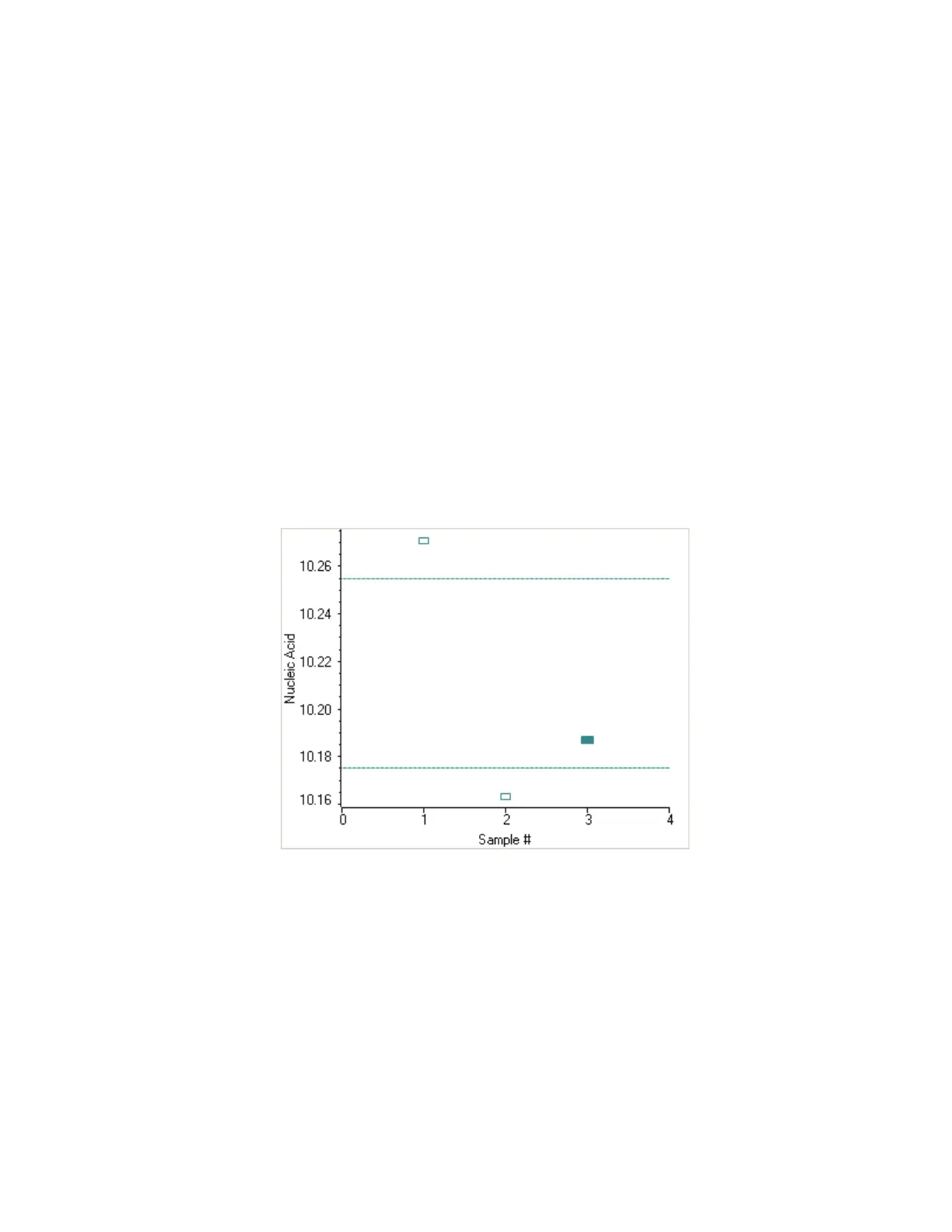
The Run Chart tab plots the concentration of the measured component versus sample
number. If Use concentration limits was selected on the Samples tab, horizontal limit
lines show whether the concentrations are within the specified limits:
To copy this plot, right-click it and choose Copy to Clipboard.
The Data tab displays the acquired data (a fixed data point or scan spectrum) for the
sample selected in the table. (Right-click the data to access commands for customizing the
display, including adding annotation. See Data Display for more information.)
The table contains the columns of information specified on the Configuration tab in
Reports. Examples include sample identification, user name, and the results of replicate,
duplicate or triplicate measurements and their standard deviation.
To measure a sample again, right-click its row in the results table and choose Remeasure.
After the remeasurement, the previous information for the sample is crossed out (but not
removed from the table).




 To Next Page