2
INSIGHT Software
The INSIGHT Window
Thermo Scientific Evolution 200 Series User Guide 23
Related Topics
Navigation Pane
Right Pane
Instrument Status Monitors
Related Topics
Accessories
Accessories Tab for Fixed
Accessories Tab for Scan
Accessories Tab for Quant
Accessories Tab for Rate
Command Description
Help Displays the INSIGHT Help system, which can also be accessed from many
software screens by pressing F1.
About Provides information about the software version and instrument type.
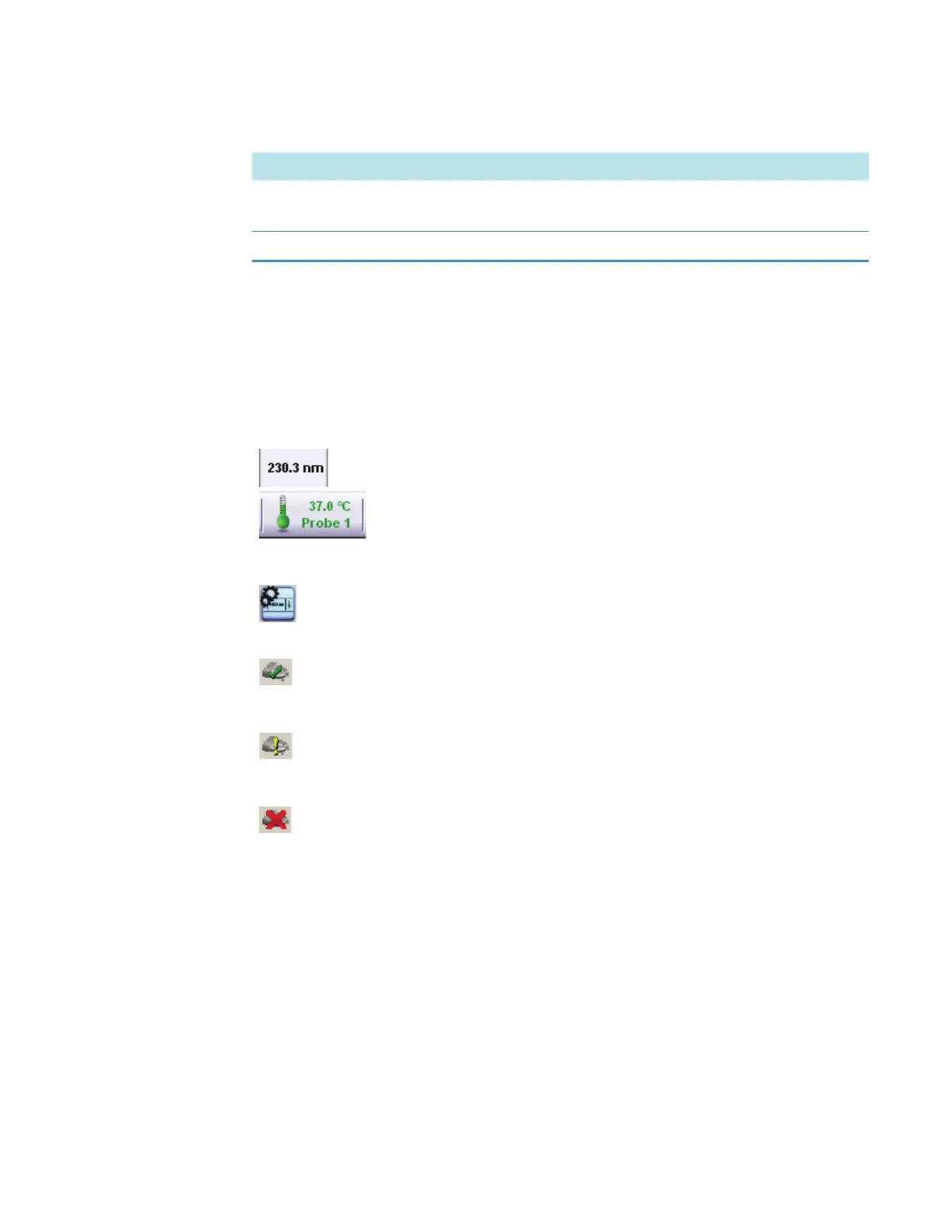
Various instrument status monitors may appear above the data display.
They show information such as the current wavelength or readouts from
installed accessories. One can double-click some status monitors to set
operation parameters such as channel assignment. See Accessories for
more information.
To specify the items to monitor, click this icon.
If the system is operating normally, a green check mark appears on the Instrument
Status icon at the bottom of the INSIGHT window.
A yellow exclamation mark appears briefly on the icon when the system is busy
performing an operation.
If a system problem occurs, a red X may appear on the icon. Click it to see
information about the problem.




 To Next Page