You can also adjust the volume using Remote UI from a computer. Managing the Machine from a Computer
(Remote UI)
(P. 349)
1
On the operation panel, select [Menu] in the [Home] screen.
[Home] Screen(P. 113)
2
Press [Preferences] [Volume Settings].
➠ The [V
olume Settings] screen is displayed.
3
Select the item whose volume you want to adjust.
[Ring Tone]
Adjust the volume of the sound notifying you of incoming fax
es.
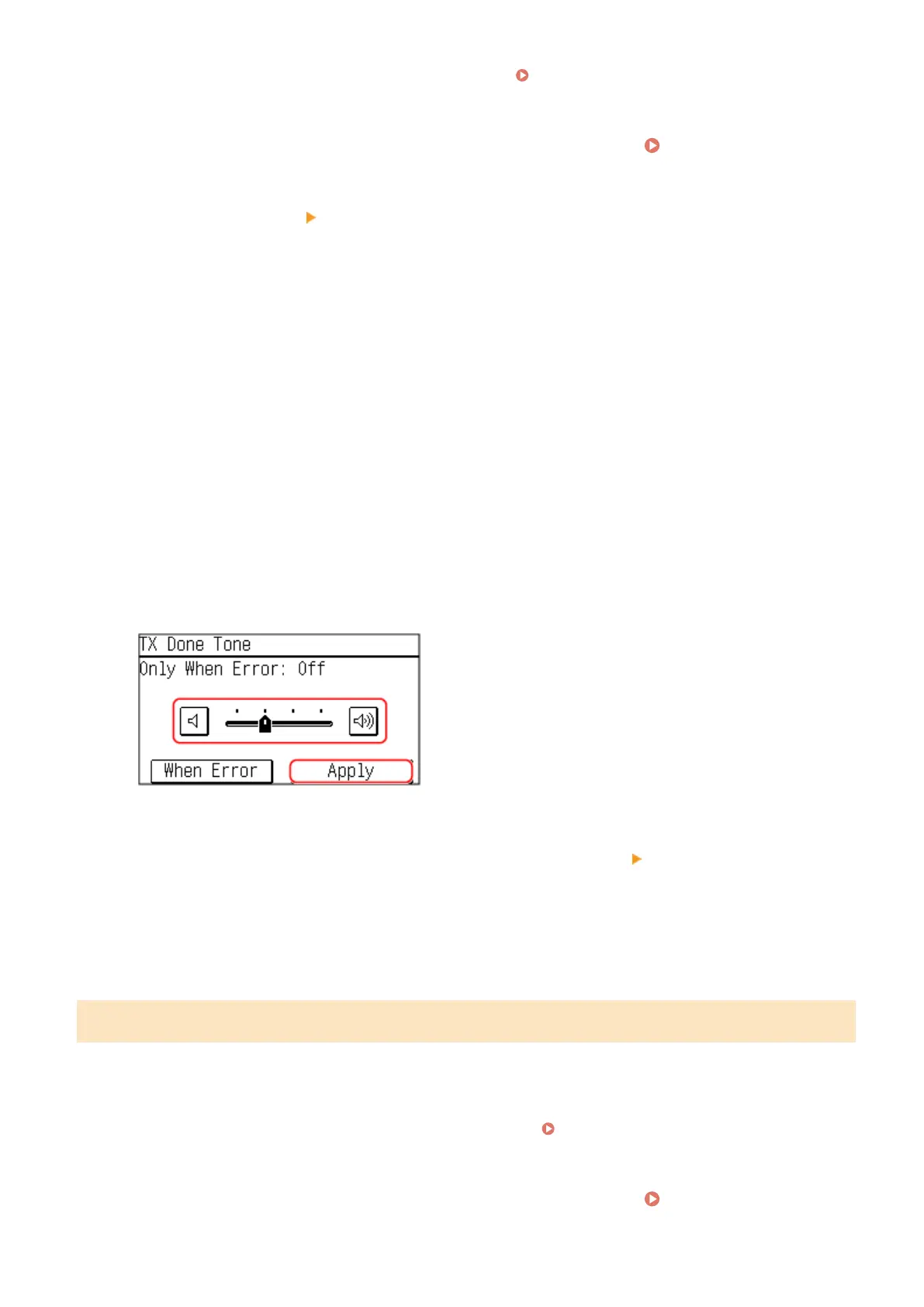
[TX Done Tone]
Adjust the volume of the sound notifying you that sending of a fax is complete.
[RX Done Tone]
Adjust the volume of the sound notifying you that receiving of a fax is complete.
[Scanning Done Tone]
Adjust the volume of the sound notifying you that scanning of a fax original is complete.
4
Move the slider to the left or right to adjust the volume, and press [Apply].
● Mo
ving the slider to the right increases the volume.
● Moving the slider to the far left mutes the sound.
● To emit a completion sound only when an error occurs, press [When Error]
[On].
5
Press [Apply].
➠ The volume is adjusted.
Setting the Notication Sounds for Operations and Statuses
You can also set whether the machine emits sounds notifying you of operations and statuses, such as when operating
the operation panel and errors are detected.
This section describes how to congure the settings using the operation panel.
You can also congure the settings using Remote UI from a computer. Managing the Machine from a Computer
(Remote UI)
(P. 349)
1
On the operation panel, select [Menu] in the [Home] screen.
[Home] Screen(P. 113)
Basic Operations
171











 To Next Page